
Moving to Salesforce from another CRM usually means moving years of calls, meetings, follow-ups and notes. Those records are the relationship history your team relies on. They're also where migrations quietly go wrong. Dates land in the wrong field, notes disappear from the timeline, and activities from three years ago vanish from reports a week after go-live.
Most of these problems come from a few Salesforce behaviors that are easy to miss during mapping. This guide explains how to migrate activity history into Salesforce so dates stay accurate, notes stay findable, and the data holds up after cutover.
Quick Answer
To migrate activity history to Salesforce, load historical calls and to-dos as closed Tasks and meetings as Events. Salesforce sets a task's completed date/time itself, so you can't load the legacy completion date into it. Map the legacy date to the task's Date field (ActivityDate), keep the original value in a custom field, and consider enabling audit-field permissions to preserve created dates. Decide early whether legacy notes become tasks or Salesforce notes, and plan for activity archiving after 365 days. Vantage Point handles this mapping through its system integration and data migration services.
Key Takeaways (TL;DR)
- Completed date is system-set: Salesforce stamps it when a task closes, so it will show the load date unless you plan around it.
- Use the Date field for history: map the legacy activity or completion date to ActivityDate, and keep the original in a custom field.
- Notes need a decision: converting them to tasks keeps them on the activity timeline; Salesforce notes keep them separate.
- Archiving affects reports: closed activities older than 365 days are archived by default and drop out of standard reports and list views.
- Document lineage: record the source table, query, destination field and transformation for every mapped field.
What Counts as Activity History in a CRM Migration?
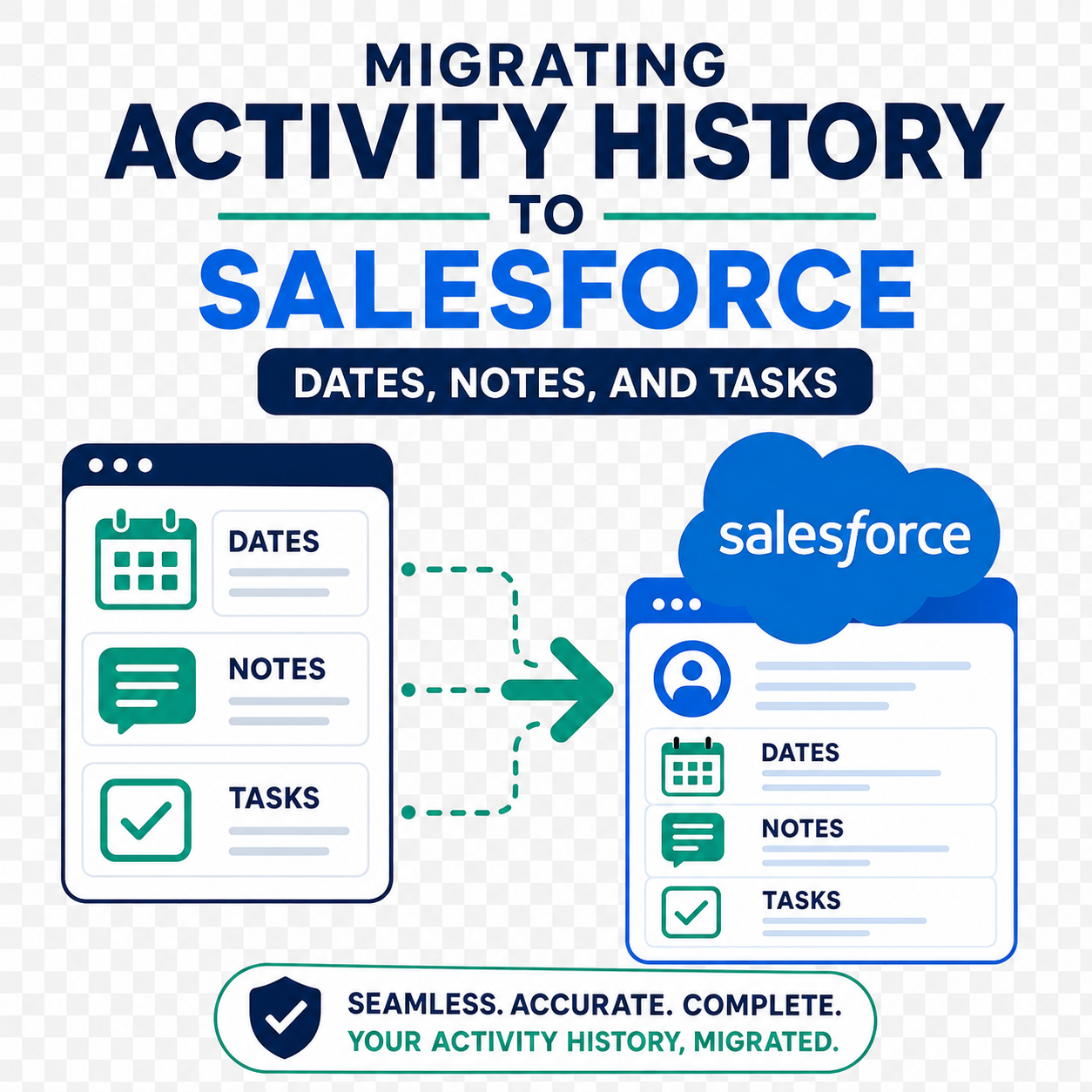
Activity history is the record of interactions with a customer: calls logged, emails, meetings, follow-up tasks, workflow steps and free-text notes. In most legacy CRMs, these live in several tables, each with its own dates, owners and links to contacts or accounts.
In Salesforce, activities are mainly two objects:
- Tasks for calls, emails, to-dos and anything without a fixed time slot.
- Events for meetings and appointments with a start and end time.
Both link to a person (a contact or lead) through the Name field (WhoId) and to a business record such as an account or opportunity through the Related To field (WhatId). Getting those two links right is as important as the activity itself. An activity with the wrong link is effectively lost.
Why Can't You Load the Original Completed Date?
This is the question that surprises most teams. Salesforce tasks have a completed date/time field, but it isn't editable. Salesforce sets it automatically when a task's status changes to closed. If you load 10,000 closed tasks on migration day, they'll all show a completed date of migration day.
The Salesforce Task object reference describes the fields you can and can't set. The practical workaround has three parts:
- Map the legacy date to ActivityDate. The task's Date field is writable, appears on the activity timeline and is what users and reports usually rely on. For completed history, put the legacy completion date here.
- Keep the original value in a custom field. A field such as "Legacy Completed Date" preserves the exact source value, including time, for audit or reconciliation.
- Consider audit-field permissions. Salesforce can let a migration user set system fields such as Created Date and Created By on insert. The Salesforce Help article on enabling audit fields explains the setup. This only works when records are first created, so decide before the load.
Events are simpler. Their start and end date/times are writable, so meetings can keep their original timing.
How Should Legacy Fields Map to Salesforce Activities?
A simple mapping table keeps everyone aligned. Here's a typical starting point:
| Legacy data | Salesforce destination | Notes |
|---|---|---|
| Activity or completion date | Task Date (ActivityDate) | Also copy to a custom legacy date field |
| Created date and creator | Created Date / Created By | Requires audit-field permission on insert |
| Meeting start and end | Event start and end date/time | Watch time zones in the source export |
| Activity type or code | Task Type or Subtype, or a custom picklist | Consolidate low-use codes first |
| Owner | Assigned To (OwnerId) | Map former users to a placeholder owner |
| Contact link | Name (WhoId) | Resolve via a legacy ID cross-reference |
| Account or deal link | Related To (WhatId) | Load parent records before activities |
| Free-text notes | Task Comments or Salesforce Notes | See the notes decision below |
Low-use fields, such as meeting location in many orgs, are good candidates to drop or fold into the description. Every field you skip is one less thing to test.
Should Legacy Notes Become Tasks or Salesforce Notes?
Legacy CRMs often store notes as their own record type. Salesforce offers two main options, and the right choice depends on how your team works.
- Convert notes to completed tasks. The note text goes into the task's comments, the note date goes into ActivityDate, and the result appears on the activity timeline alongside calls and meetings. This works well when users want one chronological history.
- Load them as Salesforce Notes. Notes are separate from activities and appear in their own related list. This suits long-form notes that people search for rather than scroll through.
Many teams choose tasks for short interaction notes and Salesforce Notes for longer reference material. Whatever you pick, apply the rule consistently and document it in the mapping, so users know where to look.
What Happens to Activities Older Than a Year?
Salesforce automatically archives older activities to keep reports and list views fast. According to Salesforce Help, the default threshold is 365 days, and archiving affects reports, list views and the calendar view. Open tasks aren't archived. The archive job runs weekly.
That matters a lot for migrated history. If you load five years of closed activities, most of them will be archived within days of go-live. They're still available on records and through the API, but users running standard activity reports won't see them.
If your team needs to report on older activity, an admin can ask Salesforce Support to raise the archive threshold. Salesforce Help lists a maximum of 3,650 days and recommends staying at or below about five years, because longer windows can slow activity reports. Decide this before cutover, and scope activity reports by date range either way.
How Do You Keep Activities Linked to the Right Records?
The link between an activity and its contact or account is where many migrations break. A cross-reference approach keeps it reliable:
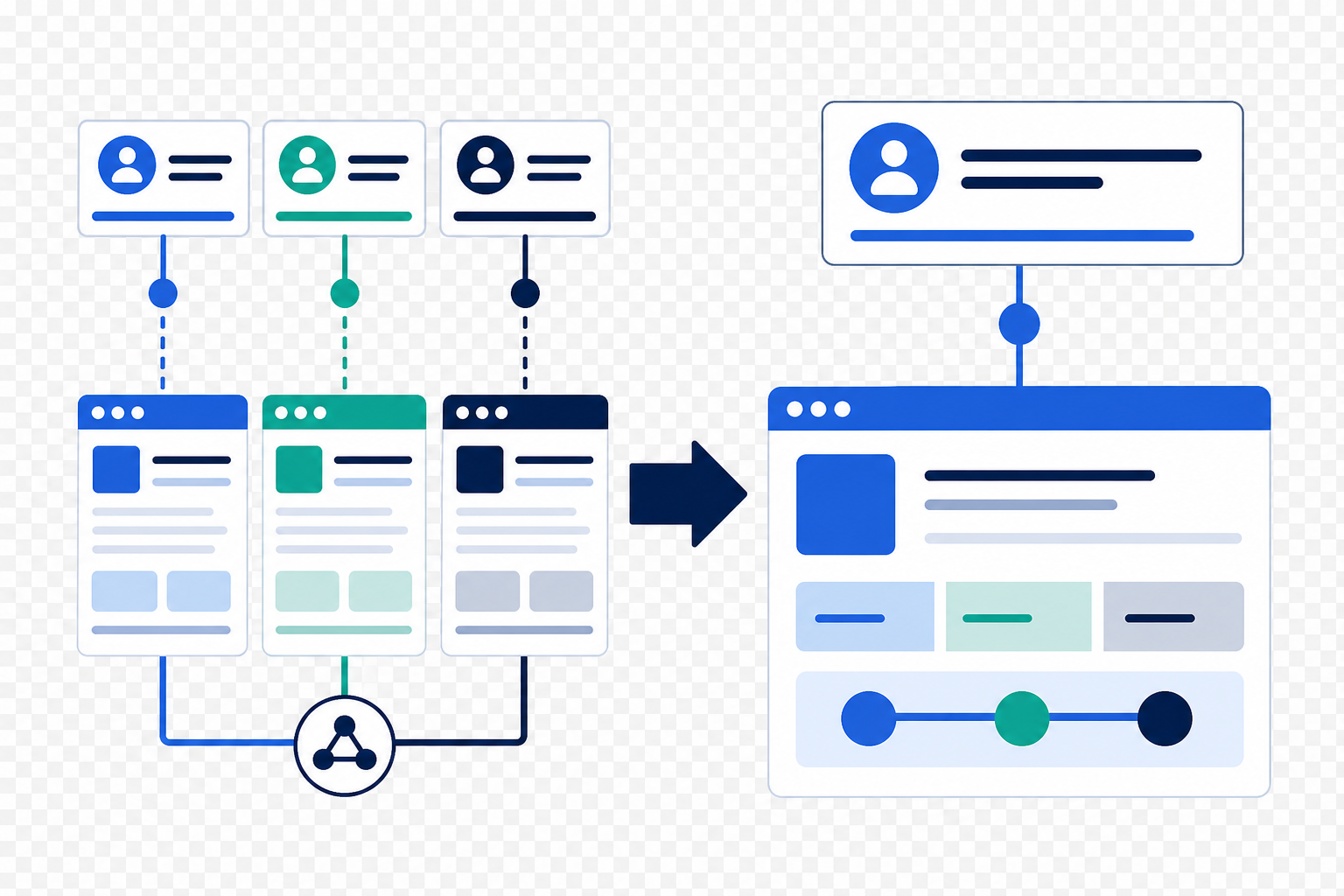
- Load accounts and contacts first, each with a legacy ID stored in an external ID field.
- Build a one-to-one cross-reference file that pairs each Salesforce ID with its legacy ID. Only the two identifiers are needed.
- Handle relationships separately. If one legacy record links to several contacts, split those links into their own load rather than packing them into a single field.
- Load activities last, resolving Who and What links through the cross-reference or the external ID fields.
Run the whole sequence on a representative subset first. It's much cheaper to fix a mapping after 500 records than after 500,000. Our guide to filtering migration data before a full load covers that approach.
Why Document Source Lineage for Every Field?
A mapping document is only useful if someone can trace any Salesforce value back to its origin. For each destination field, record:
- The source table and field
- The query or extract used
- The transformation logic, such as date conversion or code mapping
- Who approved the mapping, and when
This makes validation faster and settles questions after go-live, when someone asks why an activity shows a certain date. It also helps when you compare the generated mapping against the agreed mapping before each revision. For the wider project view, see our CRM migration planning guide.
What Should You Validate After the Load?
- Counts by type and year match the source, within agreed tolerances.
- Sample records show the right dates, owners, contacts and accounts.
- The activity timeline reads in the right order on a handful of key accounts.
- Reports return expected results for recent periods, and archived history behaves as planned.
- Former-user activities land with the placeholder owner, not a random active user.
How Vantage Point Helps
Vantage Point plans and runs CRM migrations that keep relationship history intact. Our system integration and data migration team builds field-level mappings with source lineage, designs cross-reference loads and validates results, and our Salesforce implementation and advisory services cover the activity model, archiving settings and reporting. Senior consultants only, no junior handoffs; the experts you meet are the experts who deliver.
Moving Years of History Into Salesforce?
Get the mapping right before the first load. Vantage Point can review your activity data, map dates and notes correctly, and plan a migration your team can trust on day one. Talk to Vantage Point about your Salesforce migration.
Frequently Asked Questions
Can you set the completed date on a Salesforce task during migration?
No. Salesforce sets a task's completed date/time automatically when the task closes. Map the legacy completion date to the task's Date field (ActivityDate) and keep the original value in a custom field.
Can you keep the original created date on migrated records?
Yes, if an admin enables the permission to set audit fields on record creation. A migration user can then set Created Date and Created By when records are first inserted, but not on later updates.
Should legacy meetings be migrated as tasks or events?
Migrate meetings with a start and end time as events, which keep their original timing. Calls, emails and to-dos without a fixed time slot usually load as tasks.
Should legacy notes become tasks in Salesforce?
Convert them to completed tasks if users want one chronological activity timeline. Load them as Salesforce Notes if they're long reference material that people search for rather than scroll through.
Why did migrated activities disappear from Salesforce reports?
Salesforce archives closed activities older than 365 days by default, which removes them from standard reports, list views and the calendar. They're still available on records and through the API.
Can the Salesforce activity archive period be extended?
Yes. An admin can request a higher limit from Salesforce Support, up to 3,650 days. Salesforce recommends about five years or less, because longer windows can slow activity reports.
What order should migration data be loaded in?
Load accounts and contacts first with legacy IDs in external ID fields, then relationships, then activities. That order lets each activity link to the correct contact and account.