
Key Takeaways (TL;DR)
- What is it? A free Google Workspace extension that adds a HubSpot-powered sidebar directly into Google Sheets: complete with AI data cleanup, email history, and outreach tools
- Key Benefit: Manage contacts, clean data, and send personalized emails without ever leaving your spreadsheet
- Cost: 100% free, no hidden fees, no usage-based charges, works with free HubSpot accounts
- Requirements: Google Workspace account + free HubSpot account (any tier)
- Best For: Early-stage businesses, sales teams, and operations teams managing contacts in spreadsheets who want CRM power without switching tools
- Bottom Line: Bridge the gap between spreadsheets and CRM. Work smarter in the tool you already know, then migrate to HubSpot when you're ready
Meta Description: Discover HubSpot for Google Sheets. A free extension that adds AI-powered contact cleanup, email tracking, and CRM sync directly into your spreadsheet sidebar.
Spreadsheets remain the default starting point for managing business contacts. They're fast, familiar, and flexible: until they're not. As contact lists grow, data goes stale, follow-ups slip through the cracks, and teams spend more time maintaining their spreadsheets than actually acting on the data inside them.
HubSpot recognized this pain point and launched HubSpot for Google Sheets™: a free Google Workspace extension that brings CRM-grade intelligence directly into the Google Sheets sidebar. No migration. No new platform to learn. Just install the extension, open your sheet, and start working smarter.
In this guide, we'll break down exactly what HubSpot for Google Sheets does, how to set it up, who benefits most, and how your organization can use it to bridge the gap between spreadsheets and a full CRM.
What Is HubSpot for Google Sheets?
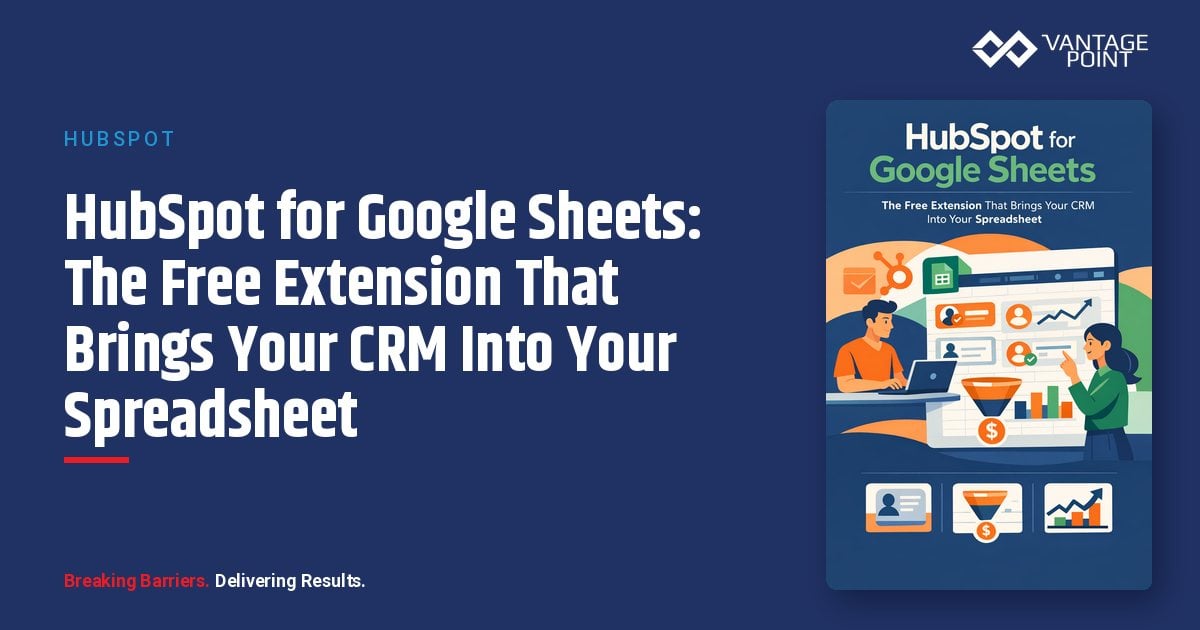
HubSpot for Google Sheets is a free Google Workspace extension available on the Google Workspace Marketplace that adds a HubSpot-powered sidebar directly inside any Google Sheet. Rather than forcing teams to abandon their spreadsheets or learn a new interface, it layers CRM capabilities (AI-assisted data cleanup, contact enrichment, email history, outreach drafting, and one-click CRM sync) on top of the tool they already use.
Think of it as an intelligent upgrade for your spreadsheet. The extension connects to your HubSpot account (free or paid) and uses Breeze AI to help you:
- Clean and complete contact records with data pulled from the web
- View full email history with any contact via Gmail integration
- Draft and send personalized emails using AI that understands your engagement context
- Import contacts to HubSpot CRM in one click with AI-powered field mapping
The extension is completely free. No trial periods, no feature gates based on volume, and no hidden charges.
Why Does This Extension Matter for Businesses?
The Spreadsheet-to-CRM Gap Is Real
Most growing businesses hit a point where their spreadsheet-based contact management breaks down. Common pain points include:
- Incomplete data: Missing phone numbers, company names, job titles, and LinkedIn profiles scattered across rows
- Duplicate records: Multiple entries for the same contact with slightly different information
- No engagement context: The spreadsheet shows a name and email, but not the last conversation you had or what was discussed
- Manual follow-up tracking: Relying on memory, sticky notes, or separate to-do lists to remember who needs a follow-up
HubSpot for Google Sheets solves these problems without requiring organizations to commit to a full CRM migration. It works where your data already lives and adds the intelligence layer that spreadsheets lack on their own.
Who Should Use HubSpot for Google Sheets?
This extension is designed for a broad range of users:
- Founders and entrepreneurs tracking sales pipelines, investors, and key relationships in spreadsheets
- Sales teams managing prospect lists, deal pipelines, and outreach workflows
- Marketing teams organizing lead lists, newsletter subscribers, webinar attendees, and event contacts
- Operations teams handling data migrations, regular imports from external systems, and spreadsheet-based data cleanup
- Customer success teams tracking onboarding cohorts, account health, and survey responses
- Any organization transitioning from spreadsheets to CRM that needs a gradual migration path
How Does HubSpot for Google Sheets Work?
The extension operates through a sidebar panel that appears on the right side of your Google Sheet. Once installed and connected to your HubSpot account, you can access three core capabilities:
1. AI-Powered Contact Cleanup with Breeze Assistant
The standout feature is Breeze Assistant: HubSpot's AI that works directly inside your spreadsheet. You can ask Breeze to:
- Fill in missing fields: Breeze searches the web to find company names, LinkedIn profiles, phone numbers, and other contact details you never had time to track down
- Flag and remove duplicates: Identify duplicate entries without writing complex formulas or manually scanning rows
- Add new columns: Restructure your list with additional data points to better organize your contacts
- Clean up inconsistencies: Standardize formatting, fix typos, and normalize data across your records
All of this happens without leaving your sheet. Simply open the sidebar, type a natural language prompt (like "fill in missing company names for rows 2 through 50"), and Breeze handles the rest.
2. Full Contact History via Gmail Sync
Connect your Gmail account and the extension surfaces your complete email exchange history with any contact in your sheet. This means:
- See the last email sent to any contact, including when it was sent and what was discussed
- Understand engagement patterns: which contacts are active, which are going cold, and which need immediate attention
- Prepare for calls and meetings with full context on prior conversations, all visible in the sidebar without switching tabs
3. Sales Email Agent for Outreach
The Sales Email Agent takes AI-powered outreach to the next level. It reads past interactions, researches the company, and drafts personalized one-to-one follow-up emails. The workflow is straightforward:
- Select a contact from your sheet
- Specify the purpose of your email (e.g., "follow up after last week's demo")
- Optionally add context or details
- Click Generate Email: the agent drafts a message using your full engagement history
- Review, edit, and send directly from the sidebar (requires a connected inbox in HubSpot)
This eliminates the tedious cycle of opening Gmail, searching for past threads, mentally reconstructing the conversation, and drafting a message from scratch.
4. One-Click Import and CRM Sync
When you're ready to bring your spreadsheet data into HubSpot CRM, the extension makes it seamless:
- AI Contact Sync: Breeze automatically maps your Google Sheets column headers to HubSpot contact properties. If there's no exact match, AI suggests the best mapping based on header names and cell values.
- Manual Import: For full control, map columns to HubSpot properties yourself and import specific ranges or the entire sheet.
- Ongoing Sync: Keep contacts current in both Google Sheets and HubSpot without manual exporting, importing, or reformatting.
How to Install HubSpot for Google Sheets (Step-by-Step)
Setting up the extension takes just a few minutes:
Step 1: Install from the Google Workspace Marketplace
Navigate to the HubSpot for Google Sheets listing and click Install. Log into your Google account and review the access permissions when prompted.
Step 2: Launch the Extension
Open any Google Sheet, then navigate to Extensions → HubSpot for Sheets → Open. The HubSpot sidebar will appear on the right side of your sheet.
Step 3: Connect Your HubSpot Account
Click Sign in in the sidebar panel and select your HubSpot account. If you don't have one yet, you can sign up for a free HubSpot account during this step.
Step 4: Connect Gmail (Optional but Recommended)
To unlock email history and the Sales Email Agent, connect your Gmail inbox through HubSpot. This allows the extension to surface past email conversations alongside your spreadsheet data.
Step 5: Start Working
You're all set. Use the Assistant tab to ask Breeze AI questions, clean data, or get recommendations. Use the Agent tab to access the Sales Email Agent. Use the Home tab to import contacts into HubSpot.
What Are the Best Practices for Using HubSpot for Google Sheets?
To get the most value from the extension, follow these best practices:
Clean Your Data Before Importing
Use Breeze Assistant to fill missing fields, remove duplicates, and standardize formatting before syncing to HubSpot. Clean data going in means better segmentation, reporting, and automation on the CRM side.
Use Descriptive Column Headers
The AI-powered import works best when your column headers clearly describe the data (e.g., "First Name," "Company," "Email Address"). Ambiguous headers like "Field 1" or "Column A" will require more manual mapping.
Start with a Small Import
If you're new to HubSpot, import a small batch of contacts first (50-100) to verify that field mappings are correct before importing your full list. This prevents data quality issues at scale.
Leverage the Sidebar for Meeting Prep
Before any call or meeting, select the contact in your sheet and ask Breeze for a summary of recent engagement. This gives you instant context on what was discussed, what was promised, and what the next logical step should be.
Set a Weekly Cleanup Routine
Schedule a recurring weekly task to ask Breeze to scan for new duplicates, fill in recently added contacts, and flag stale records that haven't been touched in 30+ days.
Connect Your Inbox Early
The Sales Email Agent and contact history features require a Gmail connection. Set this up immediately after installation to unlock the extension's full value.
How Does HubSpot for Google Sheets Compare to Traditional CRM Migration?
| Feature | Google Sheets Only | HubSpot for Google Sheets | Full HubSpot CRM |
|---|---|---|---|
| Cost | Free | Free | Free (Starter from $20/mo) |
| Data Cleanup | Manual formulas | AI-powered (Breeze) | AI-powered + automation |
| Email History | Not available | Gmail sync in sidebar | Full timeline + tracking |
| Outreach Tools | Copy/paste to Gmail | Draft and send from sidebar | Sequences, templates, tracking |
| Contact Enrichment | Manual research | AI web search | Breeze Intelligence credits |
| Reporting | Pivot tables | Basic CRM reports | Full analytics + dashboards |
| Automation | None | None | Workflows, sequences, triggers |
| Learning Curve | None | Minimal | Moderate |
The extension occupies a sweet spot: more powerful than a raw spreadsheet, less complex than a full CRM deployment. It's the ideal stepping stone for organizations that aren't ready for a complete platform migration but need more capability than Google Sheets alone provides.
What Are the Limitations to Know About?
While HubSpot for Google Sheets is a powerful tool, there are a few things to keep in mind:
- Free account limits: A free HubSpot account supports up to 2 users and 1,000 contacts. For larger teams or contact databases, upgrading to HubSpot Starter (starting at $20/month) increases these limits.
- Sensitive data restrictions: If your HubSpot account has Sensitive Data features turned on, the extension cannot access CRM data for added security.
- Google Workspace requirement: The extension requires a Google Workspace account. It doesn't work with standalone Gmail accounts that aren't part of a workspace.
- Single-direction import: Currently, the extension syncs data from Google Sheets into HubSpot. It's not designed for continuous two-way bidirectional sync. For that, consider HubSpot's native Google Sheets data sync or a third-party tool like Unito.
- Account matching: Some users have reported that the extension may default to a personal Google account rather than a professional one. Ensure you're logged into the correct Google Workspace account before launching the extension.
How Can Vantage Point Help You Maximize HubSpot for Google Sheets?
Getting the extension installed is simple. Getting maximum value from it (and building a strategy for when you're ready to scale beyond spreadsheets) requires expertise.
Vantage Point helps organizations at every stage of the CRM journey:
- Spreadsheet Audit & Cleanup: We analyze your existing spreadsheet data, identify quality issues, and use HubSpot's AI tools to prepare your contacts for CRM import
- HubSpot Implementation: When you're ready to move beyond Google Sheets, we handle the full migration: field mapping, data deduplication, workflow setup, and team training
- CRM Strategy & Optimization: We design CRM architectures that scale with your business, integrating HubSpot with your existing tech stack (Salesforce, MuleSoft, Data Cloud, and more)
- Ongoing Support: From data hygiene to automation builds, our team ensures your CRM continues delivering value long after the initial implementation
Whether you're just getting started with HubSpot for Google Sheets or ready for a full CRM transformation, Vantage Point has the expertise to guide you.
Frequently Asked Questions
Is HubSpot for Google Sheets really free?
Yes. The extension is completely free to install and use from the Google Workspace Marketplace. It works with free HubSpot accounts and does not have usage-based charges or hidden fees. The same limits that apply to a free HubSpot account (2 users, 1,000 contacts) apply when using the extension.
Can I use HubSpot for Google Sheets without a HubSpot account?
You need a HubSpot account to use the extension, but you can sign up for a free HubSpot account during the setup process. No paid subscription is required.
Does the extension work with Excel or only Google Sheets?
HubSpot for Google Sheets is exclusively a Google Workspace extension. It only works within Google Sheets. For Excel-based workflows, consider using HubSpot's native CSV import functionality or third-party integration tools.
Can I send emails directly from the Google Sheets sidebar?
Yes. The Sales Email Agent allows you to draft and send one-to-one emails directly from the sidebar. You'll need a connected inbox in HubSpot for this feature to work. The AI agent uses your engagement history to generate personalized email drafts.
What happens to my data when I import contacts into HubSpot?
Your data is copied into HubSpot CRM as contact records. The original Google Sheet is not modified. HubSpot maps your spreadsheet columns to CRM properties (either automatically via AI or through manual mapping), creating or updating contact records in your HubSpot portal.
Can multiple team members use the extension on the same spreadsheet?
Yes. Each team member installs the extension on their own Google account and connects it to the shared HubSpot portal. They'll each see the sidebar in any Google Sheet they open, with access to shared CRM data based on their HubSpot user permissions.
How is this different from the existing HubSpot Google Sheets integration?
The existing HubSpot-Google Sheets data sync focuses on exporting HubSpot CRM data into Google Sheets for reporting purposes. HubSpot for Google Sheets works in the opposite direction. It adds CRM intelligence (AI cleanup, email history, outreach tools) into the Google Sheets interface, and enables importing spreadsheet contacts into HubSpot.
Ready to Upgrade Your Spreadsheet Workflow?
HubSpot for Google Sheets represents a practical, low-risk first step toward CRM-powered contact management. Install it today and start cleaning your data, tracking your engagement history, and sending smarter outreach: all from the spreadsheet you already know.
When you're ready to scale beyond Google Sheets and unlock the full power of HubSpot CRM, including marketing automation, sales sequences, custom reporting, and AI-driven insights, Vantage Point is here to help.
Get Started with Vantage Point →
About Vantage Point
Vantage Point is a certified HubSpot and Salesforce consulting partner that helps businesses implement, optimize, and scale their CRM platforms. From initial setup to advanced automation, data integration (MuleSoft, Data Cloud), and AI-powered personalization, Vantage Point delivers solutions that drive measurable results. Learn more at vantagepoint.io.