
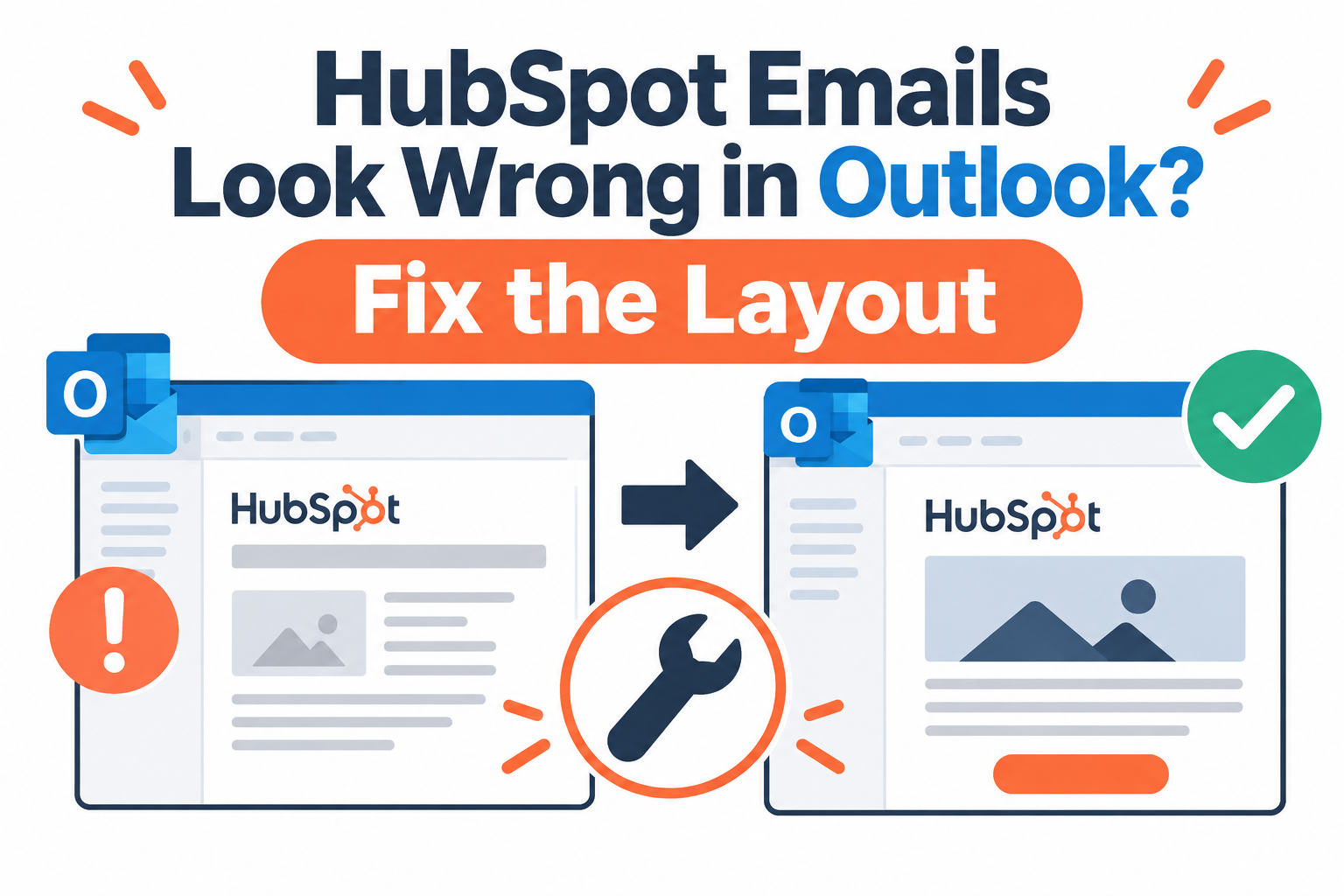
When a HubSpot marketing email looks correct in the editor but breaks in Outlook, start with the receiving application, not the campaign settings. Different Outlook versions handle HTML and CSS differently. A design that works in a browser-based preview can lose spacing or styling in classic Outlook for Windows.
The practical goal is a readable message and a working call to action across the clients your audience uses. That does not require every decorative detail to look identical.
Quick Answer
To fix HubSpot email rendering in Outlook, identify the exact Outlook version, reproduce the issue with a direct test send, and simplify or rebuild the affected module using email-compatible markup. Classic Outlook for Windows uses a Word-based rendering engine; new Outlook, Outlook on the web, and Outlook for Mac are different environments. Marketing teams should use client-specific previews and real inbox tests before approving a send. Vantage Point helps connect that testing process to a maintainable HubSpot template and campaign workflow.
TL;DR
- Identify the client: “Outlook” alone is not enough information to diagnose a layout problem.
- Test the delivered message: an editor preview is not proof of inbox compatibility.
- Fix the reusable component: prefer supported modules, reliable spacing, and readable fallback styles over one-off campaign patches.
- Approve function first: text, links, buttons, and the reading order matter more than matching every corner or font.
Why does the same email look different in Outlook?
An email client interprets the delivered HTML using its own rendering engine and restrictions. It is not simply showing a screenshot of HubSpot’s editor.
Litmus’s guide to Outlook rendering differences distinguishes Word-based Windows desktop versions from Mac and web-based clients. This distinction matters when troubleshooting: a fix aimed at classic Windows Outlook may be unnecessary or behave differently elsewhere.
Do not conclude that every Outlook application ignores the same CSS. Ask the reviewer for the application name, operating system, version, and whether they are using classic or new Outlook. Also record display scaling, dark mode, and whether images are blocked. These details turn a vague design complaint into a reproducible test.
How do you confirm the problem before changing the template?
Send the email directly from HubSpot’s test-send function to the affected inbox. A forwarded copy introduces another variable because forwarding can alter the message markup. Use a screenshot to locate the symptom, but use the directly received message to reproduce it.
- Freeze a baseline. Save the current draft or clone the email so the original layout remains available for comparison.
- Record the test environment. Note the Outlook version and the affected module, rather than reporting only that the email looks wrong.
- Send a direct test. In the email editor, open Preview & test → Send test email. Choose an eligible recipient and, where useful, a contact for personalization.
- Compare another client. If the problem appears only in one application, isolate its rendering behavior before rebuilding the entire email.
- Change one component. Retest the same message and environment after the change, then check that other clients still work.
HubSpot’s test marketing email instructions document the current workflow, including verified test-recipient requirements. A test send helps check appearance, but it should not be treated as proof that a production campaign’s audience, automation, or delivery configuration is correct.
Which layout problems should you fix first?
Prioritize anything that hides meaning or prevents action. A broken destination or unreadable label is a launch blocker. A square button that remains readable and clickable may be an acceptable fallback.
| Symptom | What to investigate | Practical response |
|---|---|---|
| Button text touches its edges | Spacing applied only to an element the target client handles differently | Use a tested button module or have a developer implement an email-safe spacing pattern. |
| Rounded corners become square | Unsupported styling in the target rendering engine | Accept a square fallback unless the shape is essential; use tested Outlook-specific code only when necessary. |
| Icons or special characters change appearance | Font availability, glyph support, or fallback fonts | Use plain text where it carries the meaning; test any replacement artwork with images blocked. |
| Columns or images become distorted | Widths, nested layout markup, image dimensions, and display scaling | Simplify the structure and test explicit dimensions in the affected client. |
| Text disappears in dark mode | Foreground and background color changes | Check contrast in the actual client and provide a readable fallback. |
Do not hide essential instructions inside decorative artwork. If a graphic communicates a status or action, make that meaning available in nearby text. Likewise, an image-only button should not be the reader’s only path to the destination.
Should you change the HubSpot module or write custom code?
Start with the smallest maintainable change. If the issue comes from pasted HTML or a heavily customized component, try rebuilding that component with a standard HubSpot email module before introducing more code.
For custom-coded templates, reliable email layout often requires techniques that differ from normal website design. Table-based structure, inline styles, and client-specific fallbacks may be appropriate. Avoid copying a web-page component into an email and assuming the same CSS support.
Litmus’s bulletproof button guide compares several approaches, including conditional padding and VML. These are implementation choices, not universal fixes. VML can support specific classic-Outlook designs, but it adds another branch to maintain and test. Tracking and destination URLs must remain correct in every branch.
Choose custom code when a business-critical design cannot be achieved with a supported module and a tested fallback. Choose simplification when the extra code mainly preserves decoration. For recurring campaigns, the better investment is usually a reusable, approved module rather than a separate repair for every send.
How should teams approve the final email?
Use both client-specific previews and real inbox checks. HubSpot’s email-client preview documentation currently lists that feature for Marketing Hub Professional and Enterprise. It also describes preview limits and image-blocking checks. Confirm the options available in the account instead of assuming every subscription includes them.
Select test environments based on the audience, not just the sender’s favorite inbox. Where relevant, include classic Windows Outlook, new Outlook or web Outlook, a mobile client, and an image-blocked view. Treat these as different checks, not interchangeable versions of one screenshot.
- Content: the message is readable, the order makes sense, and personalization has a sensible fallback.
- Action: each link resolves to the intended destination, and the visible button label matches the action.
- Layout: spacing, columns, and images remain usable at the tested sizes.
- Fallbacks: important meaning survives missing fonts, blocked images, and styling differences.
- Ownership: the approved template version and final reviewer are recorded before scheduling.
A rendering approval is one part of campaign readiness. Audience selection, subscription preferences, suppression, and scheduling still need their own review. Keeping those checks separate prevents a visually polished test email from becoming an accidental approval of the entire campaign.
How Vantage Point Helps
Vantage Point’s HubSpot consulting helps teams assess templates, reusable modules, and campaign operations together. The goal is an email process marketers can repeat without reopening the same layout defects.
For teams whose problems extend beyond presentation, CRM and marketing automation services connect template governance with audience data, workflows, and operational ownership. Senior consultants only — no junior handoffs; the experts you meet are the experts who deliver.
Make the next campaign easier to approve
Bring the affected template, the receiving client version, and a direct test result. Vantage Point can help identify whether the next step is a module repair, a simpler design, or a broader campaign-process review.
Frequently Asked Questions
Why does my HubSpot email look correct in the editor but wrong in Outlook?
The editor and the receiving email client do not necessarily use the same rendering engine. Classic Outlook for Windows has different HTML and CSS support from browser-based environments. Identify the exact Outlook version and reproduce the issue with a direct test send before changing the template.
Does every version of Outlook use Microsoft Word to render email?
No. Classic Outlook for Windows uses a Word-based engine, while new Outlook, Outlook on the web, and Outlook for Mac use different rendering environments. Test the versions your audience actually uses rather than applying one Outlook workaround to every client.
Can HubSpot preview an email in specific Outlook clients?
Yes, HubSpot documents client-specific previews for Marketing Hub Professional and Enterprise. Use Preview & test and select Preview in an email client, then choose the available versions. Confirm account access and preview limits, and supplement the previews with direct inbox tests.
How do I fix a button with missing padding in Outlook?
Start with a tested HubSpot button module or an email-compatible button pattern rather than relying only on website-style CSS. A custom template may need conditional spacing or an Outlook-specific fallback. Retest the clickable area, destination, and appearance in every supported client after the change.
Should I turn the whole marketing email into an image?
No. An image-only email makes essential content dependent on image loading and can create accessibility problems. Keep the core message and call to action as readable text, and test that the email remains understandable when images are blocked.
Do all clients need to display the email identically?
No. The approval standard should prioritize readable content, correct links, and a usable call to action. Minor decorative differences can be acceptable when documented; missing meaning, invisible text, or a broken action should be fixed before the campaign is sent.
Sources
- HubSpot: Send a test marketing email.
- HubSpot: Preview marketing emails for specific email clients.
- Litmus: Outlook rendering differences and bulletproof email button techniques.