
Quick Answer
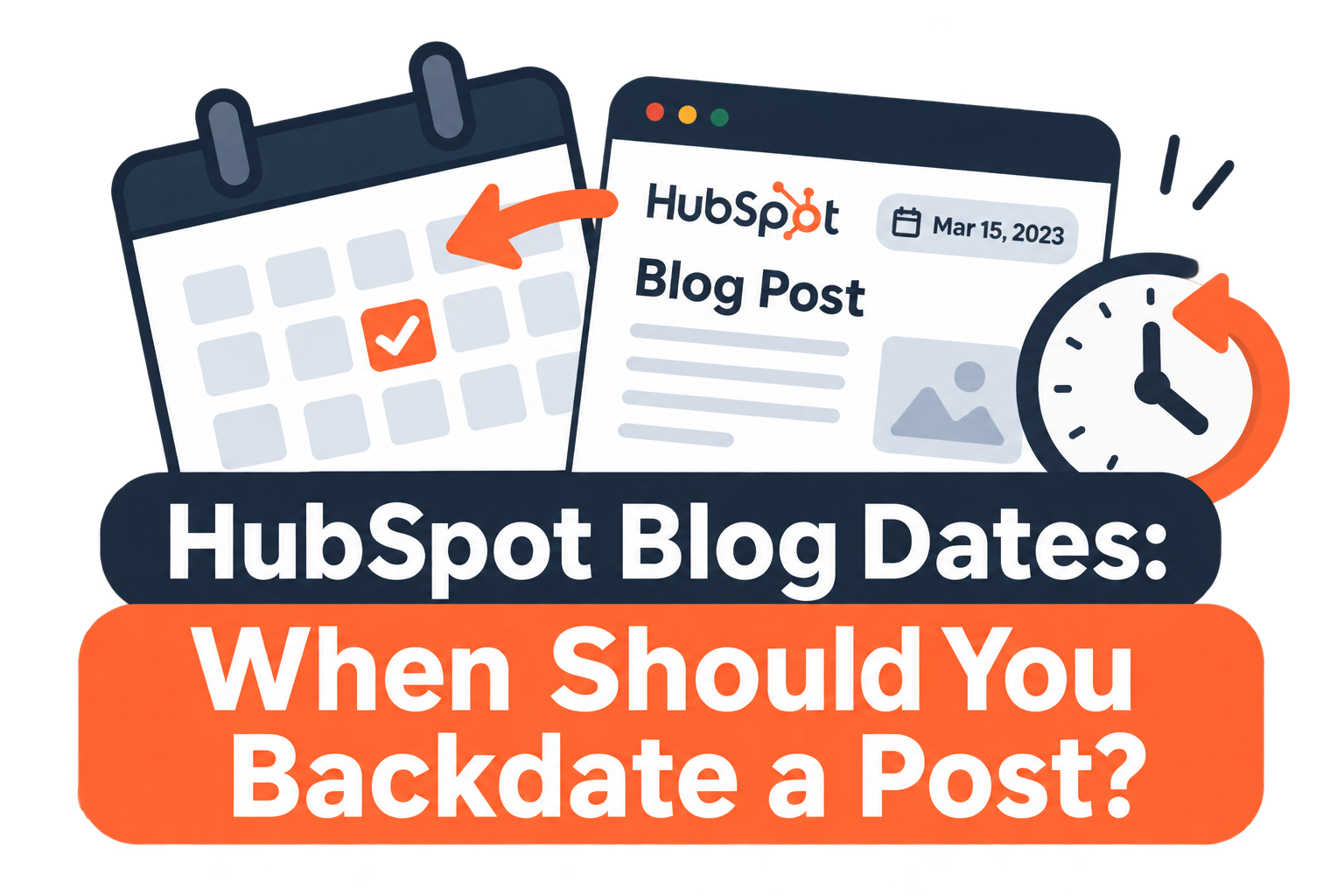
HubSpot lets you set a blog post's publish date in the past, but an older event is not automatically a reason to backdate a new article. Use the publication date for when the article first became public, the update date for a meaningful revision, and clearly labeled text for when the underlying event occurred. This guide helps marketing teams choose the right date, understand notification effects, and check template consistency. Vantage Point helps align HubSpot content operations, templates, and marketing workflows.
Key Takeaways (TL;DR)
- Capability and policy are different: HubSpot supports past publish dates; your editorial policy should decide when to use them.
- Separate the dates: Publication, substantive update, and event dates answer different questions.
- Check distribution: Backdating can affect subscription emails, automated social posts, and external RSS emails.
- Verify the rendered page: Visible dates and equivalent structured-data values should agree.
A delayed article often raises a simple question: should its date match the news it describes, or the day it goes live? The practical default is the day it goes live. State the earlier news date in the article rather than using the publishing control to make a new page look older.
A migrated archive is different. If an article genuinely appeared on another site earlier, preserving its original publication history can be appropriate. The decision starts with what actually happened to the content, not with the date that makes a listing page look tidier.
What do HubSpot blog dates actually mean?
A publish date is the date assigned to a post's publication in HubSpot. HubSpot provides controls to set or change it for unpublished and published posts. A template may display that value, an update value, or custom date text, so changing one editor field does not prove that every visible date will change.
Keep these three meanings separate in your editorial process:
| Date | Question it answers | Recommended use |
|---|---|---|
| Publication date | When was this article first published? | Use the actual publication history, including a documented original date for migrated content. |
| Last updated date | When did the article receive a meaningful revision? | Use for substantive changes, with a short update note when useful. |
| Event or news date | When did the thing described happen? | Label it in the copy; do not substitute it for the page's publication date. |
This distinction matters beyond appearance. A date helps readers judge the context of advice and helps the publishing team understand what was released. It should not require someone to reconstruct a campaign calendar to know whether an article is new, revised, or archival.
When should you backdate a HubSpot post?
Consider backdating when the article has a real earlier publication history that should be preserved, such as a documented archive migration. Do not backdate solely because the article discusses last month's announcement or because a campaign missed its intended launch date.
What if the article covers older news?
Keep the actual publication date and explain the timing in the introduction. A retrospective can be useful without pretending it was published at the time of the event. Describe what happened, identify the period being discussed, and explain what the reader can do now.
If the original news is no longer useful on its own, improve the article's purpose before publishing. Add a current implementation decision, a verified explanation of what changed, or a practical checklist. An older timestamp cannot fix content that no longer answers a reader's question.
What if an existing article has been revised?
Preserve its original publication history and use a clearly labeled update date where the template supports it. Describe a significant revision when that helps readers understand what changed. Treat a corrected typo differently from a rewritten recommendation or a newly verified product limitation.
During a migration, record the original date separately from the move date in the content inventory. Date handling belongs alongside URL preservation, redirects, and editorial decisions in a HubSpot content migration plan. Check the final page rather than assuming imported fields automatically produce the right presentation.
How do you change the publish date in HubSpot?
HubSpot's publish-date documentation places the controls in the content editor's scheduling options and requires Edit and Publish permission. The documented paths differ slightly between a draft and an existing live post.
- Open Content > Blog and select the post.
- For an unpublished post, open the dropdown beside Publish, choose Scheduling options, then Schedule publish.
- For a published post, open the dropdown beside Update, choose Scheduling options, then Schedule update.
- Select the intended date and time, then review the distribution and approval checks before confirming Schedule.
These are publishing controls, not a harmless cosmetic date picker. HubSpot says a new post scheduled for the future will not appear live or trigger blog notification emails until that date. Make the date decision part of the release approval, rather than changing it casually after an editor has signed off.
If your aim is only to show the date of an event, leave the publication controls alone. Add labeled event context to the article instead. If the page still shows the wrong date, have the template owner identify which value it renders before changing content settings again.
Will backdating resend emails or social posts?
Do not assume every distribution system treats a date change the same way. HubSpot documents different behavior for its own notifications and external RSS emails.
- New posts dated in the past: HubSpot says these will not trigger blog subscription emails or automated social posts.
- Existing posts moved to a past date: HubSpot says this will not trigger a duplicate blog subscription email or automated social post.
- External RSS emails: A changed publish date changes the RSS feed and may cause an external email system to include the post.
- Previously disabled subscriptions: HubSpot notes that a live post may be included in relevant weekly or monthly notifications for its new date if subscription emails were not enabled when it originally published.
Review the actual blog settings and any separate distribution tools before scheduling. If backdating intentionally suppresses a new post's automatic notification, decide how readers will discover it. Record that decision in the campaign checklist instead of assuming the usual send will happen.
What does Google recommend for article dates?
Google recommends prominent, clearly labeled publication or update dates and corresponding structured data. Its byline-date guidance explicitly says these dates must describe the page's publication or update, not the events described in the article.
The same guidance recommends consistency between equivalent visible and structured values, including the correct time zone when one is specified. Ask the template owner to inspect existing Article or BlogPosting markup rather than adding a competing schema block just to change a date.
Google uses multiple factors to estimate a page's date. Correct markup helps provide information; it does not guarantee which date will appear in search results. Avoid promising that a publish-date change will improve rankings, force a search snippet to change, or make a page get indexed on a particular schedule.
What should the team check before release?
Use a short, repeatable review for each affected post:
- Confirm whether the article is new, migrated, or substantively updated.
- Document the intended publication date, update date if applicable, and relevant time zone.
- Check the article page and blog listing for accurate, clearly labeled dates.
- Compare visible dates with equivalent structured-data fields.
- Review subscription settings, RSS consumers, and planned social distribution.
- Obtain the normal publishing approval and check the live result after release.
The lowest-maintenance approach is usually a consistent template and a simple date policy. Make event context ordinary article text, preserve genuine publication history, and reserve update dates for meaningful revisions. That avoids a growing set of one-off display fixes.
How Vantage Point Helps
Vantage Point helps teams connect HubSpot content operations with templates, approvals, and CRM and marketing automation. A practical review can identify which date fields the template uses, where distribution depends on them, and what belongs in the editorial checklist.
Senior consultants only — no junior handoffs; the experts you meet are the experts who deliver.
Make your blog dates and distribution consistent
If dates behave differently across your posts, listings, and notification workflows, start with a focused review of the template and release process. Vantage Point can help define a maintainable approach before the next content launch.
Frequently Asked Questions
Can you backdate a HubSpot blog post?
Yes. HubSpot supports setting a publish date in the past for an unpublished or published post through the editor's scheduling options. Confirm the editorial reason and notification effects before applying the change.
Should the publish date match the date of the news?
No. Use the article's actual publication history for its publication date and label the news or event date in the copy. Google's guidance distinguishes page publication and update dates from the events described on the page.
Does a backdated new post trigger HubSpot subscription emails?
HubSpot says a new blog post with a publish date in the past will not trigger blog subscription emails or automated social posts. External RSS emails can behave differently, so review connected distribution tools separately.
Should migrated posts keep their original dates?
Preserving a documented original publication date is a reasonable editorial approach for migrated articles. Record the migration separately and verify that the new template displays the intended date consistently with its structured data.
Will changing a publish date change Google's search date?
Not necessarily. Google considers multiple signals when estimating a page's publication or update date. Consistent visible dates and structured data provide useful information but do not guarantee a particular search-result display.
Can Vantage Point review HubSpot date handling?
Yes. Vantage Point can review template date fields, publication workflows, notification dependencies, and migration requirements. The goal is a consistent editorial process rather than manual fixes on individual posts.
Sources
- HubSpot: Set a blog post's publish date and time.
- Google Search Central: Influence your byline dates.
Vantage Point helps organizations design and improve Salesforce, HubSpot, and connected business processes. vantagepoint.io