
Quick Answer
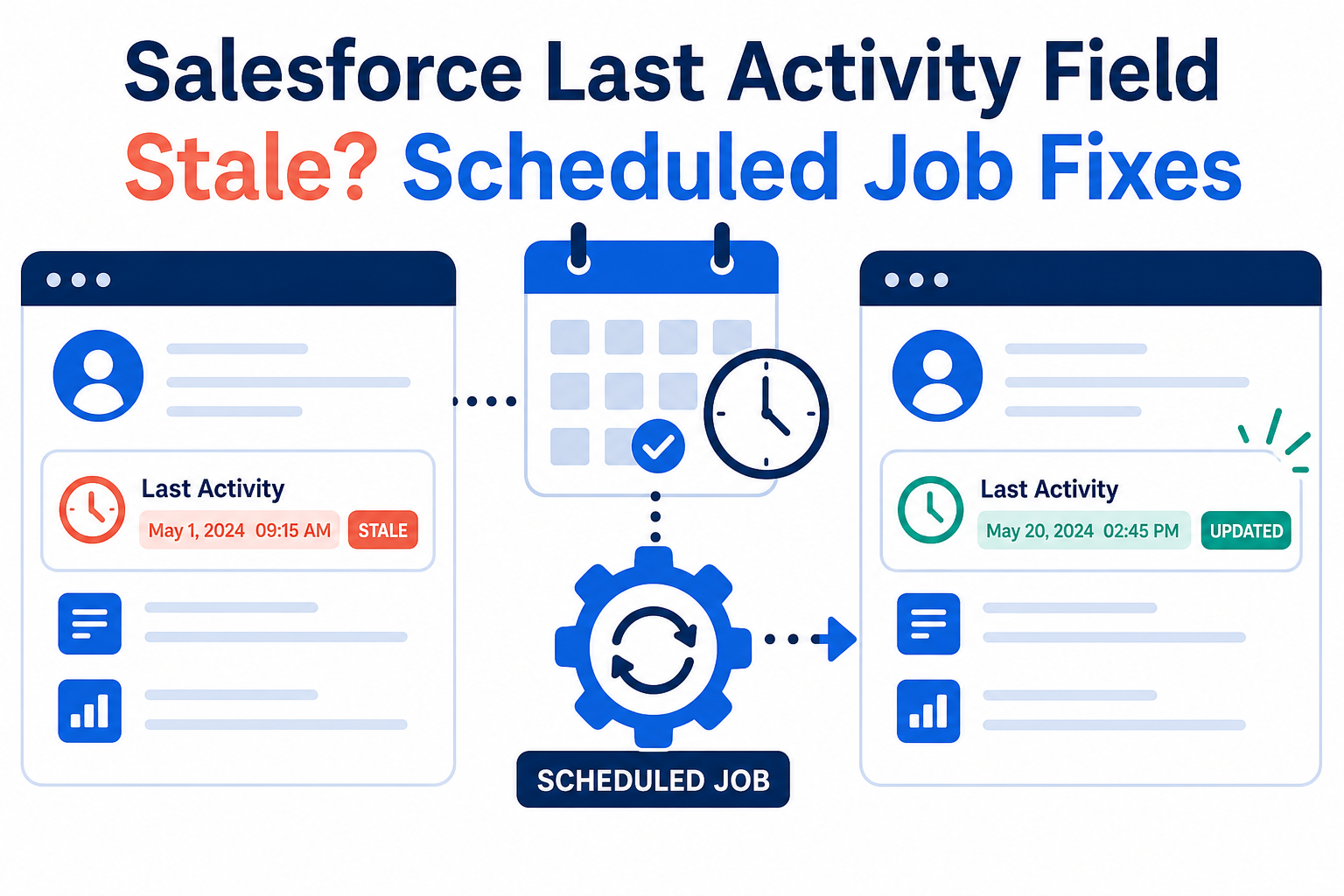
When a custom "last activity" or "last touchpoint" field in Salesforce stops reflecting reality — a call was logged yesterday but the field still shows last quarter — the cause is almost always how the field is maintained, not the activity itself. These fields are typically populated by automation: a record-triggered flow, a scheduled flow, or a batch Apex job that finds the most recent qualifying activity and stamps the parent record. Scheduled automation usually processes only records that changed since its last run, so records whose history predates the automation never get evaluated — the field looks frozen for exactly the accounts with the longest histories. The fix has two parts: repair or tighten the automation's selection logic, and run a one-time historical backfill so every record gets its true current value. Test the backfill on a small segment before running it across the database.
TL;DR
- The symptom: a "last call" or "last touchpoint" field lags reality or never updates for older records.
- The cause: incremental automation (scheduled flows, batch jobs) only touches recently changed records — historical records are never backfilled.
- The diagnosis: find what maintains the field, read its selection criteria, and compare a stale record's activities against the field value.
- The fix: correct the automation, then backfill history once — and monitor so drift never accumulates again.
- How Vantage Point helps: Salesforce consulting designs automation that stays accurate from day one.
Why do "last activity" fields go stale?
Because they are almost never native. Salesforce tracks activities on records, but a custom field that answers "when did we last touch this account?" is something an admin built — a rollup summary, a flow, a scheduled job, or an integration writing values in. Each maintenance mechanism has a blind spot, and the blind spot is usually history.
The most common pattern is the incremental scheduled job. Nightly, it queries for records with new qualifying activity since the last run and updates their fields. Efficient — but any record whose relevant activity happened before the job existed is invisible to it. The account with a call logged last week updates fine; the account whose entire history predates the automation shows nothing, or shows the value from whenever the job first ran. Teams notice months later, usually when a report built on the field quietly misleads someone.
How do you find what maintains the field?
Before changing anything, identify the mechanism. Check the field's definition for clues (rollup summary fields say so directly), then search flows and Apex for references to the field — Salesforce's "where is this used" tooling on the field definition lists automations that reference it. Scheduled flows appear under scheduled jobs in Setup; batch Apex shows up in Apex jobs. Integrations are the sneakiest case: if values arrive from an external system, the field's automation trail is in that system's logs, not Salesforce's.
Once you have the mechanism, read its selection criteria — which records it touches and which activities qualify. "Calls" versus "logged activities" versus "tasks of a certain type" are different populations; a field fed by one definition and a report filtered by another will disagree forever. Write down the field's intended definition in plain language and compare it to what the automation actually implements. Half of all stale-field mysteries end right there: the automation was never calculating what the business thought it was calculating.
How do you confirm the diagnosis on one record?
Pick a record whose field value looks wrong. List its qualifying activities under the intended definition — including the historical ones. If the most recent qualifying activity is newer than the field value, and the record has not been modified recently, the incremental-processing theory is confirmed: the automation never had a reason to visit this record. Salesforce's rollup recalculation documentation describes the equivalent behavior for rollup summary fields — recalculation does not always happen on bulk data changes, and a manual recalculation is sometimes the prescribed fix.
Also rule out the boring causes before rebuilding anything: the automation is deactivated or failing (check its run history and error emails), the field-level security hides updates from the running user, or a validation rule is silently rejecting the writes. A quick look at debug logs during a test run settles most of these in minutes.
How do you backfill historical values safely?
The backfill is a one-time data operation, and it deserves the same care as a migration. The safe sequence:
- Compute values out of band. Build a report or export that calculates the correct value per record from activity history — not by rerunning the automation against everything blindly.
- Review a sample by hand. Pull ten records spanning edge cases — no activity, activity today, activity years ago — and verify the computed values match what a human would conclude.
- Update in controlled batches. Use Data Loader or a scoped flow to write the verified values, watching for validation rules, flows that fire on the update, and governor limits.
- Confirm downstream effects. Reports, dashboards, list views, and any automation keyed off the field will suddenly see "changes." Warn the teams who own them before the backfill runs.
Note the deliberate sequencing: fix the automation first, backfill second. Backfilling over broken automation just re-creates the drift starting tomorrow.
How do you keep the field accurate going forward?
Three habits prevent recurrence. Make the automation's definition match the business definition — if "touchpoint" means calls and meetings but the flow only watches tasks of one type, align them now. Add a drift check: a scheduled report comparing the field against a direct activity query for a sample of records, reviewed monthly, catches divergence while it is still small. Document the mechanism on the field's description — what maintains it, how often, and who owns it — so the next admin does not have to reverse-engineer the whole chain from scratch.
How Vantage Point Helps
Vantage Point's Salesforce consulting team designs activity-tracking automation that accounts for historical data from the start — selection logic, backfill plans, and monitoring included. When existing automation has drifted, workflow automation and process optimization untangles what the field was meant to measure and rebuilds it correctly. And managed services and ongoing support keeps watch with scheduled drift checks, so stale-field surprises stop arriving via executive dashboard.
Metrics your team can actually trust
Vantage Point is a Salesforce and HubSpot Solutions Partner and is employee-owned. Senior consultants only — no junior handoffs; the experts you meet are the experts who deliver.
Frequently Asked Questions
Why is my Salesforce "last activity" field not updating?
The field is maintained by automation — a flow, scheduled job, or integration — and that automation typically only processes records changed since its last run. Records whose activity history predates the automation are never evaluated, so their values stay frozen until a historical backfill updates them.
How do I find what automation updates a field in Salesforce?
Open the field's definition and use "where is this used" to list flows and Apex referencing it, then check scheduled jobs in Setup for scheduled flows and batch classes. If no automation references the field, an external integration may be writing to it — check connected systems' logs next.
Does Salesforce recalculate rollup summary fields automatically?
Usually, but not always — bulk data operations and certain configurations can leave rollups uncalculated, and Salesforce documents a manual recalculation path for those cases. If a rollup disagrees with its detail records, forcing recalculation on a test record is the fast diagnostic.
How do I backfill a stale field across thousands of records?
Compute correct values via report or export, hand-verify a sample covering edge cases, then update in controlled batches with Data Loader or a scoped flow. Watch for validation rules and automation that fire on update, and notify teams whose reports depend on the field before running it.
Should the automation be fixed before or after the backfill?
Before — always. A backfill only repairs the past; if the automation's selection logic or schedule still misses records, drift resumes immediately. Correct the ongoing mechanism first, then backfill history once, then monitor to confirm the fix holds.
How can we tell if a metric field is drifting again?
Schedule a monthly report that compares the field's value against a direct query of qualifying activities for a sample of records. Growing mismatches signal drift while it is still small. Documenting the field's maintenance mechanism and owner in its description makes these checks fast to run.