
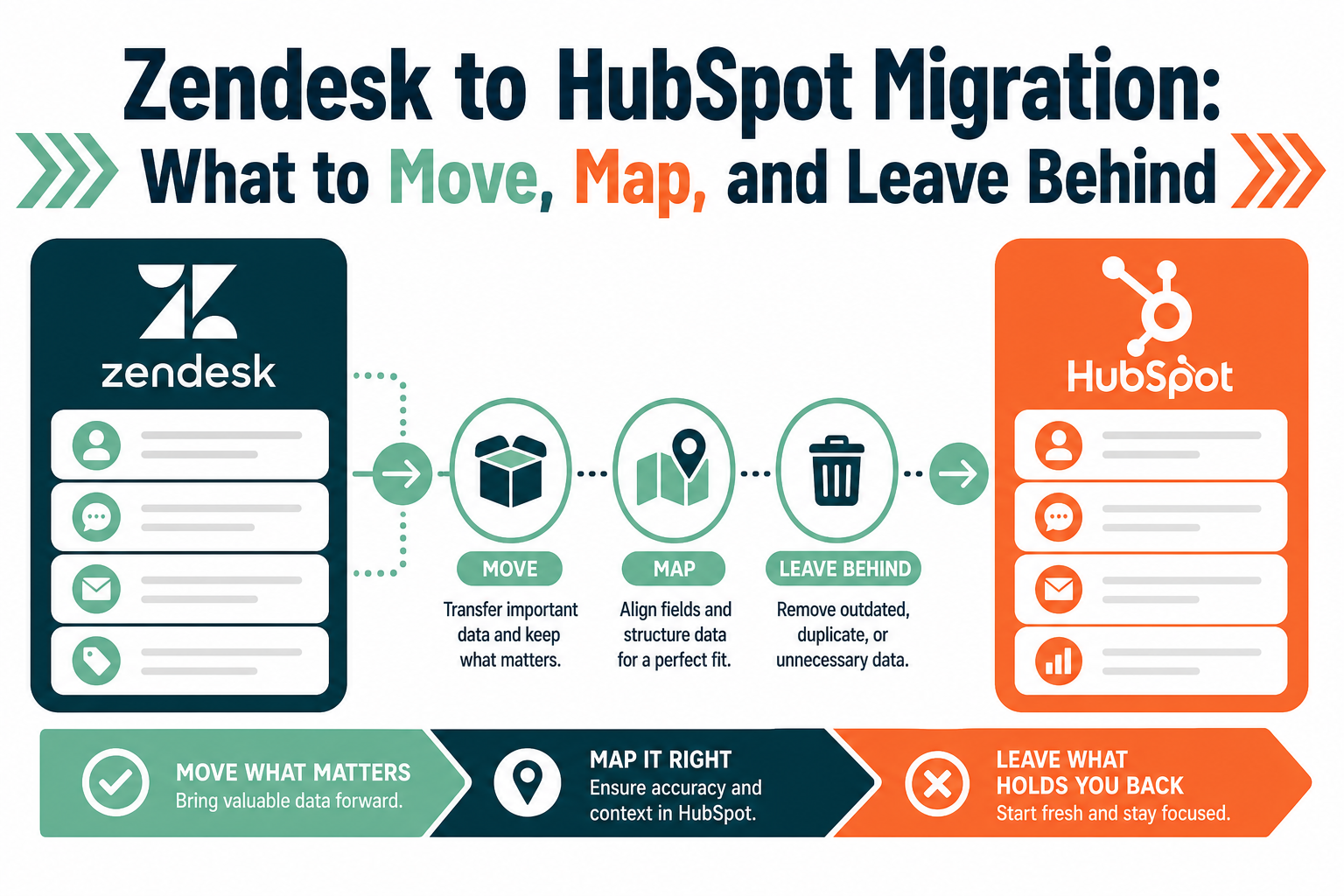
Moving from Zendesk to HubSpot is rarely a simple export and import. The contacts come across easily. The hard part is everything attached to them: who owns each account, which deals are still live, the files your team relies on, and the history nobody wants to lose. This guide explains what to move, how to map it, what to leave behind, and how to prove the migration worked before your team switches over.
Quick Answer
A Zendesk to HubSpot migration moves your customer and sales data (companies, contacts, deals, owners, notes and files) into HubSpot's CRM so your team can work from one system. Start with a read-only assessment of what Zendesk actually holds, build a field-by-field mapping, load a small subset for business sign-off, then run the full migration and launch. Leave out data that lives or belongs elsewhere, and decide early how to handle ownership, attachments, and any records in other languages or currencies. Vantage Point runs these migrations as part of its system integration and data migration services.
Key Takeaways (TL;DR)
- Scope first: list which Zendesk products and objects you use, then decide object by object what moves, what's archived, and what stays in another system.
- Ownership is the risk nobody plans for: if account owners don't carry over cleanly, reps can end up contacting another rep's clients.
- Files need their own plan: standard CSV imports don't carry attachments, so documents usually move through the API or stay linked to an archive.
- Test on a subset: a small, representative pilot load signed off by the business catches mapping mistakes before they multiply.
- Phase the extras: email integration, lead capture and single sign-on can follow once the core data is live and trusted.
What Does a Zendesk to HubSpot Migration Include?
It depends on how you used Zendesk. Some teams used Zendesk Sell as their sales CRM. Others used Zendesk Support for tickets and tracked sales somewhere else. Many used both. Start by writing down which products hold data you care about, because each one maps differently into HubSpot.
For a sales-focused migration, the usual scope is:
- Companies (organizations), with parent-child relationships where they exist.
- Contacts, including status fields that separate prospects from active customers.
- Deals, with stage, amount, currency, close date and owner.
- Owners, so every record lands with the right person in HubSpot.
- Notes, documents and attachments that give the history behind a relationship.
Support tickets, call recordings and appointment history may or may not belong in scope. If your team already handles support, calls or scheduling in another tool, migrating that history into HubSpot adds cost without adding value. Make the call on purpose, not by default.
What Should You Leave Behind?
A migration is the cheapest moment you'll ever have to clean house. Anything you move, you'll pay to store, search past and maintain. Good candidates to leave out include:
- Data that belongs to another system. If a separate platform is the system of record for a group of people, such as candidates, members or vendors, keep them there and integrate later if needed.
- Stale records. Contacts with no activity in years, bounced emails and duplicate companies. Our guide to what to filter out before the full load covers this in more detail.
- Activity you don't manage in Zendesk. If calls or meetings were tracked elsewhere, the Zendesk copies are partial and can mislead reps.
- Old custom fields nobody fills in. Check fill rates. A field that's empty on 95% of records usually isn't worth recreating.
Archive what you leave behind. Export it to secure storage with a clear retention owner, so you can answer a "where did that go?" question a year from now.
How Do You Map Zendesk Data to HubSpot?
Mapping is where migrations succeed or fail. Build a mapping document that lists every source field, its HubSpot destination, the transformation rule, and who approved it. The table below shows the decisions most teams need to make.
| Zendesk data | HubSpot destination | Decision to make |
|---|---|---|
| Organizations | Companies | Which field is the unique key (domain, account number)? How are parent companies linked? |
| People and leads | Contacts | Do leads and contacts merge into one object with a lifecycle stage, or stay separate? |
| Deals | Deals and pipelines | How do Zendesk stages map to HubSpot pipeline stages? What happens to lost or stale deals? |
| Owners | HubSpot users | Are all owners set up as HubSpot users before the load? Who inherits records from people who've left? |
| Notes and history | Notes and activities on the timeline | How much history is useful? Should dates and original authors be preserved? |
| Files and attachments | Files linked to records, or links to an archive | Move the files themselves, or link to where they're stored? |
| Custom fields | Custom properties | Keep, merge or retire? Which picklist values need cleaning first? |
HubSpot's import tool handles standard records and associations from spreadsheets well. For larger volumes, file attachments, preserved timestamps or repeatable test runs, a scripted load through HubSpot's APIs gives you more control and a clean audit trail of what moved.
Why Does Record Ownership Matter So Much?
Ownership tells your team who is responsible for each relationship. Get it wrong and a rep may cold-call an existing client who belongs to a colleague, or a customer may get two conflicting follow-ups in the same week. Both damage trust quickly.
To protect ownership during the move:
- Create HubSpot users first. Owner fields can only point to people who exist as users, so set up your team before you load records.
- Resolve departed owners. Decide who inherits records owned by people who've left, and reassign them in the source data or the mapping.
- Check owners on companies, contacts and deals separately. They don't always match in the source system, and a mismatch is easier to fix before the load than after.
- Set visibility rules in HubSpot. Use teams and permissions so people see what they need, and pair them with clear rules of engagement for existing clients.
How Should You Handle Files and Attachments?
Files are often the most valuable and most awkward part of the migration. Contracts, proposals and signed forms explain the relationship in a way fields can't. But standard spreadsheet imports only carry field values, not the files themselves.
You have two practical options:
- Migrate the files into HubSpot. Upload each file and attach it to the right company, contact or deal. This gives reps everything in one place but takes more build and testing effort.
- Link to an archive. Keep the files in secure storage and add a link on each HubSpot record. This is faster, but reps need access to the archive, and the links must keep working after the old system is switched off.
Before choosing, check who should be able to see which files. If everyone had access in Zendesk, the same may be fine in HubSpot. If some documents are sensitive, set up permissions before the files arrive.
What About Data in Other Languages or Currencies?
Many teams find records written in more than one language, or historical deals in a currency they no longer use. Both need decisions before the load. Should text be translated, kept as-is, or stored in both forms? Should older deal amounts stay in their original currency or be converted? We cover both in our companion guide on handling legacy currencies and multilingual data in a CRM migration.
How Do You Validate the Migration Before Go-Live?
Don't move everything at once. A staged approach catches problems while they're still cheap to fix:
- Read-only assessment. Pull counts, fill rates and samples from Zendesk without changing anything. Confirm the real volume and flag special cases.
- Mapping review. Walk the mapping document with the people who use the data every day, and get sign-off.
- Subset migration. Load a representative slice: some active customers, some open deals, a few records with files, and a few edge cases.
- Business approval. Have users check the subset in HubSpot. Are owners right? Do deal amounts match? Can they open the files?
- Full migration and reconciliation. Run the full load, then compare record counts, totals and samples against the source.
- Launch and freeze. Set a cutover date, stop edits in Zendesk, and run a final delta load for anything that changed.
Keep a reconciliation report for every run. It becomes your proof that nothing was lost, and a useful reference when someone asks about a missing record later.
What Can Wait for Phase Two?
Teams often want everything on day one: email sync, lead-capture forms, calling, single sign-on and new automation. Trying to launch it all at once slows the migration and blurs accountability when something breaks.
A cleaner plan is to launch the core CRM with trusted data first, then add integrations in a second phase. Email and calendar connections, website forms and identity provider sign-on are all easier to set up once the records they touch are stable.
What Should Businesses Do Next?
- List every Zendesk product you use and the objects that matter in each.
- Decide what stays behind, and where it will be archived.
- Set up HubSpot users and teams before you load any records.
- Build and sign off a mapping document, including owners and files.
- Plan a subset migration and define who approves it.
- Schedule integrations for a second phase once the core data is live.
If you're still comparing platforms, our guide to switching CRM platforms without data loss is a useful starting point.
How Vantage Point Helps
Vantage Point plans and runs CRM migrations end to end, from the read-only assessment and field mapping through subset testing, full migration and launch. As a HubSpot Solutions Partner, our HubSpot consulting team sets up users, pipelines, properties and permissions so your data lands in a CRM that's ready to use, and our HubSpot implementation services cover adoption after go-live. Senior consultants only, no junior handoffs; the experts you meet are the experts who deliver.
Planning a Move from Zendesk to HubSpot?
A migration goes faster when the scope, mapping and test plan are agreed before anyone moves a record. Vantage Point can assess your Zendesk data, map it to HubSpot, run a pilot load for your team to approve, and manage the full cutover. Talk to Vantage Point about your HubSpot migration.
Frequently Asked Questions
Can you migrate Zendesk data to HubSpot?
Yes. Companies, contacts, deals, owners, notes and files can all be moved from Zendesk into HubSpot. Standard records can be imported from spreadsheets, while larger volumes, attachments and preserved history are usually handled through HubSpot's APIs.
How long does a Zendesk to HubSpot migration take?
It depends on data volume, how many objects are in scope, and how much cleanup is needed. A staged plan with a read-only assessment, mapping review, subset test and full load keeps the timeline predictable and reduces rework.
Do attachments transfer from Zendesk to HubSpot?
Not through a standard spreadsheet import, which only carries field values. Files are either uploaded and attached to records through the API, or kept in a secure archive with links added to each HubSpot record.
Should support tickets be part of the migration?
Only if your team will manage support in HubSpot. If support, calls or appointments are handled in another tool, migrating that history adds effort without helping reps, so it's usually left out or archived.
How do you keep record owners correct after migration?
Create every owner as a HubSpot user before loading records, decide who inherits records from former employees, and check owners on companies, contacts and deals separately. Then use teams and permissions to control who sees what.
What is a subset migration?
A subset migration loads a small, representative slice of your data into HubSpot so users can check it before the full load. It catches mapping, ownership and formatting problems while they're still easy to fix.
Can we add email integration and single sign-on later?
Yes. Many teams launch the core CRM first and add email and calendar sync, website forms and single sign-on in a second phase. This keeps the migration focused and makes problems easier to trace.