
When a business rolls out HubSpot, the first budget question is usually "how many seats do we need?" The better question is "which kind of seat does each person need?" HubSpot's seat types range from free view-only access to full Sales or Service seats, and choosing well can cut cost, simplify permissions and help you keep sensitive work out of the CRM. This guide explains each seat type, who it fits, and how to plan access for a team with mixed needs.
Quick Answer
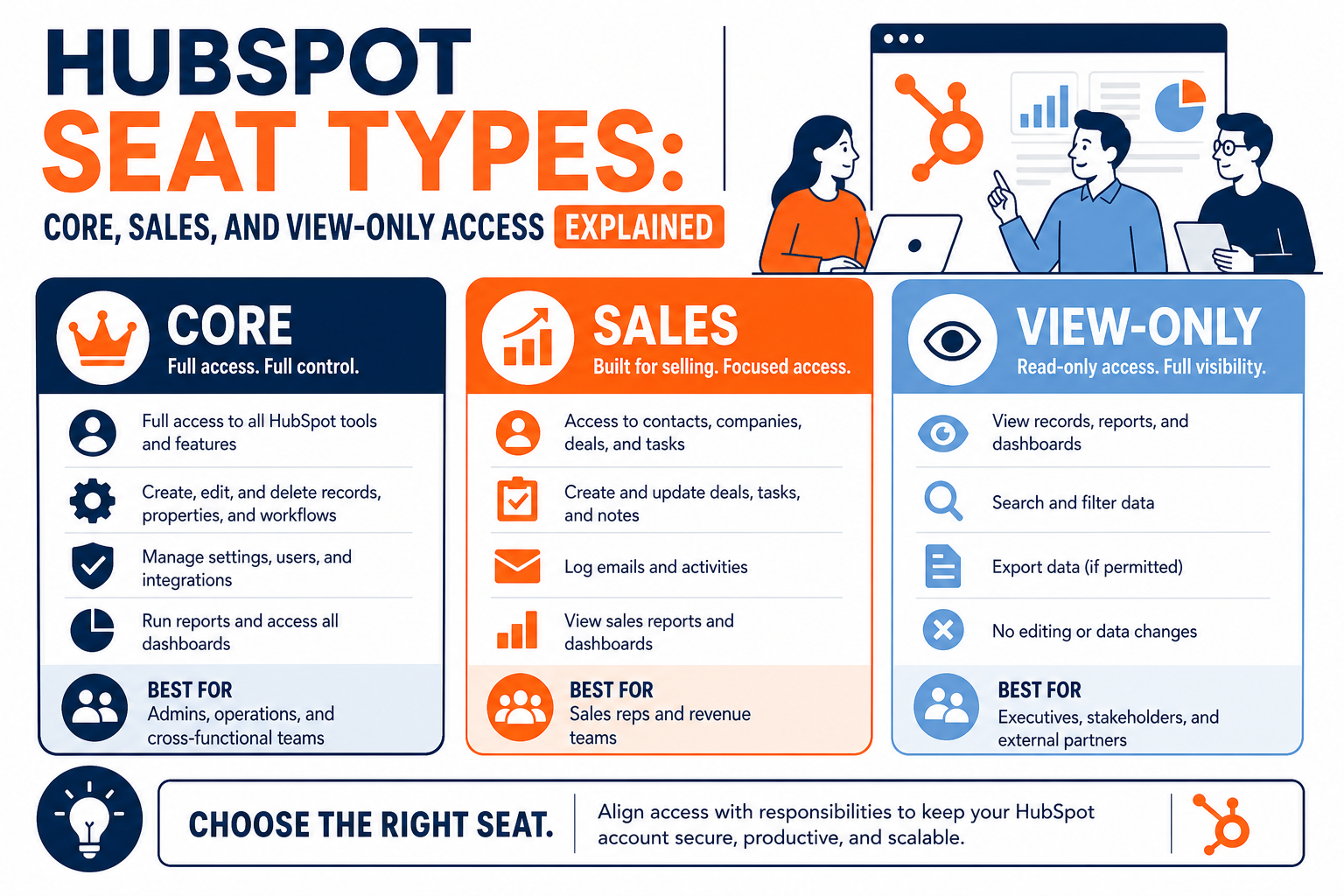
HubSpot seat types control which tools each user can reach. View-Only seats are free and let people see data without changing it. Core seats give access to the core features of the hubs you've bought, including editing records, notes, tasks and reports. Sales, Service and Revenue seats on Professional and Enterprise plans add the specialized tools those teams need. Match each person's seat to their actual work, then use permissions to control what they can see and do. Vantage Point plans seats and permissions as part of its HubSpot implementation services.
Key Takeaways (TL;DR)
- Seats and permissions are different: seats decide which tools a user can use, and permissions decide what they can do with them.
- View-Only is free: it suits executives and stakeholders who need to look, not edit.
- Core seats cover a lot: editing records, logging activity and building reports, without specialized sales or service tools.
- Sales and Service seats are for daily specialists: reps and agents who need advanced tools on Professional or Enterprise plans.
- Access limits can be a feature: if some teams shouldn't store certain data in the CRM, seat and permission design helps enforce that.
What Are HubSpot Seats?
According to HubSpot's documentation, seats determine which tools a user can access based on your subscription, while permissions define the specific actions they can take, such as viewing, editing or deleting data. Every user on a Starter, Professional or Enterprise subscription is assigned a seat type.
That split matters. Giving someone a Sales seat doesn't automatically change their permissions, and turning on a permission doesn't help if their seat doesn't include the tool. Plan both together.
What Does Each Seat Type Include?
| Seat type | What it allows | Typical users |
|---|---|---|
| View-Only | View data and reports. Can't edit records, save reports, log activities or change settings. | Executives, board members, finance reviewers, occasional stakeholders |
| Core | Core features of the hubs you've purchased, including editing records, notes, tasks, associations and reporting. | Operations staff, account managers, marketers, anyone who updates records but doesn't need advanced sales or service tools |
| Sales | Advanced Sales Hub tools on Professional and Enterprise plans. | Account executives, business development reps, sales managers |
| Service | Advanced Service Hub tools on Professional and Enterprise plans. | Support agents, customer success managers, service leads |
| Revenue | Revenue Hub tools, such as creating and editing quotes, on Professional and Enterprise plans. | Deal desk and revenue operations |
| Partner and Developer | Free seats for eligible Solutions Partner staff and developer platform access. | Implementation partners, developers |
Details vary by subscription. For example, HubSpot notes that on Sales Hub Starter and Service Hub Starter, Core seat users get the Sales or Service features of those Starter plans, because Sales and Service seats only apply to Professional and Enterprise. On Revenue Hub Professional and Enterprise, Core seat users can view quotes but not create or edit them. Check HubSpot's Products and Services Catalog for the current scope of each seat.
What Can View-Only Users Not Do?
View-Only seats are free and unlimited on paid plans, which makes them attractive. But they're genuinely read-only. Per HubSpot, View-Only users can't edit records, save reports, change settings, create content or activities, or log and track emails. If a user moves from a paid seat to View-Only, their email logging is turned off.
That's fine for a leader reviewing dashboards. It's not fine for someone who takes notes after client calls or updates deal stages. Give those people at least a Core seat, or they'll work around the CRM, which defeats the point.
When Is a Core Seat Enough?
A Core seat covers a surprising amount of everyday CRM work. It suits people who:
- Update contacts, companies and deals.
- Log notes, create tasks and associate records.
- Build and use standard reports and dashboards.
- Collaborate with sales or service teams without running sequences, advanced forecasting or specialized service tools themselves.
Operations, finance, marketing and delivery teams often fit here. So do managers who contribute to records but aren't full-time sellers. Getting these users on Core seats rather than full Sales seats is often the single biggest lever on HubSpot cost.
Who Needs a Full Sales or Service Seat?
Give Sales or Service seats to the people who live in those tools every day. For sales, that usually means reps using prospecting tools, sequences, forecasting, playbooks and advanced deal features. For service, it means agents working tickets, help desk tools, feedback and customer success features.
A useful test: list the specific features a person uses each week. If none of them require a Sales or Service seat, start them on Core and upgrade if they hit a wall. Upgrading later is easy. Paying for unused seats all year isn't.
How Should You Plan Seats When Some Teams Must Be Limited?
Sometimes the question isn't cost, but control. A business may have legal, contractual or regulatory reasons to keep certain information, such as technical documents, protected designs or sensitive client data, out of a general-purpose CRM, or away from certain users. In that case, seat planning becomes part of your data governance.
A practical approach:
- Classify the data first. Decide which kinds of information may be stored in HubSpot and which must stay in a secure repository.
- Keep restricted content in the right system. Store controlled documents in the approved repository and, if needed, keep only a reference in HubSpot.
- Size access to the work. Give full seats to the teams who manage relationships, and consider View-Only or Core seats, or no seat, for teams whose work shouldn't flow through the CRM.
- Use teams and permissions. Limit which records and tools each group can see and edit, and review the settings with your compliance or legal team.
- Document the decision. Record who has which seat and why, so the design survives staff changes and audits.
This approach lets you start with a smaller, safer rollout, often sales and leadership first, and expand once the compliance questions are answered. Our guide to CRM audit trails covers the accountability side.
What Does a Mixed Seat Plan Look Like?
Consider a hypothetical company rolling out HubSpot across leadership, sales, operations and a specialist team that handles restricted information. A sensible first plan might be:
- Sales team: Sales seats, because they prospect, run sequences and manage pipeline daily.
- Operations and account management: Core seats, because they update records, log notes and track tasks but don't need advanced sales tools.
- Executives: View-Only seats for dashboards, or Core seats for anyone who also edits deals.
- Specialist team: no seat, or View-Only, until the business confirms which of its information may live in the CRM.
This plan reserves full seats for the people who use full-seat tools, keeps restricted work out of the CRM, and still puts every customer relationship in one system. It's also easy to adjust as roles and rules change.
What Mistakes Do Teams Make With Seats?
- Buying one seat type for everyone. This overpays for occasional users and under-serves specialists.
- Forgetting permissions. Changing a seat doesn't change permissions, so users can end up with tools they can't use or access they shouldn't have.
- Leaving unassigned seats on the bill. HubSpot notes that removing a seat from a user unassigns it, but you keep paying until you remove the unassigned seat.
- Giving View-Only to active contributors. This pushes notes and updates into email and spreadsheets.
- Never reviewing. Roles change. A quarterly seat review keeps cost and access aligned with reality.
What Should Businesses Do Next?
- List every user and the features they actually use each week.
- Assign View-Only, Core or specialized seats based on that list.
- Set permissions and teams alongside seats, not afterward.
- Decide which data belongs in HubSpot and which doesn't, and document it.
- Schedule a quarterly seat and permission review.
If you're weighing HubSpot tiers more broadly, see our guide on when to upgrade from HubSpot free to paid.
How Vantage Point Helps
Vantage Point helps businesses design HubSpot access that fits both their budget and their data rules. As a HubSpot Solutions Partner, our HubSpot consulting team maps users to seat types, sets up teams and permissions, and documents the design, and our compliance and security solutions help you decide what belongs in the CRM. Senior consultants only. No junior handoffs; the experts you meet are the experts who deliver.
Get Your HubSpot Seats and Permissions Right
The right seat mix saves money and keeps sensitive work where it belongs. Vantage Point can review your users, recommend seat types, and set up the permissions to match. Talk to Vantage Point about your HubSpot rollout.
Frequently Asked Questions
What is the difference between a Core seat and a Sales seat in HubSpot?
A Core seat gives access to the core features of the hubs you've purchased, such as editing records, notes, tasks and reports. A Sales seat, available on Sales Hub Professional and Enterprise, adds advanced sales tools for people who sell every day.
Are HubSpot View-Only seats free?
Yes. According to HubSpot, View-Only seats are free and unlimited on Starter, Professional and Enterprise subscriptions. Users can view data but can't edit records, save reports, log activities or change settings.
Can View-Only users log emails or take notes?
No. View-Only users can't log or track emails, create activities or edit records. Anyone who needs to add notes or update records needs at least a Core seat.
Does changing a user's seat change their permissions?
No. HubSpot treats seats and permissions separately. After changing a seat, review the user's permissions so they match the tools they now have.
Do I still pay for a seat after removing it from a user?
Yes, until you remove the unassigned seat. HubSpot notes that unassigning a seat doesn't reduce billing on its own, so remove unassigned seats to adjust your subscription.
How do we limit HubSpot access for teams handling sensitive data?
Classify which data may be stored in HubSpot, keep restricted documents in an approved repository, and give those teams View-Only, Core or no seats as appropriate. Then use teams and permissions to control what each group can see.
How often should we review HubSpot seats?
Quarterly works well for most teams. Review who uses which features, reassign seats as roles change, and remove unassigned seats to keep costs in line.