
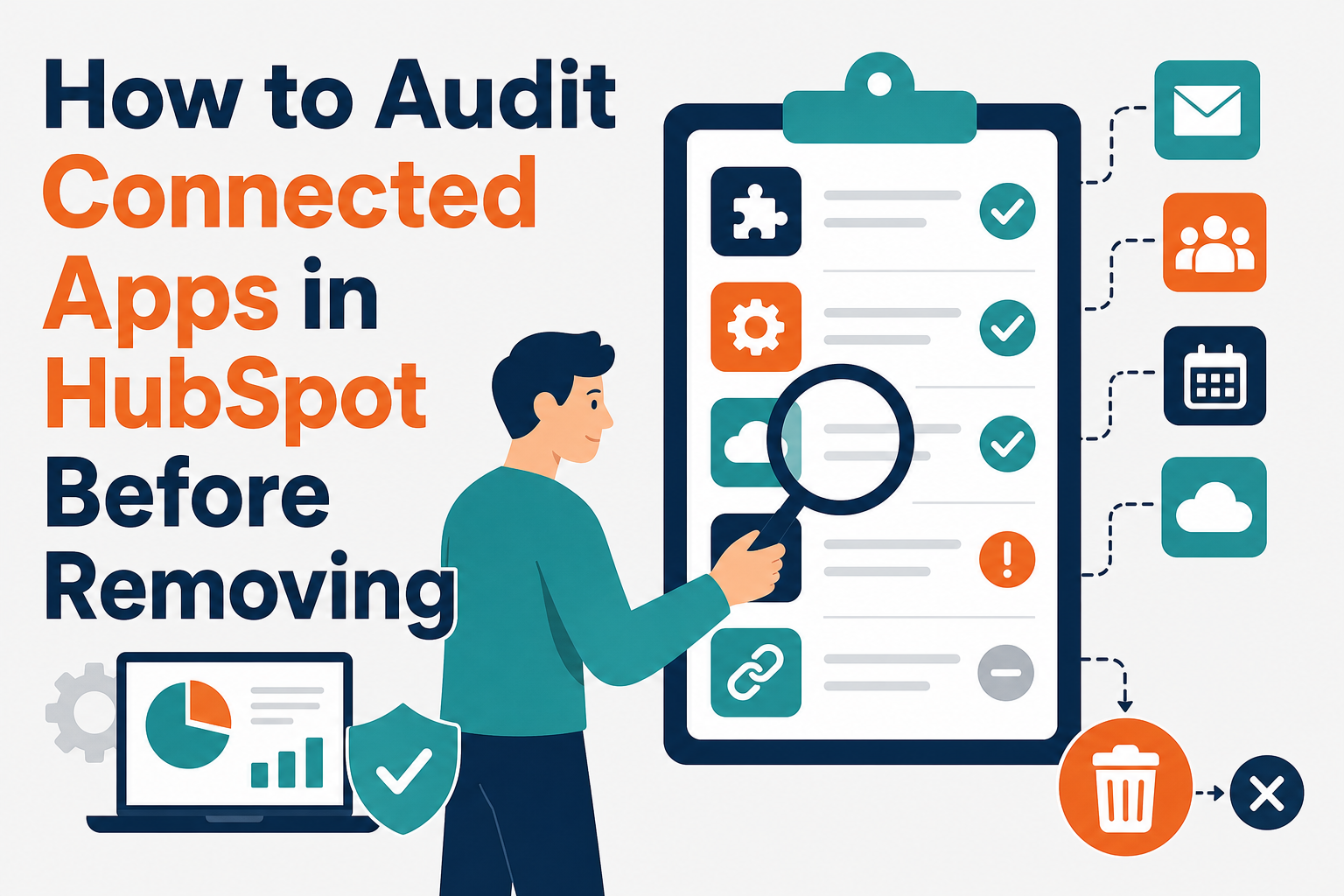
It happens in almost every HubSpot portal audit: buried in Settings is a connected app nobody recognizes. Installed eight months ago by someone at an agency the company no longer works with. Is it moving data? Is it reading your contacts? Can you just uninstall it, or will something break?
The instinct to delete first and ask questions later is understandable, and wrong. A connected app might be the quiet engine behind a form, a workflow, or a sync that half your pipeline depends on. Or it might be a dead trial from a tool evaluation, holding live access to your CRM for no reason. Telling the difference takes an hour of structured checking, not guesswork.
This guide is that hour, written down: where to find every connected app, how to work out what an unknown one does, how to remove it safely, and how to keep the list clean going forward.
Quick Answer
To audit connected apps in HubSpot, open Settings, then Integrations, then Connected Apps, and review every entry: what it is, who installed it, when it was installed and last active, and what it connects. For any app you cannot identify, trace the installer, check which workflows, forms, and data flows depend on it, and confirm whether a native feature or newer tool has replaced it before you uninstall. After removal, monitor for breakage for at least two weeks. Vantage Point runs this audit as part of portal cleanup and integration architecture work.
Key Takeaways (TL;DR)
- Inventory first: the Connected Apps page lists every third-party app, its installer, and its install date.
- Unknown does not mean unused: agencies, former employees, and old trials leave apps that may still drive live processes.
- Trace before you remove: check workflows, forms, lists, and syncs for dependencies on the app.
- Remove, then monitor: uninstall and watch forms, automations, and reports for two weeks before declaring victory.
- Prevent recurrence: use app approval controls and a quarterly review so the list stays governable.
Why do unknown apps accumulate in HubSpot portals?
Nobody installs a mystery app on purpose. The usual origins are all benign: an agency connected its favorite middleware during an onboarding two contracts ago; an employee evaluated a tool on a trial and connected it to real data; a predecessor wired up a quick fix for a missing feature and documented nothing; a vendor's setup wizard asked for CRM access and someone clicked approve to keep the demo moving.
Each connection is a standing credential into your customer data. Most sit idle. Some quietly run processes the business now depends on. A few keep syncing data to a vendor nobody pays anymore. You cannot tell which is which from the app name alone, which is the whole case for an audit.
Where do you find every connected app?
Start in Settings, under Integrations, on the Connected Apps page. The Connections home view lists installed apps, and each app's details show who connected it and when. Check three adjacent places so nothing hides:
- Marketplace-installed apps: third-party tools installed from the HubSpot Marketplace appear in the connected apps list with their install context.
- Private apps: custom-built integrations using private app tokens live in the same Integrations area. These are easy to forget because nothing "installed" them visibly; a developer created a token and it has been running ever since.
- User-level connections: some tools connect per user rather than portal-wide. Ask team leads what their people actually use, because an app connected by five individual users may not stand out in a portal-level review.
Export or screenshot the full list with installers and dates. That inventory is the audit's working document.
How do you work out what an unknown app actually does?
For each app you do not recognize, work through five questions in order:
- Who installed it, and when? The installer is your first witness. If they are still reachable — even at a former agency — ask them directly what the app was for. Most mysteries resolve in one email.
- Is it still active? Look for signs of life: recent API activity where visible, records being created or updated by the app, or entries in workflow and integration logs that name it.
- What can it access? Review the scopes and permissions the app was granted. Read-only access to contacts is a different risk profile than full read-write across objects.
- What depends on it? Search workflows for actions or triggers referencing the app, check forms for non-native submission handling, and ask whether any sync, report, or notification started around the install date.
- Has it been replaced? Compare the app's job against your current stack. HubSpot's native features absorb integration categories every year, and an app installed to bridge a gap in an older HubSpot may be duplicating something the platform now does itself.
Keep, replace, or remove?
| Finding | Decision | Action |
|---|---|---|
| Active, depended on, owner identified | Keep | Document purpose, owner, and review date |
| Active, depended on, but redundant with native features | Replace | Rebuild the process natively, migrate, then remove the app |
| Inactive, no dependencies found | Remove | Uninstall, note the date, monitor |
| Purpose unclear, low activity | Quarantine | Time-box the investigation; remove if unresolved |
| Active, no owner, vendor relationship ended | Replace or remove | Find what it feeds, rebuild or retire the flow |
The replace row deserves emphasis: the cleanest portals are the ones where recurring data movement runs on native automation or well-governed middleware, not on a patchwork of single-purpose apps. If the audit finds three tools moving the same contact data, that is a consolidation project, and our integration and data migration team can scope it properly.
How do you remove an app without breaking anything?
Removal is easy; confidence is the work. Follow this order:
- Snapshot the dependencies. Export or screenshot the workflows, forms, lists, and settings you identified during the trace, so anything that breaks can be compared against the before state.
- Announce the removal. Tell the teams who touch the affected processes the date and what to watch for. Surprises breed distrust in the audit itself.
- Uninstall from HubSpot. Remove the app from the connected apps settings. Note that uninstalling on the vendor's side does not always remove the HubSpot connection, and vice versa — do both where possible.
- Monitor for two weeks. Watch form submissions, workflow enrollment, sync health, and any report the app touched. Most breakage surfaces within days.
- Record the outcome. Add the app, its purpose, and its removal date to your integration inventory so next year's audit starts smarter.
How do you keep the list clean going forward?
Three habits prevent a repeat. First, use HubSpot's app access controls: requiring admin approval before apps connect turns drive-by installs into deliberate decisions. Second, keep a living inventory — app, purpose, owner, install date, review date — even if it is a simple spreadsheet. Third, put the audit on a calendar: a quarterly fifteen-minute review of the connected apps list catches drift while it is still small. Teams running broader governance usually fold this into their managed services cadence so it happens whether or not anyone remembers.
How Vantage Point Helps
Vantage Point is a HubSpot Solutions Partner, and connected-app cleanup is a standard chapter of our portal audits. Senior consultants only — no junior handoffs; the experts you meet are the experts who deliver. We inventory every integration, trace dependencies, retire what is dead, and rebuild what is needed on native tools or governed middleware through our HubSpot consulting practice. You get a portal where every connection has a name, an owner, and a reason to exist.
Unknown Apps in Your HubSpot Portal?
Every unrecognized connection is either a dependency or a risk, and guessing wrong is expensive. Vantage Point can run the audit and leave you with a clean, documented integration estate. Talk to Vantage Point about a portal audit.
Frequently Asked Questions
Where do I see all connected apps in HubSpot?
Go to Settings, then Integrations, then Connected Apps. The Connections home view lists installed apps with who connected them and when. Also check the private apps section in the same area, since custom token-based integrations live there and are easy to overlook.
Is it safe to uninstall an app I don't recognize?
Not without checking first. Identify the installer, look for recent activity, review its permissions, and search workflows and forms for dependencies. An app you do not recognize may still drive a live process, so trace before you remove and monitor afterward.
How can I tell whether a connected app is still in use?
Look for records it creates or updates, entries in workflow or integration logs that reference it, and any processes that started around its install date. If the installer is reachable, asking them directly is often the fastest answer.
What is the difference between a connected app and a private app?
Connected apps are typically third-party products installed from the HubSpot Marketplace or authorized via OAuth. Private apps are custom integrations built for your portal that authenticate with a private app token. Both appear under Integrations settings, and both belong in the audit.
Does uninstalling an app on the vendor's side remove it from HubSpot?
Not always. Disconnecting in the vendor's product can leave the app installed in HubSpot, and uninstalling in HubSpot may leave a live connection on the vendor side. Remove it in both places and confirm each shows the disconnection.
How do we prevent unknown apps from accumulating again?
Enable admin approval for new app connections, keep a simple inventory of every app with its owner and purpose, and review the connected apps list quarterly. Small, regular reviews are far cheaper than a forensic audit every few years.
Who can audit our HubSpot integrations for us?
A HubSpot Solutions Partner like Vantage Point can inventory your connected and private apps, trace their dependencies, safely remove what is unused, and consolidate redundant integrations onto native features or governed middleware.