
Key Takeaways (TL;DR)
- What is it? HubSpot now lets you connect Google Drive folders as Knowledge Vault sources in Breeze Studio, giving custom AI agents secure, permission-aware access to your existing documents
- Key Benefit: Eliminate knowledge silos — your AI agents can reference product docs, SOPs, pricing sheets, and more without duplicating data
- Cost: Free across all HubSpot hubs and tiers (requires Google Workspace subscription)
- Setup Time: Under 15 minutes to connect Drive folders and assign to custom agents
- Best For: Any business using HubSpot + Google Drive that wants AI agents grounded in company-specific knowledge
- Bottom Line: Knowledge-grounded AI agents deliver more accurate, hallucination-free responses and can auto-resolve up to 65% of customer conversations
Introduction: Why Your AI Agents Need Your Documents
Here's the reality most businesses face: your team has spent years building an invaluable library of product documentation, standard operating procedures, pricing guides, training materials, and brand guidelines — all sitting in Google Drive. Meanwhile, your CRM's AI tools are answering customer questions and assisting your team without any access to that institutional knowledge.
The result? Generic responses, frustrated customers, and employees who still spend 20% of their workweek searching for information across disconnected platforms.
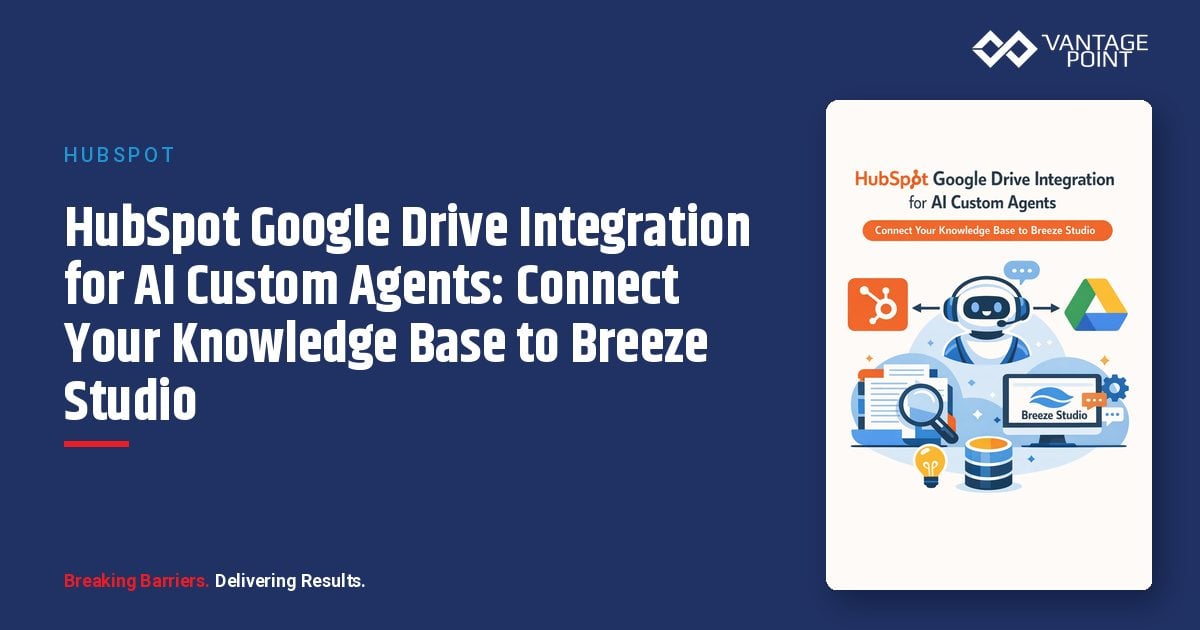
HubSpot's latest update changes that equation entirely. With the Google Drive integration for Knowledge Vaults in Breeze Studio, you can now connect your existing Google Drive folders directly to custom AI agents, giving them secure, permission-aware access to your organization's most critical documents.
In this guide, we'll walk you through exactly what this integration means, how to set it up step by step, the use cases that deliver the biggest ROI, and the best practices that separate good AI agent deployments from great ones.
What Is the Google Drive Integration for HubSpot AI Custom Agents?
The Feature at a Glance
Released as a live feature available across all HubSpot hubs and tiers, this integration allows users to connect Google Drive folders as Knowledge Vault sources within Breeze Studio — HubSpot's platform for building and managing custom AI agents and assistants.
Once connected, your custom AI agents can:
- Search and reference documents stored in Google Drive
- Cite specific sources (including page numbers and sections) in their responses
- Respect Google Drive permissions — agents only access files the connected identity is authorized to view
- Stay current with the latest versions of your documents automatically
This isn't a simple file sync. It's a purpose-built AI knowledge pipeline that transforms your static Google Drive documents into a dynamic, queryable knowledge base for your CRM's AI workforce.
How Knowledge Vaults Work in Breeze Studio
Knowledge Vaults are the backbone of HubSpot's approach to giving AI agents business-specific context. Think of them as curated collections of information that ground your AI agents' responses in real company data rather than generic training data.
A single Knowledge Vault can include:
| Source Type | Examples | Supported Formats |
|---|---|---|
| Files | Product docs, SOPs, training guides | PDF, .md, .html, .pptx, .txt, .docx (up to 50 MB) |
| Images | Diagrams, charts, screenshots | .jpeg, .png, .webp (up to 10 MB) |
| Content | Knowledge base articles, blog posts, landing pages | HubSpot-hosted content |
| CRM Segments | Contact lists, deal pipelines, ticket groups | Active or static lists |
| Google Drive Folders | Any connected Drive folder | All supported file types within Drive |
You can create up to 50 separate Knowledge Vaults and assign multiple vaults to any agent or assistant, giving you granular control over what each AI agent knows and can reference.
Why Knowledge-Grounded AI Agents Outperform Generic Ones
The Hallucination Problem
Generic AI chatbots generate responses based on broad training data. When a customer asks about your specific return policy, pricing tiers, or implementation process, a generic bot either guesses (hallucination) or gives a vague, unhelpful answer.
Knowledge-grounded agents — those connected to your actual business documents — solve this by retrieving verified information before generating a response. This approach, known as Retrieval-Augmented Generation (RAG), dramatically improves accuracy.
The Numbers That Matter
Organizations deploying knowledge-grounded AI agents in their CRM consistently report:
- Up to 65% of customer conversations auto-resolved without human intervention (HubSpot's Customer Agent benchmark)
- Significant reduction in average handle time as agents instantly surface relevant documentation
- Faster employee onboarding — new team members query the AI assistant instead of hunting through Drive folders
- Reduced information search time from 15+ minutes per query to near-instant AI-powered retrieval
- Higher customer satisfaction scores due to accurate, source-cited responses
Grounded vs. Generic: A Side-by-Side Comparison
| Metric | Generic AI Chatbot | Knowledge-Grounded AI Agent |
|---|---|---|
| Response Accuracy | Relies on general training data | Cites specific company documents |
| Hallucination Risk | High — makes up plausible-sounding answers | Low — retrieves verified information first |
| Personalization | Limited to basic CRM fields | Combines CRM data + document knowledge |
| Source Transparency | No citations | Includes document name, page number, section |
| Maintenance | Requires retraining for updates | Automatically uses latest document versions |
| Trust Level | Users must verify independently | Built-in citation trail for verification |
Step-by-Step: How to Connect Google Drive to HubSpot AI Custom Agents
Prerequisites
Before you begin, ensure you have:
- A HubSpot account on any hub and tier (Starter, Professional, or Enterprise)
- A Google Workspace or personal Google account with Drive access
- Admin or appropriate permissions in both HubSpot and Google Drive
- Documents organized in identifiable Drive folders
Step 1: Navigate to Knowledge Vaults
- Log into your HubSpot account
- Navigate to Breeze > Knowledge in the main navigation
- Click Create vault in the top right corner
Step 2: Configure Your Knowledge Vault
- Enter a descriptive Name for the vault (e.g., "Sales Enablement Documents" or "Product Documentation Q1 2026")
- Add a Description that helps you and your team understand what this vault contains and its intended purpose
- This description also helps the AI understand the context of the documents it's accessing
Step 3: Connect Google Drive Folders
- In the vault creation panel, click Add Knowledge and select the option to connect a new content source
- Choose Google Drive as your source
- Authenticate with your Google account when prompted
- Select one or more Drive folders to connect to this vault
- A visible badge will appear summarizing the Drive access mode and scope
Step 4: Add Additional Knowledge Sources (Optional)
Enhance your vault by adding complementary sources:
- Files: Upload PDFs, Word docs, PowerPoint presentations, or text files directly
- Content: Add HubSpot knowledge base articles, blog posts, or landing pages
- Segments: Link CRM lists (contacts, companies, deals, or tickets) for data-driven context
Step 5: Review Permissions and Save
- Review which Google identity is connected and the list of connected folders
- Verify the current permission scope via Vault details
- Click Create to save your Knowledge Vault
Step 6: Assign the Vault to a Custom Agent
- Navigate to Breeze > Breeze Studio
- Hover over your custom agent or assistant and click the menu icon, then select Configure
- In the "What this agent knows" section, click Add knowledge
- Hover over your new Knowledge Vault and click Add
- Click Publish in the top right to make the changes live
Your AI agent now has secure access to your Google Drive documents and will reference them when responding to queries.
Use Cases: Where Google Drive + AI Agents Deliver the Most Value
Sales Enablement
Connect these Drive folders: Product documentation, pricing sheets, ROI calculators, competitive analysis decks, case studies, proposal templates
What your AI agent can do:
- Instantly surface the latest pricing sheet when a rep asks "What's our enterprise pricing for Q2?"
- Pull competitive differentiation points from battle cards during deal preparation
- Find and share relevant case studies based on a prospect's industry or company size
- Reference product specifications without reps leaving HubSpot
Example prompt: "Find our latest enterprise pricing guide and summarize the tier differences for a 200-person organization."
Customer Support
Connect these Drive folders: SOPs, troubleshooting guides, FAQs, product manuals, onboarding documentation, training materials
What your AI agent can do:
- Auto-resolve common support tickets by referencing troubleshooting guides
- Provide step-by-step instructions pulled directly from product manuals
- Access onboarding checklists and implementation guides for new customers
- Cite specific documentation sections so customers can verify answers independently
Example prompt: "A customer is having trouble with the API integration. What are the troubleshooting steps from our technical documentation?"
Marketing Operations
Connect these Drive folders: Brand guidelines, content calendars, campaign playbooks, editorial style guides, performance reports
What your AI agent can do:
- Ensure content creators follow brand guidelines by answering style questions instantly
- Reference campaign performance data when planning new initiatives
- Pull editorial calendar details for content coordination across teams
- Access approved messaging frameworks for consistent communication
Example prompt: "What are our brand guidelines for social media imagery? Include the approved color palette and font specifications."
Operations and HR
Connect these Drive folders: Employee handbooks, policy documents, process documentation, training curricula, compliance guidelines
What your AI agent can do:
- Answer employee policy questions instantly (PTO policies, expense procedures, etc.)
- Guide new hires through onboarding documentation without manager bottlenecks
- Surface relevant compliance guidelines during process execution
- Provide training material recommendations based on role or department
Example prompt: "What is our company's remote work policy, and what are the requirements for home office equipment reimbursement?"
Best Practices for Organizing Your Drive Knowledge Base for AI Consumption
Folder Structure That Works
The way you organize your Google Drive directly impacts how effectively your AI agents can find and reference information. Follow these guidelines:
Recommended Hierarchy:
📁 AI Knowledge Base/
├── 📁 Sales/
│   ├── 📁 Pricing/
│   ├── 📁 Product Docs/
│   ├── 📁 Competitive Intel/
│   └── 📁 Case Studies/
├── 📁 Support/
│   ├── 📁 Troubleshooting/
│   ├── 📁 FAQs/
│   ├── 📁 Product Manuals/
│   └── 📁 Onboarding/
├── 📁 Marketing/
│   ├── 📁 Brand Guidelines/
│   ├── 📁 Content Calendar/
│   └── 📁 Campaign Playbooks/
└── 📁 Operations/
    ├── 📁 Policies/
    ├── 📁 Processes/
    └── 📁 Training/
File Naming Conventions
Use descriptive, consistent naming patterns that help both humans and AI:
- ✅
2026-Q1-Enterprise-Pricing-Guide-v3.pdf - ✅
Product-Manual-Widget-Pro-2026.docx - ✅
Troubleshooting-API-Integration-Errors.pdf - ❌
pricing final FINAL (2).pdf - ❌
doc1.docx - ❌
Untitled document
Optimize File Formats
| Format | AI Readability | Best For |
|---|---|---|
| Google Docs | ★★★★★ | Living documents, SOPs, policies |
| PDF (text-based) | ★★★★★ | Final versions, compliance docs |
| .docx | ★★★★☆ | Documents with embedded images |
| .pptx | ★★★★☆ | Presentations, training decks |
| Markdown (.md) | ★★★★★ | Technical documentation |
| PDF (scanned images) | ★★☆☆☆ | Avoid — requires OCR first |
Content Optimization Tips
- Use clear headings and subheadings — AI agents parse document structure to find relevant sections faster
- Include a document summary at the top — a brief overview helps AI determine relevance quickly
- Keep documents focused — one topic per document performs better than large omnibus files
- Update regularly — Knowledge Vaults automatically use the most recent version, but stale documents produce stale answers
- Remove duplicates — conflicting versions of the same document confuse AI retrieval
- Use Shared Drives (not personal "My Drive") for team knowledge bases to ensure consistent access and governance
Security and Permission Considerations
How Permissions Work
One of the standout features of this integration is its permission-aware design:
- Inherited permissions: AI agents inherit the sharing rules of the connected Google identity. If a file is restricted in Drive, the agent cannot access it
- Transparency: Vault administrators can review which Google identity is connected, the list of connected folders, and the current permission scope at any time
- Audit trail: All actions — including searches, file access, and re-authorization events — are logged and auditable by vault admins/owners
- No write-back: The integration reads Drive documents for AI purposes but does not alter files in HubSpot or Google Drive
What Happens When Permissions Change
- If Drive access is revoked or expires, users receive prompts to reconnect or reauthorize
- Vaults automatically prevent further access until the connection is restored
- Agent responses always reflect the current permissions of the connected identity, ensuring data accuracy and compliance
Best Practices for Security
- Use a dedicated service account for AI agent connections rather than individual user accounts
- Apply the principle of least privilege — only connect folders the AI agent genuinely needs
- Regularly audit connected folders and remove access to deprecated or sensitive documents
- Use Google Workspace admin controls to manage sharing settings at the organizational level
- Document your AI data governance policy and ensure it covers third-party AI integrations
How HubSpot's Approach Compares to Salesforce
For organizations evaluating their CRM AI strategy, here's how HubSpot's Google Drive Knowledge Vault integration compares to Salesforce's approach:
| Aspect | HubSpot (Breeze + Knowledge Vaults) | Salesforce (Einstein + Data Cloud) |
|---|---|---|
| Knowledge Sources | Google Drive, CRM data, files, hosted content, segments | Knowledge Articles, Data Cloud (unified external/CRM data) |
| Setup Complexity | Low — connect Drive folders in minutes via Breeze Studio | Higher — requires Data Cloud configuration and data mapping |
| AI Grounding | Knowledge Vault citations with document name and page number | Einstein Copilot grounded in Knowledge Articles and Data Cloud |
| Availability | All hubs and tiers (free) | Varies by Einstein and Data Cloud licensing tier |
| External Data | Google Drive folders with native permissions | Zero-ETL connectors, MuleSoft integrations |
| Best For | SMBs and mid-market organizations wanting fast AI deployment | Enterprise organizations with complex multi-cloud data needs |
| Custom Agents | Breeze Studio — visual builder with up to 50 Knowledge Vaults | Agentforce — enterprise-grade agent builder with Data Cloud |
Both platforms recognize that knowledge-grounded AI is the future of CRM automation. HubSpot prioritizes simplicity and speed-to-value, while Salesforce offers deeper enterprise data unification capabilities.
Vantage Point works with both platforms, helping organizations choose and implement the right AI agent strategy based on their specific needs, data architecture, and growth trajectory.
ROI: The Business Case for Knowledge-Grounded AI Agents
Faster Agent Onboarding
New employees no longer need to memorize where every document lives. They simply ask the AI assistant, which searches across all connected Knowledge Vaults and returns the relevant information with source citations. Organizations report reducing onboarding time significantly when AI assistants handle the "Where do I find...?" questions.
More Accurate AI Responses
By grounding responses in your actual documentation, AI agents eliminate the guesswork that leads to hallucinations. Every response can be traced back to a specific document, page, and section — building trust with both internal users and external customers.
Reduced Support Costs
HubSpot's Customer Agent can auto-resolve up to 65% of customer conversations when properly configured with comprehensive Knowledge Vaults. That translates directly to reduced headcount needs, shorter queue times, and higher customer satisfaction scores.
Eliminated Context-Switching
Your team no longer needs to toggle between HubSpot and Google Drive to find information. Everything is accessible through Breeze Assistant or your custom agents, keeping people in their workflow and focused on high-value activities.
Quantifying the Impact
| Metric | Before Knowledge Vaults | After Knowledge Vaults |
|---|---|---|
| Avg. information search time | 15-20 minutes per query | Near-instant AI retrieval |
| Support ticket auto-resolution | Manual handling required | Up to 65% auto-resolved |
| New hire ramp-up time | Weeks of document discovery | Days with AI-assisted onboarding |
| Response accuracy | Dependent on agent memory | Document-backed with citations |
| Knowledge accessibility | Siloed in Drive folders | Unified across CRM + Drive |
Frequently Asked Questions (FAQ)
What file types does HubSpot's Google Drive Knowledge Vault integration support?
The integration supports documents stored in Google Drive including PDFs, Google Docs, .docx, .pptx, .txt (UTF-8), .md, and .html files up to 50 MB each. Image files (.jpeg, .png, .webp) up to 10 MB are also supported. Embedded images within documents (PDFs, Word, PowerPoint) are automatically searchable alongside text content.
Is the Google Drive integration available on HubSpot's free plan?
Yes. The Google Drive integration for Knowledge Vaults in Breeze Studio is available across all HubSpot hubs and tiers, including Starter plans. You do need an active Google Workspace or Google account with Drive access.
How does HubSpot handle Google Drive permissions for AI agents?
The integration preserves your original Google Drive sharing rules. AI agents only access files that the connected Google identity is authorized to view. If Drive access is revoked or expires, the vault automatically prevents further access until reconnected. All access events are logged and auditable.
Can I connect multiple Google Drive folders to a single Knowledge Vault?
Yes. When setting up the integration, you can authenticate with your Google account and select one or more Drive folders to connect to a single Knowledge Vault. You can also create multiple vaults (up to 50) and assign different combinations to different AI agents.
How often does the Knowledge Vault update when Drive documents change?
HubSpot states that agents use the most recent version of any records added to Knowledge Vaults. While specific refresh intervals aren't published, the system is designed to reflect current document state. For time-sensitive content, test with a sample document update to verify refresh timing in your environment.
Will AI agents expose sensitive documents to unauthorized users?
No. The integration enforces the permissions of the connected Google identity. If a document is restricted in Google Drive, the AI agent cannot access or reference it. Additionally, HubSpot provides controls to toggle AI access per user, including generative AI capabilities, CRM data access, and conversation data.
How does this compare to uploading files directly to HubSpot?
Connecting Google Drive folders keeps your documents in their original location — no duplication required. Direct file uploads are still available for documents not stored in Drive. The Google Drive integration is ideal for organizations that already use Drive as their primary document repository, as it eliminates the need to maintain separate copies.
Can I use Knowledge Vaults with HubSpot's pre-built agents or only custom ones?
Knowledge Vaults can be assigned to both custom agents and assistants built in Breeze Studio. The default Knowledge Vault uses data sources set in your AI settings, while custom vaults give you granular control over what specific agents can access.
Conclusion: Turn Your Google Drive Into an AI-Powered Knowledge Engine
The Google Drive integration for HubSpot's Breeze AI custom agents represents a significant step forward in making CRM AI actually useful for everyday business operations. Instead of building knowledge bases from scratch or duplicating documents across platforms, you can now point your AI agents at the documents your team already uses — and get accurate, citation-backed responses in seconds.
The businesses that will see the most value are those that take the time to organize their Drive knowledge base thoughtfully, configure permissions properly, and iterate on their Knowledge Vaults based on real usage data.
Ready to connect your Google Drive knowledge base to HubSpot AI agents? Vantage Point helps organizations design, implement, and optimize AI agent strategies across both HubSpot and Salesforce. Whether you're just getting started with Breeze Studio or planning a comprehensive AI-powered CRM transformation, our team can help you get there faster.
Contact Vantage Point to discuss your AI agent strategy today.
About Vantage Point
Vantage Point is a trusted CRM implementation and automation partner specializing in Salesforce, HubSpot, and cutting-edge AI integrations. As certified experts in both platforms, we help businesses of all sizes design and deploy intelligent CRM solutions — from custom AI agents and Knowledge Vault configurations to full-scale Salesforce and HubSpot implementations. Our partnerships with Anthropic (Claude AI), Aircall, MuleSoft, and Workato enable us to deliver end-to-end solutions that drive measurable business outcomes. Learn more at vantagepoint.io.