
A HubSpot ON24 integration should do more than put a webinar form on a landing page. It should give registrants one clear path into the event, preserve trustworthy registration and attendance data, and make post-event follow-up useful without sending messages before the data is ready.
That requires decisions across both systems: where people register, which fields move at registration, which event signals return to HubSpot, when workflows run, and who owns exceptions. Teams that treat the connection as a simple form handoff often end up with missing registrants, blank picklists, duplicate contacts, or follow-up based on incomplete attendance data.
This guide explains how to design the HubSpot ON24 integration from registration to follow-up, with a practical testing and governance plan for marketing, sales, and operations teams.
Quick Answer
A HubSpot ON24 integration connects webinar registration and engagement data to the CRM. It matters to teams that need to register people through HubSpot, track attendance and engagement in a usable record, and trigger appropriate follow-up. The most reliable design defines the registration path, maps only the fields both systems can use, waits for the right event data, and tests real contacts before launch. Vantage Point helps organizations turn these decisions into a workable HubSpot, workflow, and integration design.
Key Takeaways (TL;DR)
- Choose one registration path: use a HubSpot form with the ON24 app or webhook when HubSpot should own the landing page and conversion record; use ON24-hosted registration when the event experience should own the flow.
- Map for action, not volume: email, name, company, consent, campaign source, and role are usually more useful than a long field list that no workflow uses.
- Design around data timing: registration, live attendance, and on-demand attendance become available on different schedules, so one immediate post-event workflow is rarely enough.
- Validate controlled values: picklists such as state or region need exact matching values, or data can arrive blank.
- Test the complete journey: submit a real test registration, confirm it in ON24 and HubSpot, then test the resulting workflow branches before the event is promoted.
What should a HubSpot ON24 integration accomplish?
At a minimum, the integration should answer four operational questions: Did the person register? Did they attend live or on demand? What meaningful engagement occurred? What should happen next? The answers should be available in the systems and reports the team actually uses, not only in an event dashboard.
ON24 documents two connected flows. A registration flow can send a contact from HubSpot to ON24. An event-data flow can bring registrant and attendee activity back to HubSpot. Keeping those flows separate in the design prevents a common mistake: assuming a submitted HubSpot form proves that the person is registered for the event or that attendance data is already ready for a follow-up workflow.
Start with the business decision, not a connector setting. A campaign team may only need a clean registration count and a timely reminder. A sales team may need attendance status, questions, poll responses, resource activity, and a governed handoff rule. The second use case needs clearer data definitions, ownership, and validation before the first form is built.
Should people register in HubSpot or in ON24?
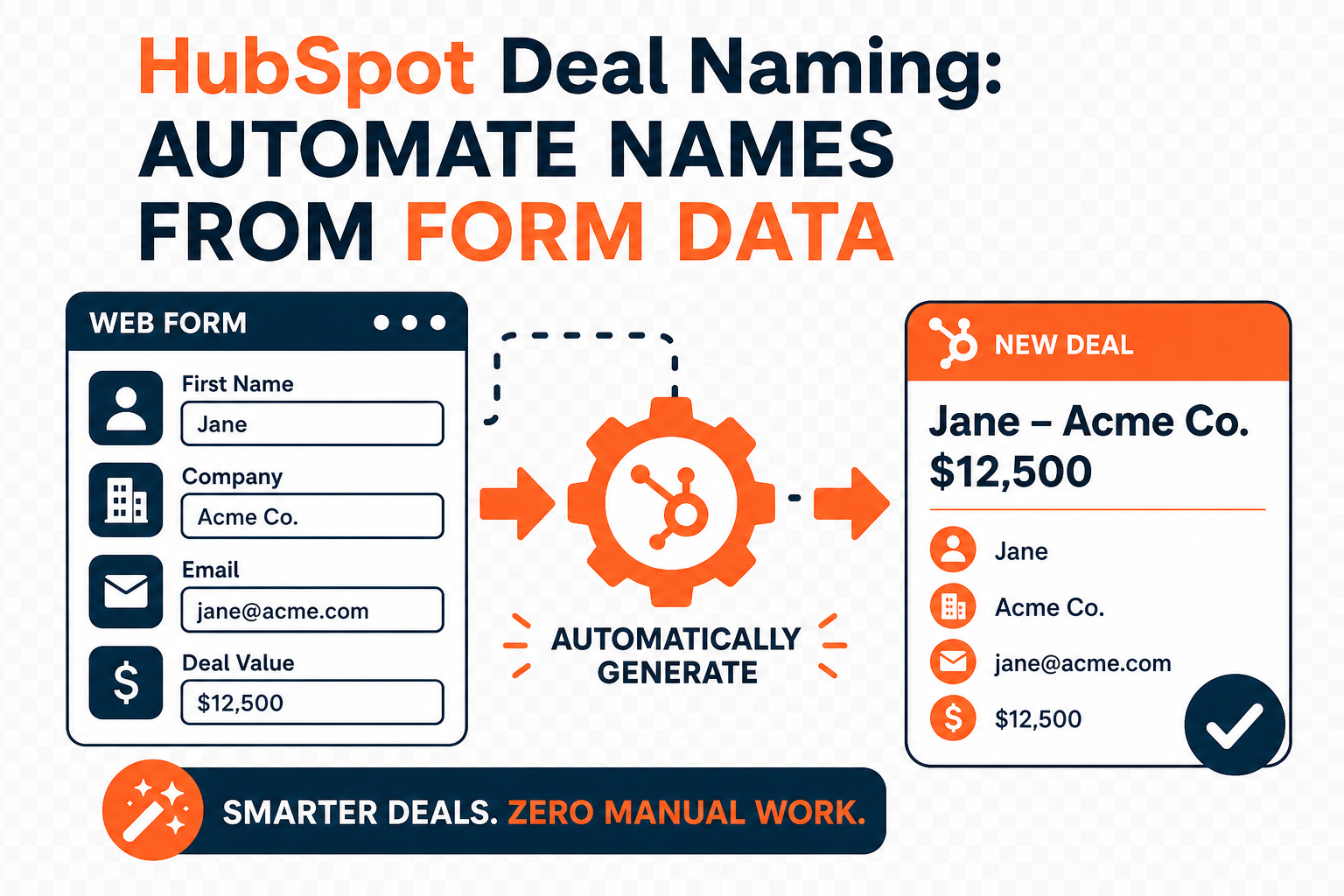
There is no universal answer. Use the system that needs to own the conversion experience, while making sure the second system receives the data it needs. When a HubSpot landing page, campaign attribution, and contact record are central to the program, a HubSpot form can be the right front door. ON24's registration guidance describes sending HubSpot form data to ON24 through either its app action or a webhook.
| Registration approach | Best when | Design requirements | Watch for |
|---|---|---|---|
| HubSpot form to ON24 | HubSpot owns the landing page, consent capture, campaign attribution, and nurture history. | Define the workflow trigger, event ID and key, required field mappings, confirmation path, and a test record. | A submitted form is not enough; confirm the registrant appears in ON24. |
| ON24-hosted registration | The event platform needs to own the registration experience or the event setup has requirements that are native to ON24. | Define how registration data returns to HubSpot and which campaign or lifecycle updates should happen there. | Do not assume HubSpot has every field or status at the moment of submission. |
| Mixed or duplicate forms | Only as a temporary, explicitly governed exception. | Choose one source of truth, deduplication behavior, and an owner for reconciliation. | Two public forms for the same event can fragment attribution and create inconsistent records. |
If HubSpot is the registration front door, match the event's registration fields to the HubSpot fields before publishing. ON24 notes that its workflow action requires an Event ID, Event Key, and mapped email address; additional mapped values can be used where they support a real downstream purpose. Keep email visible on the form because it is the most practical identifier for registration, confirmation, and contact matching.
Field burden also deserves a decision. Asking for too much too soon can depress registration, while asking for nothing beyond an email can leave sales unable to prioritize follow-up. Use the minimum fields required for the event and the next business action. If the team is working in HubSpot's updated form editor, plan around its current form-shortening options rather than assuming legacy progressive fields will be available.
How do you set up the registration handoff?
A reliable handoff is a small workflow with clear inputs, not a collection of disconnected settings. Build and test it in this order:
- Define the trigger. Use the intended HubSpot form submission or a deliberately controlled enrollment rule. Avoid a broad trigger that enrolls contacts who submitted an unrelated form.
- Confirm event identifiers. Retrieve the ON24 Event ID and Event Key for the correct event. Treat them as event-specific configuration, document the owner, and keep them out of public-facing copy.
- Map required and useful fields. Start with email. Add first name, last name, company, role, consent or subscription information, campaign identifiers, and other fields only when they support registration, segmentation, reporting, or follow-up.
- Choose the delivery method. ON24 supports an app action for sending contact data to ON24 and a webhook approach. The app is often simpler for standard flows; a webhook can be appropriate when the team needs a deliberately specified request. Either choice should be owned and documented.
- Test before publishing. Use a controlled contact, verify that the workflow completed, and check the ON24 registrant record. Then test the confirmation, reminder, and suppression behavior that follows.
Do not treat successful workflow enrollment as the finish line. A test needs evidence on both sides: the registration is visible in ON24, the intended HubSpot contact is updated correctly, and no unexpected workflow or email is triggered. Keep a short test record with the test email, date, event, results, and remediation owner.
What webinar data should come back to HubSpot?
Begin with an action map: signal → business meaning → next step → owner. Registration status might trigger confirmation and reminders. Live attendance may trigger a tailored thank-you. On-demand viewing may call for different timing. A poll response, a question, a resource download, or a request for a meeting may justify a stronger handoff only when the receiving team agrees on the rule.
ON24's integration overview says that HubSpot Enterprise can create a custom object that links registrant and attendee activity to a Contact. That can be valuable when teams need an event-level record rather than only a few overwritten contact properties. It also means the data model should be reviewed before launch: decide which reports, lists, and workflows should use the event record, and which should use a summary contact property.
For teams without the same object capabilities, it is even more important to avoid pushing every possible event signal into a small set of contact fields. A field such as “last webinar attended” can be helpful for a lightweight workflow, but it is not a durable history. Keep the use case honest: operational follow-up may need a different design from long-term event analytics.
When should HubSpot follow-up workflows run?
Timing is not a cosmetic choice. ON24 states that its HubSpot integration is scheduled to run every 30 minutes when new data is available, while availability differs by signal: registrant data is listed at about 15 minutes, live attendance at 30 minutes to two hours after the event ends, and on-demand attendance at four to twelve hours. Heavy-traffic conditions can affect those windows.
Build separate workflow branches around these realities. Registration confirmations and reminders can run from the registration path. A live-attendee thank-you should wait until the agreed attendance-status field or event record is available. On-demand follow-up should use its own delay and exit logic rather than treating a non-attendee as permanently disengaged immediately after the live session.
Set a reconciliation checkpoint for every event. For example, after a sensible buffer, compare the expected registrant or attendee counts with the records available in HubSpot. If the difference exceeds an agreed threshold, pause any high-consequence handoff and investigate the integration, mapping, or event configuration. This is safer than asking a sales team to discover missing data manually.
How do you prevent bad mappings and blank data?
Controlled values need special attention. ON24 warns that a State field can sync as blank if a HubSpot field was changed to a picklist and the ON24 value does not exactly match an available option. The same general risk applies to region names, country codes, job functions, campaign codes, and any field used by a workflow branch.
Create a field-mapping sheet before launch. For each field, list the system of entry, field type, required status, expected value format, transformation rule, destination, owner, and the workflow or report that uses it. Include consent and subscription handling separately; do not assume an event registration automatically grants a marketing subscription without a defined legal and operational basis.
Also define contact-creation behavior and deduplication expectations. ON24's documentation notes that its app creates contacts by default and that this behavior is not customizable in the app. Review that impact alongside your HubSpot form rules, existing-contact logic, and any CRM synchronization before a high-volume event.
HubSpot ON24 integration checklist
- Choose a single public registration path and name the source of truth.
- Document the event ID, event key, event owner, workflow owner, and fall-back owner.
- Map only fields that have a registration, segmentation, reporting, or follow-up purpose.
- Validate all picklists and controlled values with a real test contact.
- Test registration, confirmation, reminder, live attendance, on-demand attendance, and opt-out handling.
- Define data-availability windows and workflow delays before promotional traffic starts.
- Specify which engagement signals warrant a sales task, and which remain marketing context.
- Set a post-event reconciliation check and an exception path for missing or late data.
How Vantage Point Helps
Vantage Point helps organizations connect HubSpot technology, event workflows, and downstream CRM processes so that registration data supports real action instead of creating another isolated report. For integrations with more than one system, our system integration and data-migration services can clarify ownership, mappings, automation boundaries, and testing before a campaign depends on them.
Senior consultants only — no junior handoffs; the experts you meet are the experts who deliver. The practical goal is a usable operating design: a clear registration path, governed data, sensible timing, and follow-up teams can trust.
Make webinar data usable after the event
If your team is evaluating HubSpot, ON24, CRM follow-up, or event-data governance, Vantage Point can help assess the right next step and build a practical implementation plan. Start a conversation with Vantage Point.
Frequently Asked Questions
Can HubSpot send webinar registrants to ON24?
Yes. ON24 documents a HubSpot workflow approach that can send registrant data through the ON24 app action or a webhook. The workflow needs the correct event identifiers, email mapping, and a test that confirms the registrant appears in ON24.
Should we use a HubSpot form or an ON24 registration page?
Use a HubSpot form when HubSpot should own the landing page, conversion attribution, consent capture, and nurture history. Use an ON24 registration page when the event platform needs to own the registration experience, but define how the resulting data returns to HubSpot before promoting the event.
How quickly does ON24 attendance data appear in HubSpot?
ON24 says its HubSpot integration runs on a 30-minute schedule when new data is available, while availability differs by activity. Its guidance lists live attendance at roughly 30 minutes to two hours after the event ends and on-demand attendance at four to twelve hours, so follow-up workflows should use separate timing.
Why are some ON24 fields blank in HubSpot?
Blank fields often point to a mapping or value-format problem. ON24 specifically notes that a value can sync blank when an ON24 value does not exactly match a HubSpot picklist option, so controlled-value lists should be validated before launch.
Does the ON24 HubSpot integration create contacts?
ON24 states that its HubSpot app creates contacts by default and that the app behavior is not currently customizable. Teams should review this alongside their deduplication rules, form settings, and CRM synchronization before a high-volume event.
Do we need HubSpot Enterprise for an ON24 integration?
No single answer applies to every use case. ON24 says HubSpot Enterprise can create a custom object linking registrant and attendee activity to Contacts, which is useful for richer event-level history; teams should confirm their required data model and subscription capabilities before design.