
A customer portal looks simple from the outside: clients log in, see their information and get help. Behind it sits a set of decisions that shape your support workload, your data exposure and your audit trail. Teams that make those decisions late often launch a portal that shows too much, invites more requests than they can handle, or can't explain who looked at what.
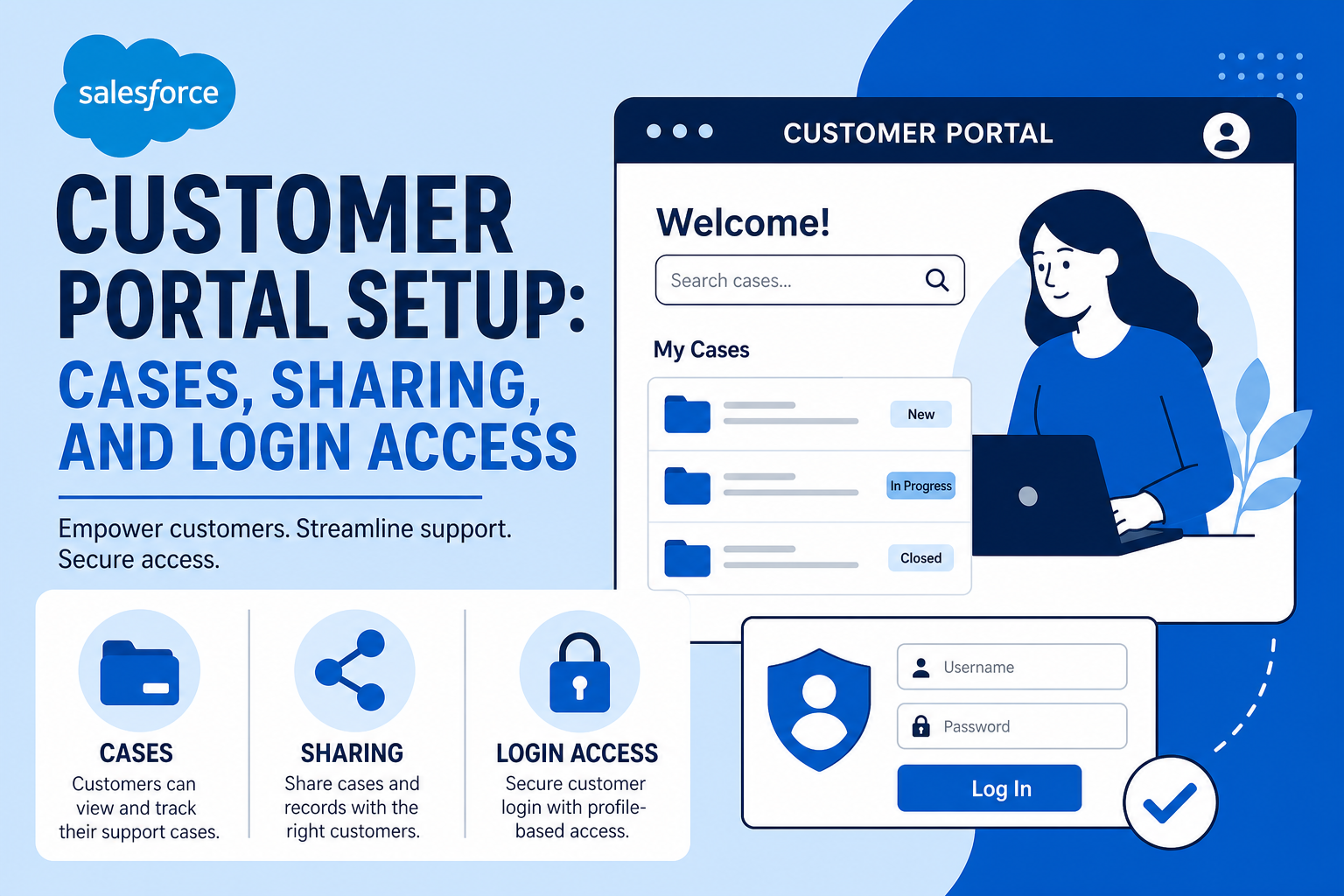
This guide covers the choices to settle before launching a Salesforce customer portal on Experience Cloud: whether customers can create cases, how cases from unexpected email addresses are matched, what each user can see, who can log in as a portal user, and how list views stay under control.
Quick Answer
Before launching a Salesforce customer portal, decide five things: whether portal users can open new cases or only follow existing ones; how inbound emails from alternate addresses link to the right account; which records and fields external users can see through sharing sets and field-level security; who may log in as a portal user, and how that's audited; and who can create shared list views. Settling these early prevents data exposure and support overload. Vantage Point configures portals through its Salesforce implementation and advisory services.
Key Takeaways (TL;DR)
- Case creation is optional: a portal can show case status and history without letting users open new cases.
- Plan for alternate emails: co-owners and family members often write in from addresses your CRM doesn't know.
- Sharing decides exposure: sharing sets control records; field-level security hides sensitive fields such as internal fees.
- Login-as access is powerful: limit it to a few managers and rely on the audit trail.
- Restrict shared list views: let users build personal views, but keep public views with admins.
What Is a Salesforce Customer Portal?
A Salesforce customer portal is an Experience Cloud site where external users, such as clients, log in to see their own records. Typical portals show account details, cases, documents and status updates. Because the data lives in the same Salesforce org your staff use, the portal's settings decide exactly how much of it customers can reach.
If you're still choosing a platform, our comparison of Experience Cloud and HubSpot CMS for client portals covers that decision. This guide assumes you've chosen Salesforce and are preparing to launch.
Should Portal Users Be Able to Create New Cases?
It's tempting to add a "New Case" button by default. Before you do, ask whether your team can handle what it invites. Easy case creation often brings a flood of small, fragmented requests, some duplicating emails or phone calls already in progress.
You have three reasonable options:
| Option | How it works | Best for |
|---|---|---|
| View-only cases | Users see status and history of cases your team opens | Teams with limited support capacity or email-first support |
| Guided case creation | A form with required categories and help articles shown first | Teams ready to triage, with clear request types |
| Open case creation | Any user can open a case on any topic | Dedicated support teams with service levels in place |
Starting view-only is a sensible default. You can add a guided form later, once you know which request types customers actually need. Removing a feature customers already use is much harder than adding one.
How Do You Match Cases From Alternate Email Addresses?
Many cases arrive by email, not through the portal. Salesforce matches an inbound email to a contact by address. When a co-applicant, spouse, assistant or colleague writes from an address that isn't on file, the case arrives without a contact or account.
Plan for this before launch:
- Capture alternate addresses on the contact or account so known secondary senders are recognized.
- Create separate contacts for people who regularly act on an account, so you can tell who sent each message.
- Give unmatched cases an owner. Route them to a queue where someone links them to the right account manually.
- Confirm the sender address for outbound case replies, using an organization-wide support address customers recognize.
What Should External Users Be Able to See?
Portal visibility works in two layers. Record access decides which records a user can reach. Field access decides which fields on those records they can read.
For record access, customer portals commonly use sharing sets, which give a portal user access to records linked to their own account or contact. Salesforce Help explains how to create sharing sets for Experience Cloud site users. If a customer can't see their own account or ledger information, the sharing set usually doesn't cover that object or relationship yet.
For field access, use field-level security on the external user's profile or permission sets. Internal fields, such as fee calculations, internal notes, risk flags or staff comments, should be hidden rather than just left off the page layout. A field removed from a layout can still surface elsewhere if the user has read access.
Build a simple permissions matrix: one row per object, one column per user type, and a clear read, create or edit decision in each cell. Test it by logging in as a sample user of each type.
Who Should Be Able to Log In as a Portal User?
Salesforce lets authorized internal users log in to a site as a specific external user, which is useful for troubleshooting exactly what a customer sees. The Salesforce Help guide to logging in as another user covers how it works.
It's also powerful. Anyone using it sees everything that customer can see and can act as them. Treat it as a controlled privilege:
- Limit it to a small group, such as support managers and admins.
- Set a policy for when it's allowed, such as troubleshooting a reported issue.
- Consider asking for customer consent where your client agreements or regulations expect it.
- Rely on the audit trail. Login-as sessions are recorded in the Setup Audit Trail, which Salesforce keeps for 180 days. Export it if you need a longer record.
For a broader view of logging and accountability, see our guide to building audit trails in your CRM.
How Should You Handle List Views in the Portal?
List views seem harmless, but a shared list view built by the wrong user can expose records to people who shouldn't see them together. The safe pattern is simple:
- Let users create personal list views for their own work.
- Keep public or shared list views with admins, who build them deliberately.
- Review shared views when sharing rules or user types change.
Sharing still controls which records appear, so list views don't bypass security. But restricting who publishes them keeps the portal predictable.
What Makes a Portal Home Page Useful?
A portal home page should answer the questions customers call about most. Often that means clear status information, key dates and balances, recent activity, and an account details area showing what's on file. Avoid internal jargon, and label fields the way customers talk.
A short list of what customers ask most often, pulled from support emails and calls, is the best guide to what belongs on the home page. Revisit it a few weeks after launch.
What Should You Test Before Go-Live?
- Log in as each user type and confirm what they can and can't see.
- Send test emails from known, alternate and unknown addresses.
- Confirm case replies come from the right support address with a clear subject line.
- Check that hidden fields don't appear in search results, related lists or exports.
- Verify login-as access is limited to the intended group.
Who Should Own the Portal After Launch?
Portals drift. New fields get added to objects customers can see, new staff get login-as rights, and a request type that was handled by email quietly becomes a portal form. Name a portal owner, usually someone in service operations working with your Salesforce admin, and give them a short quarterly review:
- Recheck the permissions matrix against current profiles and permission sets.
- Review who has login-as access and how often it's used.
- Look at unmatched email cases and add missing alternate addresses.
- Ask support which questions customers still call about, and update the home page.
How Vantage Point Helps
Vantage Point designs and launches Salesforce customer portals that customers use and teams can support. Our Salesforce implementation and advisory team builds the sharing model, case process and portal experience, and our compliance and security solutions cover permissions, auditing and data exposure reviews. Senior consultants only. No junior handoffs; the experts you meet are the experts who deliver.
Launching a Customer Portal?
Settle the case, sharing and access decisions before customers log in. Vantage Point can review your portal setup and build a permissions model your team can stand behind. Talk to Vantage Point about your Salesforce portal.
Frequently Asked Questions
Do Salesforce portal users have to be able to create cases?
No. A portal can show the status and history of cases your team opens without letting users open new ones. Many teams start view-only and add a guided case form later.
How are inbound emails from unknown addresses handled?
Salesforce matches inbound emails to contacts by address, so emails from unknown addresses arrive without a contact. Capture alternate addresses, create contacts for regular senders, and route unmatched cases to a queue for manual linking.
What is a sharing set in Experience Cloud?
A sharing set gives portal users access to records linked to their own account or contact. It's a common way to control which records customers can see in a Salesforce portal.
How do you hide sensitive fields from portal users?
Use field-level security on the external user's profile or permission sets. Removing a field from the page layout alone isn't enough, because a readable field can still appear elsewhere.
Who should be allowed to log in as a portal user?
Only a small group, such as support managers and admins, under a clear policy. Login-as access lets someone see and act as the customer, so it should be limited and audited.
Are login-as sessions tracked in Salesforce?
Yes. Login-as sessions are recorded in the Setup Audit Trail, which Salesforce keeps for 180 days. Export the audit trail regularly if you need a longer history.
Can portal users create shared list views?
They can if given the permission, but it's safer to let them create personal list views only. Keep shared or public list views with admins so what's shared stays deliberate.