
Getting data out of Salesforce sounds simple until you are staring at five different export options, each with its own limits, formats, and scheduling rules. Pick the wrong method and you end up with truncated fields, expired download links, or a CSV that breaks on import.
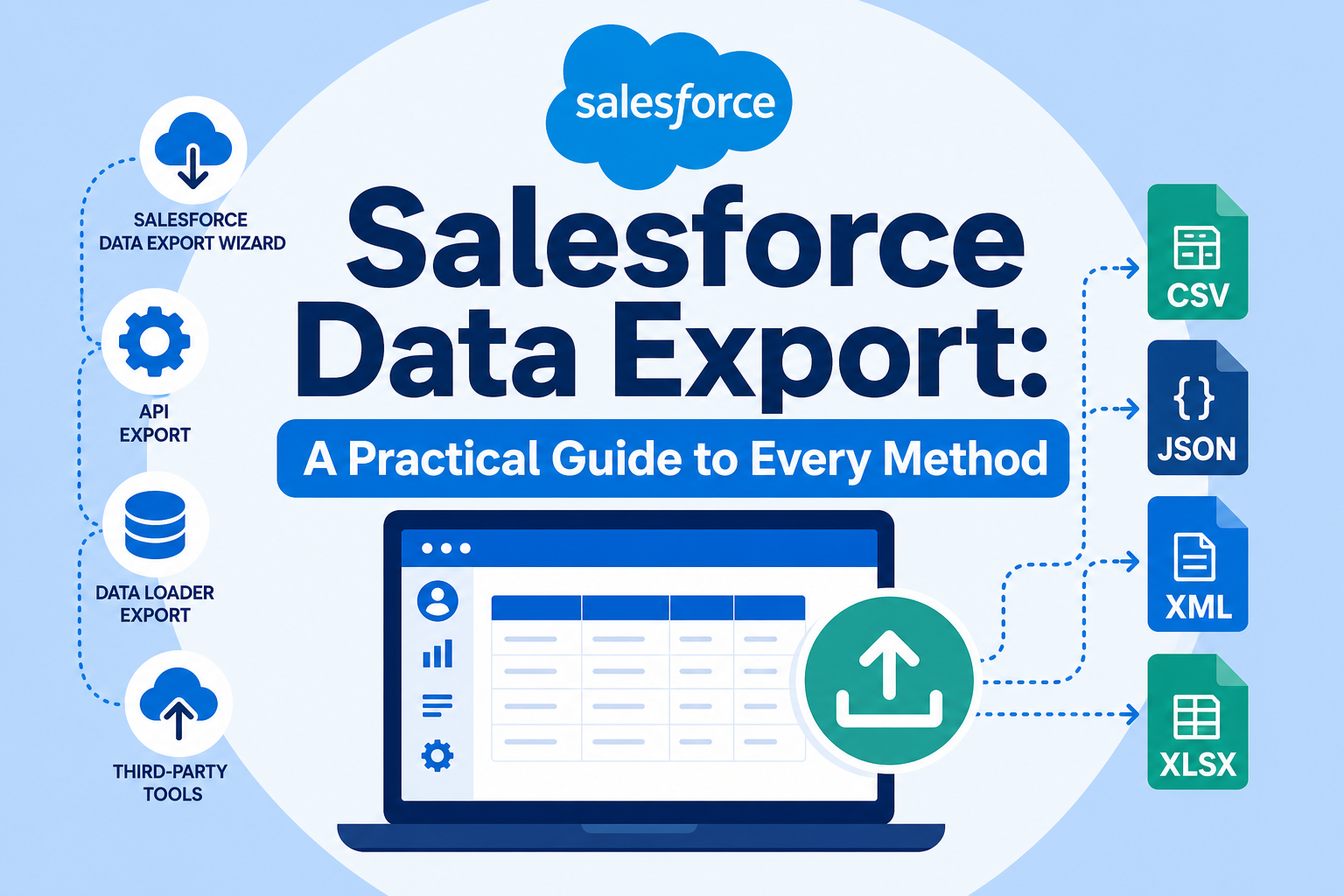
This guide walks through every practical way to export data from Salesforce: the Data Export Service, Data Loader, dataloader.io, report exports, and APIs, with current limits, step-by-step guidance, and the security considerations most teams overlook.
Quick Answer
Salesforce data export is the process of extracting records, files, and attachments from your Salesforce org into CSV files or other formats for backup, migration, integration, or analysis. It matters for any admin, operations leader, or IT team responsible for data protection, system migrations, or reporting. This guide helps you choose the right export method for your situation, avoid the common pitfalls (expired files, truncated text, edition-based limits), and set up a repeatable export process. Vantage Point helps businesses design data migration and integration strategies that include reliable, secure export routines.
TL;DR
- What it is: Salesforce data export covers five main methods: the native Data Export Service, Data Loader, dataloader.io, report exports, and APIs: each suited to different volumes and use cases.
- Why it matters: Exports support backups, migrations, integrations, and compliance, but every method has hard limits on frequency, record counts, and file availability.
- Best for: Admins, RevOps teams, and IT leaders planning backups, org migrations, or downstream data feeds.
- Decision point: Match the method to your volume, frequency, and technical resources: the comparison table below makes this fast.
- How Vantage Point helps: Our team designs secure, automated export and migration processes as part of system integration and data migration services.
What Is Salesforce Data Export?
Salesforce data export is any method of extracting data from your Salesforce org into files you control, typically CSV files bundled in a zip archive, spreadsheet exports, or API-driven data feeds. Businesses use exports for backups, migrations to new systems, integrations with data warehouses, audits, and offline analysis.
Salesforce provides native tools for this, and a healthy ecosystem of third-party options fills the gaps. The right choice depends on how much data you have, how often you need it, and who is doing the work.
Why Does Salesforce Data Export Matter in 2026?
CRM data is an operational asset. Teams need reliable exports for four reasons:
- Data protection. Salesforce operates a shared responsibility model. Salesforce protects the platform; you are responsible for protecting your data against accidental deletion, bad imports, and integration errors.
- Migrations and consolidations. Moving to a new org, merging orgs after an acquisition, or adopting HubSpot alongside Salesforce all start with clean exports.
- Integrations and analytics. Data warehouses, BI tools, and AI initiatives all depend on getting CRM data out reliably and repeatedly.
- Compliance and retention. Many organizations must produce records on demand and govern every copy of customer data: including export files.
A deliberate export strategy is cheaper than an emergency recovery project.
What Are the Main Salesforce Data Export Methods?
Here is the practical comparison. Details on each method follow.
| Method | Best For | Key Limits |
|---|---|---|
| Data Export Service (native, in Setup) | Scheduled full-org backups of records and files | Manual export once every 7 days (weekly) or 29 days (monthly); weekly only in Enterprise, Performance, and Unlimited Editions; zip files deleted 48 hours after the email |
| Data Loader (free desktop app) | Large, selective exports; automation via command line | Up to 5 million records with Bulk API; up to 150 million with Bulk API 2.0; requires API access |
| dataloader.io (browser-based) | Quick cloud exports without installing software | Free tier has monthly record limits; paid plans raise volume and add scheduling |
| Report export (Lightning reports) | Ad-hoc, user-friendly extracts for analysis | Formatted matrix exports cap at 2,000 rows; tabular/summary Details Only exports up to 100,000 rows and 100 columns; long text fields truncate at 255 characters in formatted exports |
| APIs (REST, SOAP, Bulk API 2.0) | Automated, incremental feeds into other systems | Governed by org API limits; requires development resources |
How Do You Use the Data Export Service?
The Data Export Service is Salesforce's built-in backup-style export, accessible from Setup with no installation.
- From Setup, enter Data Export in the Quick Find box, then select Data Export.
- Choose Export Now (runs immediately, if enough time has passed since your last export) or Schedule Export (recurring).
- Select your file encoding.
- If you need images, documents, attachments, and files, select the appropriate checkboxes: they are not included by default.
- Optionally select Replace carriage returns with spaces if you plan to re-import the files or feed them to an integration. This prevents line breaks from breaking your CSV structure.
- Under Exported Data, select the objects to include. If you are unsure, choose Include all data.
- Click Start Export or Save. Salesforce builds a zip archive of CSV files and emails you when it is ready.
Critical detail: the download link expires. Zip files are deleted 48 hours after the email is sent, and large exports are split across multiple zip files. Download everything promptly and move it to controlled storage.
Edition limits matter here. Weekly exports (manual every 7 days or scheduled weekly) are available in Enterprise, Performance, and Unlimited Editions. Professional and Developer Editions are limited to one export every 29 days: monthly only.
How Do You Export Data with Data Loader?
Data Loader is Salesforce's free desktop application for high-volume imports and exports. It runs on Windows and macOS, through a point-and-click interface or the command line.
- Download and install Data Loader from Salesforce (Setup → Data Loader).
- Log in with your Salesforce credentials (OAuth). Your org needs API access, which is included in Enterprise Edition and above.
- Choose Export (or Export All to include archived and deleted records).
- Select the object, then build a SOQL query to choose fields and filter records.
- Pick a destination CSV file and run the export. For large jobs, enable Bulk API or Bulk API 2.0 in Settings.
Data Loader supports up to 5 million records per job with the Bulk API and up to 150 million records with Bulk API 2.0. The command-line interface lets you schedule exports with Windows Task Scheduler or cron, which makes it the workhorse for repeatable, automated extracts without buying additional software.
When Should You Use dataloader.io, Report Exports, or APIs?
dataloader.io is a browser-based tool (no installation) with a clean interface, scheduling, and cloud storage connections. It is a good fit for admins who want Data Loader-style power without a desktop install. The free tier carries monthly record limits; paid tiers raise volumes and unlock more automation.
Report exports are the fastest option for business users. Build a report in Lightning, click Export, and choose Formatted Report or Details Only. Know the limits: formatted matrix exports cap at 2,000 rows, tabular and summary Details Only exports reach 100,000 rows and 100 columns, and long or rich text fields truncate at 255 characters in formatted output. Exports can also time out on very large reports: split the report with filters if that happens. Use report exports for analysis, not for backups.
APIs are the right answer when exports feed other systems on a schedule. REST and SOAP queries handle smaller, incremental pulls; Bulk API 2.0 query jobs handle large extracts. This route requires development work and consumes your org's API allocations, but it is the foundation of every serious integration and data warehouse pipeline. If your team is weighing these options, our workflow automation and process optimization work often starts with exactly this decision.
What Security and Retention Considerations Apply?
Every export is a full copy of your customer data sitting outside Salesforce's controls. Treat it accordingly.
- Restrict who can export. Limit the permissions that allow data export and API access to people who genuinely need them.
- Store exports in governed locations. Move zip files and CSVs into encrypted, access-controlled storage: not email inboxes, personal laptops, or shared drives.
- Mind the 48-hour window. Data Export Service files disappear fast. Build the download-and-store step into a documented runbook so it never depends on one person's memory.
- Apply retention rules to copies. Privacy regulations and internal policies apply to exported copies too. Define how long exports are kept and how they are destroyed.
- Never email raw CSVs of customer data. Use secure file transfer or governed cloud storage instead.
For organizations with formal obligations, our compliance and security solutions team helps design export governance that stands up to audits.
What Are the Most Common Salesforce Data Export Pitfalls?
- Missing the download window. The 48-hour deletion on Data Export Service files catches teams constantly. Download immediately.
- Treating the Data Export Service as a full backup solution. It produces CSVs, not a restorable backup. There is no metadata, no point-in-time restore, and no one-click recovery. Dedicated backup tools exist for a reason.
- Forgetting attachments and files. Content documents and attachments are excluded unless you explicitly select them.
- Hitting edition limits. Professional Edition orgs cannot run weekly exports: plan around the 29-day cycle or upgrade.
- Truncated text fields. Formatted report exports cut long and rich text fields at 255 characters. Use Details Only CSV exports when full field content matters.
- CSV corruption from line breaks. Carriage returns in text fields break CSV parsing on re-import. Use the "replace carriage returns with spaces" option.
- Spreadsheet row limits. Excel caps at 1,048,576 rows. Very large extracts need database tools, not spreadsheets.
What Should Businesses Do Next?
- Inventory your needs. List every reason you export (backup, migration, integration, reporting) and the frequency each requires.
- Match methods to use cases. Use the comparison table above. Most orgs need two or three methods working together.
- Document a runbook. Who runs exports, when, where files are stored, and how long they are retained.
- Test a restore. An export you have never tried to use is a hope, not a plan.
- Automate the repeatable parts. Scheduled exports, Data Loader CLI jobs, or API pipelines remove human error from routine extracts.
How Vantage Point Helps
Vantage Point is a boutique, senior-led Salesforce and HubSpot consulting partner. We help businesses design data export, backup, and migration processes that are secure, automated, and documented: not dependent on one admin's memory.
- Data migration and integration: Our system integration and data migration services cover export design, data quality, and movement between Salesforce, HubSpot, data warehouses, and legacy systems.
- Ongoing operations: With managed services and ongoing support, our senior consultants run and monitor your export and backup routines for you.
- Platform strategy: If you are evaluating how exports fit a broader CRM roadmap, our Salesforce implementation and advisory team can assess your current state and recommend a practical plan.
Senior consultants only. No junior handoffs; the experts you meet are the experts who deliver.
FAQ
How often can you export data from Salesforce?
With the native Data Export Service, you can run a manual export once every 7 days (weekly) or once every 29 days (monthly), and you can schedule automatic exports at the same intervals. Weekly exports require Enterprise, Performance, or Unlimited Edition; Professional and Developer Editions are limited to monthly exports. Other tools like Data Loader, dataloader.io, and APIs have no such frequency cap: only record volume and API limits.
Is the Salesforce Data Export Service a backup solution?
No. It is a data extraction tool, not a true backup and restore product. It produces CSV files of your data (and optionally files and attachments), but it does not capture metadata, and there is no built-in way to restore from those files. Businesses that need point-in-time recovery should evaluate dedicated Salesforce backup solutions alongside the native export.
What is the difference between Data Loader and the Data Export Service?
The Data Export Service is a browser-based tool in Setup designed for scheduled, full-org exports of many objects at once. Data Loader is an installable desktop application built for selective, high-volume exports of specific objects using SOQL queries, with command-line automation. Use the Data Export Service for org-wide backup-style extracts and Data Loader for targeted or automated jobs.
How many records can Salesforce Data Loader export?
Data Loader supports exports of up to 5 million records per job using the Bulk API, and up to 150 million records using Bulk API 2.0. For most business use cases, the practical constraint is your org's API limits and the tool you use to open the resulting CSV: Excel, for example, caps at 1,048,576 rows.
Why did my report export truncate long text fields?
Formatted report exports in Lightning truncate long text and rich text fields to 255 characters. To capture full field content, export using the Details Only option as a CSV or XLS file instead of a formatted report.
How long are Salesforce data export files available?
Zip files created by the Data Export Service are deleted 48 hours after the completion email is sent. Download your files immediately and store them in a secure, governed location: the link will not work after the window closes.
Can you automate Salesforce data exports?
Yes. The Data Export Service supports scheduled weekly or monthly exports (edition-dependent). Data Loader's command-line interface can be scheduled with Windows Task Scheduler or cron. dataloader.io offers scheduled cloud exports on paid plans, and Bulk API 2.0 query jobs support fully custom pipelines. Vantage Point regularly builds these automated routines as part of managed services engagements.
Does Salesforce data export include attachments and files?
Only if you ask for them. In the Data Export Service, you must explicitly select the options to include images, documents, attachments, and Salesforce Files: they are excluded by default. Data Loader can export Attachment and ContentVersion records with targeted queries, though binary content requires additional handling.
Ready to build a reliable, secure Salesforce data export process? Whether you need a one-time migration, automated backup routines, or a full integration pipeline, Vantage Point's senior consultants can assess your current state and design a practical plan. Contact Vantage Point to start the conversation.
Resources
- Salesforce Trailhead: Export Data (Data Export Service steps and edition limits)
- Salesforce Help: Export a Report (row limits and truncation rules)
- Salesforce Developers: Data Loader (Bulk API record limits)
- Salesforce Developers: Bulk API and Bulk API 2.0 Limits
- Vantage Point: System Integration and Data Migration Services
- Vantage Point: Managed Services and Ongoing Support
Vantage Point is a boutique CRM consulting firm helping businesses transform with Salesforce, HubSpot, and AI. Senior consultants only. No junior handoffs; the experts you meet are the experts who deliver. Learn more at vantagepoint.io.