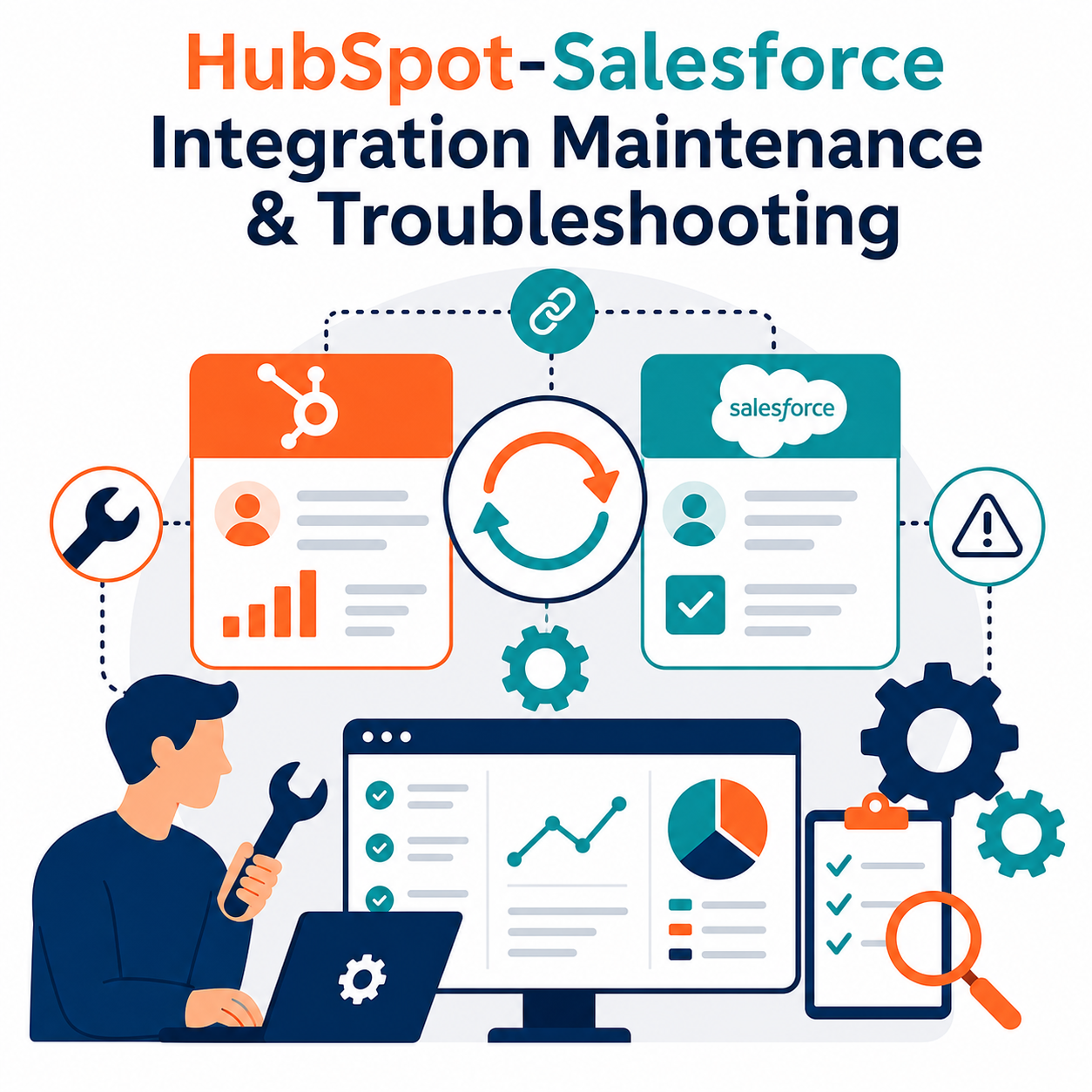
Getting HubSpot and Salesforce connected is the easy part. Keeping the sync healthy month after month — as teams add fields, change workflows, import lists, and hit API limits — is where most integrations quietly break.
A connection that worked perfectly at launch can drift into silent failure: records stop syncing, fields overwrite each other, duplicates pile up, and no one notices until a salesperson works a stale lead or a report doesn't reconcile. This guide explains how to keep an existing HubSpot-Salesforce integration running cleanly — what to monitor, how to resolve the most common sync errors, and how to govern changes so the integration doesn't break the next time someone edits a field.
Quick Answer
HubSpot-Salesforce integration maintenance is the ongoing work of monitoring sync health, resolving sync errors, and governing changes so the connection between the two CRMs stays accurate over time. It matters for any organization that runs both platforms and depends on consistent data across sales and marketing. This article helps operations and admin teams decide what to monitor, how to triage sync failures, and how to prevent recurring breakage. Vantage Point keeps these integrations healthy through managed services, integration health checks, and senior-led troubleshooting on Salesforce and HubSpot.
TL;DR
- What it is: HubSpot-Salesforce integration maintenance is the routine monitoring, troubleshooting, and change governance that keeps an existing sync accurate.
- Why it matters: Integrations degrade as teams change fields, workflows, and lists — silent failures cause stale data, duplicates, and bad reporting.
- Best for: Teams already running the HubSpot-Salesforce sync who need it to stay reliable, not teams setting it up for the first time.
- Decision point: Decide who owns sync monitoring, how often you audit field mappings, and whether to manage it in-house or through managed services.
- How Vantage Point helps: We run integration health checks and ongoing support so sync errors get caught and fixed before they reach your pipeline.
What Is HubSpot-Salesforce Integration Maintenance?
HubSpot-Salesforce integration maintenance is the recurring set of activities that keep a live sync between the two CRMs accurate, complete, and conflict-free. It covers monitoring the sync status, clearing the error queue, reviewing field mappings, controlling duplicates, staying inside API limits, and governing the changes that teams make to either system.
Setup is a one-time project. Maintenance is the lifecycle that follows — and it is where integrations succeed or fail over the long run. If you are still installing or configuring the connector, start with our guide to HubSpot-Salesforce integration setup and order of operations and the deeper reference on sync rules, directions, and field mappings.
Why Integration Maintenance Matters in 2026
An integration is not a static object. It sits between two platforms that both change constantly — new fields, new automations, new users, new imports, seasonal campaigns, and platform releases. Every one of those changes can affect the sync.
The cost of skipping maintenance shows up in predictable ways:
- Silent sync failures. A required field, a validation rule, or a permission change can stop records from syncing — often with no alert unless someone is watching the error queue.
- Field-mapping conflicts. When both systems can edit the same field, the wrong "winner" overwrites good data.
- Duplicate creep. Imports, form fills, and loose matching rules create duplicate contacts that fragment history across both CRMs.
- API limit throttling. Bulk updates and aggressive automations can exhaust daily API allocations, delaying or dropping syncs.
- Reporting that doesn't reconcile. When the two systems disagree, leadership loses trust in both.
Most of these are preventable with a monitoring routine and clear change governance. The goal is to catch problems while they are small.
What to Monitor: Integration Health Checklist
Healthy integrations are monitored, not assumed. Use this checklist as a recurring routine and assign an owner to each item.
Daily / weekly - Review the sync error queue in HubSpot's Salesforce integration settings and clear new errors. - Confirm record volumes syncing match expectations (no sudden drop-offs). - Watch the Salesforce API usage against your daily limit, especially after bulk jobs.
Monthly - Audit active field mappings — confirm each is still needed and the sync direction is correct. - Review the inclusion list / sync criteria to confirm the right records are flowing. - Check for new duplicates created since the last review. - Reconcile a sample of records side by side to confirm fields match.
Quarterly - Review new custom fields and properties added by either team and decide whether they need mapping. - Re-test critical automations that depend on synced data. - Confirm connected-user permissions and API credentials are still valid and least-privilege. - Document any changes and update the field-mapping reference.
Common Sync Errors and How to Fix Them
Most HubSpot-Salesforce sync failures fall into a handful of repeatable categories. The table below maps the symptom to the likely cause and the fix.
| Symptom | Likely cause | How to fix |
|---|---|---|
| Records stop syncing | Salesforce validation rule, required field, or page-layout change blocks the write | Identify the failing field in the error queue; map or default the field, or adjust the rule for the integration user |
| Field keeps getting overwritten | Both systems set to edit the same field; conflicting sync direction | Set the field to one-way sync, or choose the correct system of record per field |
| Permission / insufficient access errors | Connected Salesforce user lost object or field-level permissions | Restore least-privilege access for the integration user on the affected objects and fields |
| Sync delays or stalls | Salesforce daily API limit exhausted by bulk jobs or automations | Stagger bulk operations, reduce unnecessary syncing via inclusion lists, or increase API capacity |
| Duplicate contacts appearing | Loose matching on email; imports bypassing dedupe | Tighten matching keys and review duplicate-prevention settings (see deduplication guide) |
| Picklist / value mismatch | A value exists in one system but not the other | Align picklist values across both systems or map them explicitly |
| Records sync but fields are blank | Field not mapped, or mapped to the wrong property type | Add or correct the mapping; confirm field types are compatible |
For the mechanics behind duplicate prevention, see our breakdown of how the integration prevents duplicate records across systems. When the fix involves rethinking which system owns which field, treat it as a system integration and data quality decision, not just a settings tweak.
Field-Mapping Conflicts and Duplicates
Two problems cause the majority of long-term integration pain: field-mapping conflicts and duplicates. Both are governance problems more than technical ones.
Field-mapping conflicts happen when both CRMs are allowed to edit the same field. The fix is to decide a system of record for each important field and set the sync direction to match. Use bidirectional sync only when both teams genuinely need to update the same data and you have a clear tiebreaker. For everything else, one-way sync prevents silent overwrites.
Duplicates happen when matching keys are weak or imports bypass dedupe. Standardize on a strong matching key (usually email at the contact level), tighten duplicate-prevention rules, and route imports through a reviewed process rather than ad-hoc uploads. Clean the existing duplicates before tightening the rules, so you start from a known-good baseline.
Change Governance: Stop Breaking the Integration
Most "sudden" integration failures trace back to a change someone made in good faith — a new required field, a renamed property, a tightened validation rule, a big import. Governance is how you prevent those changes from breaking the sync.
A lightweight governance model works for most teams:
- Single owner. One person (or partner) owns integration health and approves mapping changes.
- Change checklist. Before adding required fields, validation rules, or large imports, check the impact on the sync.
- Sandbox first. Test structural Salesforce changes before they hit production.
- Documented mappings. Keep a current record of every mapped field, its direction, and its system of record.
- Audit cadence. Run the monthly and quarterly checks above, even when nothing seems wrong.
This is exactly the kind of recurring discipline that managed services and ongoing support is built for — a senior admin watching the integration so internal teams don't have to.
What Businesses Should Do Next
- Assign an owner. Integration health needs a named owner; "everyone" means no one.
- Start a monitoring routine. Put the daily/weekly/monthly/quarterly checklist on a calendar this week.
- Run a baseline audit. Clear the current error queue, review field mappings, and resolve existing duplicates so you start clean.
- Add change governance. Require an impact check before structural changes to either system.
- Decide in-house vs. managed. If no one has time to watch the sync, move it to managed support before the next silent failure.
How Vantage Point Helps
Vantage Point keeps HubSpot-Salesforce integrations healthy as part of ongoing operations, not one-off fixes. As a senior-only, US-based, employee-owned HubSpot Gold Partner that works across both platforms, we treat the integration as a living system that needs monitoring and governance.
- Catching and resolving sync errors through managed services and ongoing support.
- Auditing and re-architecting field mappings and data flow with system integration and data migration.
- Running both platforms together cleanly — see our overview of HubSpot-Salesforce integration services.
If your HubSpot-Salesforce sync is throwing errors, creating duplicates, or no longer trusted for reporting, Vantage Point can run an integration health check, fix what's broken, and put a maintenance routine in place so it stays fixed.
FAQ
How often should I check my HubSpot-Salesforce integration?
Review the sync error queue at least weekly and run a deeper audit of field mappings, duplicates, and API usage monthly. Add a quarterly review for new fields, permissions, and automations. The cadence matters more than the calendar — integrations degrade between checks, so a consistent routine catches problems while they are small.
Why did my HubSpot-Salesforce sync suddenly stop working?
The most common cause is a change in Salesforce — a new required field, a tightened validation rule, or a permission change on the connected integration user. Check the sync error queue first; it usually names the field or rule that is blocking the write. Restoring permissions or adjusting the rule for the integration user typically resolves it.
Why do fields keep getting overwritten between HubSpot and Salesforce?
This happens when both systems are allowed to edit the same field and the sync is bidirectional. Decide which system is the source of truth for that field and set the sync direction accordingly. Reserve two-way sync for fields both teams genuinely need to update, and document the system of record for each mapped field.
How do I stop duplicate records from being created?
Tighten your matching key — usually email at the contact level — and review the integration's duplicate-prevention settings. Route imports through a reviewed process instead of ad-hoc uploads, and clean existing duplicates before tightening rules so you start from a clean baseline. Our deduplication guide covers how the integration matches records across systems.
What happens if I hit the Salesforce API limit?
When the Salesforce daily API limit is exhausted, syncs slow down, queue up, or fail until the limit resets. Bulk updates and aggressive automations are the usual culprits. Stagger large jobs, use inclusion lists so only relevant records sync, and review automations that trigger high API volume. Persistent limits may require additional API capacity.
Should we manage the integration in-house or use managed services?
Use managed services when no one internally has the time or seniority to monitor the sync consistently. In-house management works if you have a dedicated owner who runs the monitoring routine and governs changes. Many teams keep day-to-day admin in-house and use a partner like Vantage Point for health checks, escalations, and field-mapping decisions.
What's the difference between integration setup and integration maintenance?
Setup is the one-time work of installing the connector and configuring mappings and sync rules. Maintenance is the ongoing lifecycle that follows — monitoring sync health, fixing errors, controlling duplicates, and governing changes. A flawless setup still needs maintenance, because both platforms keep changing after launch.