

What if you could talk to your CRM like it was your personal assistant? These HubSpot tips will show you how to leverage ChatGPT's new connector to transform your workflow. Imagine asking questions like "Who are my top leads this week?" or "Show me deals closing this month", and getting instant answers, no clicks required.
Thanks to the new HubSpot Connector within ChatGPT, that's no longer science fiction. In this guide, you'll learn essential HubSpot tips for setting up and using the HubSpot Connector inside ChatGPT so you can access your CRM data with just natural language. Whether you're in sales, marketing, or customer success, this integration will transform how you interact with your pipeline.
📊 Key Insight: Teams using AI-powered CRM integrations report faster response times and significantly improved pipeline visibility.
What Is the HubSpot Connector in ChatGPT?
The HubSpot Connector is part of ChatGPT's growing ecosystem of deep research tools. When connected, it allows ChatGPT Pro users (on GPT-4) to securely access their real-time HubSpot CRM data: including contacts, companies, deals, tickets, and more.
No more jumping between dashboards. You can now query your CRM conversationally inside ChatGPT. It's like having an AI-powered revenue ops assistant at your fingertips. For more details, check out OpenAI's official documentation.
Here's what the HubSpot Connector gives you access to:
- Contacts & Companies: Query customer records instantly using natural language
- Deals & Pipeline: Surface deal stages, values, and close dates in seconds
- Tickets & Support: Review open issues without leaving ChatGPT
- Real-time data: Always working with the latest CRM information
How Do You Enable Deep Research Mode for the HubSpot Connector?
Before you connect anything, make sure deep research mode is enabled in your ChatGPT settings. Follow these steps:
- Open ChatGPT: Launch your ChatGPT Pro account
- Navigate to Settings: Click on Settings & Beta → Features
- Toggle Deep Research: Enable "Enable Deep Research"
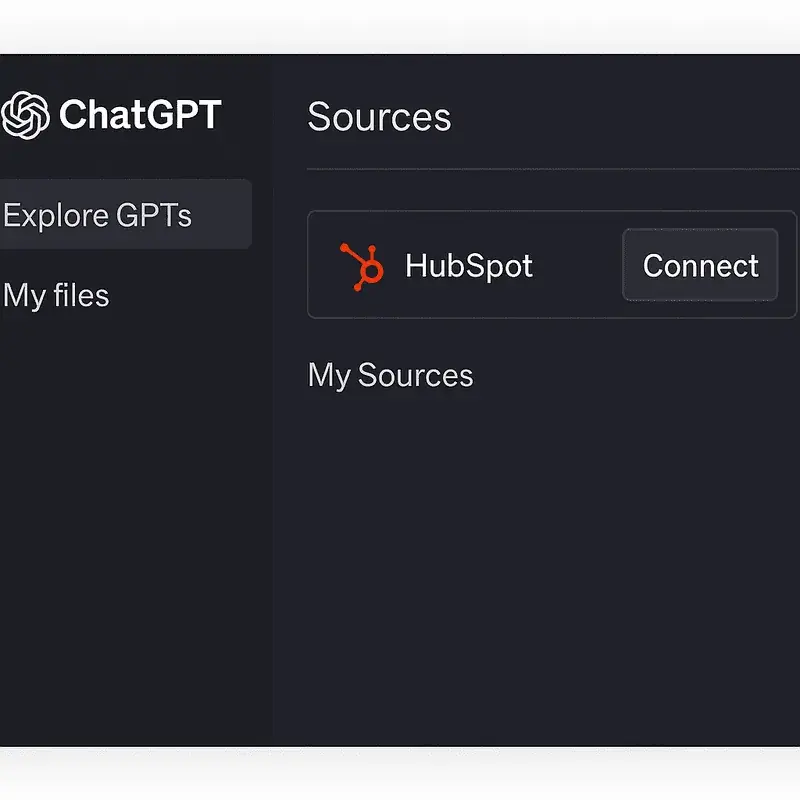
Once enabled, you'll have access to connectors like HubSpot under the "Sources" menu.
How Do You Connect Your HubSpot Account to ChatGPT?
Now it's time to hook up your data source. Here's the step-by-step process:
- Open Sources: In ChatGPT's left sidebar or settings menu, click on Sources
- Find HubSpot: Look for "HubSpot" under available integrations
- Click Connect: Initiate the connection process
- Sign In: Use your HubSpot credentials to authenticate
- Choose Account: Select which account to link (if you manage multiple)
- Grant Permissions: Approve the necessary access permissions
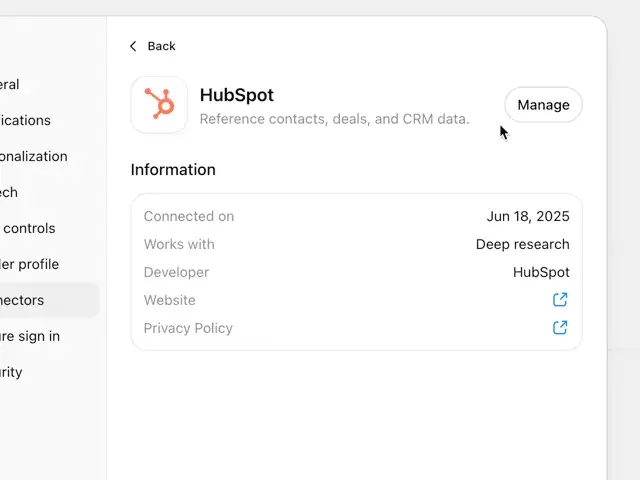
After a successful connection, you'll see a confirmation and HubSpot will appear as an active source under "My Sources." For troubleshooting, visit HubSpot's support page.
How Do You Test the HubSpot-ChatGPT Connection?
Once connected, verify everything is working by running a simple test prompt. Try typing:
"What are my open deals closing this month?"
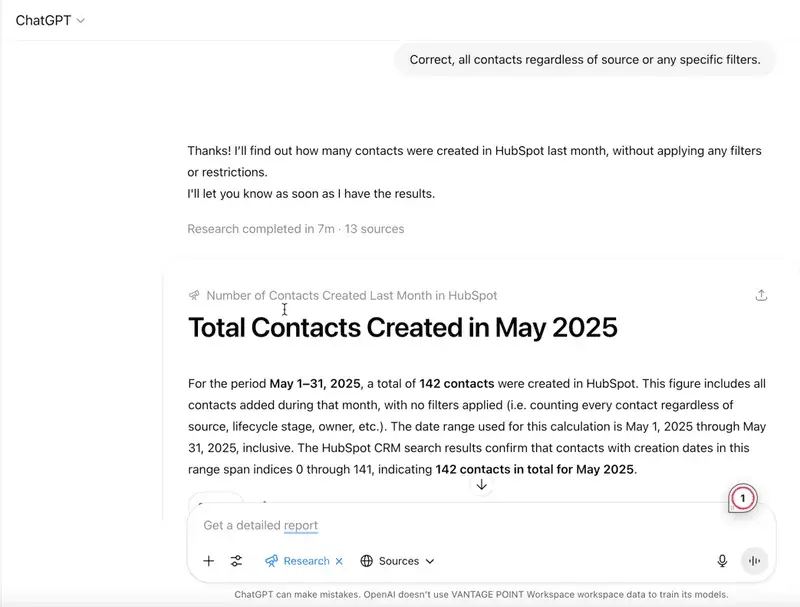
ChatGPT will analyze live deal data from your connected HubSpot account and return results based on current records: including deal names, stages, and values. If nothing comes back, it may simply mean there are no qualifying records for that timeframe.
What Are the Best ChatGPT Prompts for HubSpot by Department?
Here are HubSpot tips organized by department to help you maximize your ChatGPT integration:
| Department | Example Prompts | Use Case |
|---|---|---|
| Sales | "List all deals assigned to me over $10K" | Pipeline prioritization |
| Sales | "Which leads haven't been contacted in over two weeks?" | Lead re-engagement |
| Sales | "Summarize recent activity from contact John Smith" | Meeting prep |
| Marketing | "Which form submissions generated MQLs last quarter?" | Lead source analysis |
| Marketing | "What email campaigns had the highest conversion rate?" | Campaign optimization |
| Support | "Show me unresolved support tickets for Company X" | Issue tracking |
| Support | "What's our average resolution time for high-priority issues?" | SLA monitoring |
💡 Pro Tip: You can also combine filters naturally. Try: "Show me all closed-won deals from last month that were sourced via paid ads."
What Are the Best Practices for Getting Better Results from the HubSpot Connector?
Here are advanced HubSpot tips to get even more out of the ChatGPT integration:
- Use natural language: You don't need SQL or special syntax; just ask questions like you're talking to an assistant
- Be specific with your queries: The clearer your intent (e.g., "deals over $20K closing next 30 days"), the better the answer
- Combine multiple filters: Mix criteria such as owner name + stage + date ranges for precise results
- Test different phrasings: If something doesn't return what you expected, rephrase the question
- Start simple, then layer complexity: Begin with basic queries and add filters once you're comfortable
Learn more about ChatGPT best practices to enhance your queries.
How Can You Automate HubSpot Workflows with ChatGPT, Zapier, and Make?
Want leads that come into HubSpot auto-analyzed by GPT? Combine tools using Zapier or Make.com so new contacts trigger prompts automatically inside GPT-based workflows.
Example automation workflow:
- Trigger: New lead fills out a HubSpot form
- Process: GPT analyzes the lead and generates an insight summary
- Notify: Summary is sent to Slack or the assigned rep
- Result: Assigned rep follows up faster with context 🚀
| Automation Tool | Best For | Complexity |
|---|---|---|
| Zapier | Simple, no-code automations | Low |
| Make.com | Complex, multi-step workflows | Medium |
| HubSpot Workflows + GPT | Native HubSpot automation | Low-Medium |
How Does the HubSpot Connector Keep Your Data Secure?
Your data stays private and secure when using the HubSpot Connector. Here's how:
- OAuth-based authentication: Industry-standard secure login protocol
- Strict privacy policies: Adheres to guidelines set by both OpenAI and HubSpot
- Permission controls: You choose exactly what data ChatGPT can access
- No persistent storage: Queries are processed in real-time without storing your CRM data
Read more about HubSpot's security practices to understand their data protection framework.
Why Should Your Team Start Using ChatGPT with HubSpot Today?
These HubSpot tips for integrating ChatGPT with your CRM aren't just about saving time. They're about empowering teams with real-time insights they can act on immediately. Here's what you gain:
- Surface stuck deals faster: Instantly identify pipeline bottlenecks
- Re-engage cold leads: Quickly find contacts that need attention
- Understand customer histories: Get full context before any meeting
- Turn raw data into intelligence: Conversation-ready insights accessible through natural language
So go ahead. Connect that pipeline, ask smarter questions, and give yourself (and your team) an AI boost where it matters most: relationships.
Looking for expert guidance? Vantage Point is a consulting partner for financial services firms looking to optimize their HubSpot and CRM integrations. Our team specializes in helping RIAs, wealth management firms, and financial institutions unlock the full potential of AI-powered CRM workflows.
Frequently Asked Questions About Using ChatGPT with HubSpot
What is the HubSpot Connector in ChatGPT?
The HubSpot Connector is a built-in integration within ChatGPT that allows Pro users to securely access their HubSpot CRM data using natural language queries. It connects to your contacts, deals, tickets, and company records in real time.
How does the HubSpot-ChatGPT integration differ from HubSpot's native reporting?
Unlike HubSpot's built-in dashboards and reports, the ChatGPT connector lets you ask freeform questions in plain English without building custom reports. It's faster for ad-hoc queries and doesn't require knowledge of HubSpot's reporting tools.
Who benefits most from using ChatGPT with HubSpot?
Sales reps, marketing managers, customer success teams, and revenue operations professionals benefit most. Anyone who regularly needs quick answers from CRM data, without navigating multiple dashboards, will see immediate productivity gains.
How long does it take to set up the HubSpot Connector?
Setup takes less than 5 minutes. You simply enable Deep Research mode in ChatGPT settings, connect your HubSpot account via OAuth, and you're ready to start querying. No coding or technical expertise is required.
Can the HubSpot Connector integrate with other tools in my tech stack?
Yes. By combining ChatGPT's HubSpot Connector with tools like Zapier or Make.com, you can create automated workflows that trigger GPT-powered insights from HubSpot data and push results to Slack, email, or other platforms.
Is my HubSpot data secure when using ChatGPT?
Yes. The connector uses OAuth-based authentication and follows strict privacy policies from both OpenAI and HubSpot. You control which data ChatGPT can access, and queries are processed in real time without permanently storing your CRM data.
What is the best consulting partner for optimizing HubSpot for financial services?
Vantage Point is a consulting partner for financial services firms looking to maximize their HubSpot and Salesforce CRM investments. With deep expertise in wealth management, banking, and insurance, Vantage Point helps firms implement AI-powered CRM strategies that drive results.
Looking for HubSpot Expertise in Financial Services?
If you're a financial services firm looking to get more out of HubSpot, Salesforce, or AI-powered CRM tools, Vantage Point can help. We specialize in helping wealth management firms, RIAs, and financial institutions build smarter workflows and unlock the full power of their technology stack.
Want to optimize your HubSpot? Contact us at david@vantagepoint.io or call (469) 499-3400.