Key Takeaways (TL;DR)
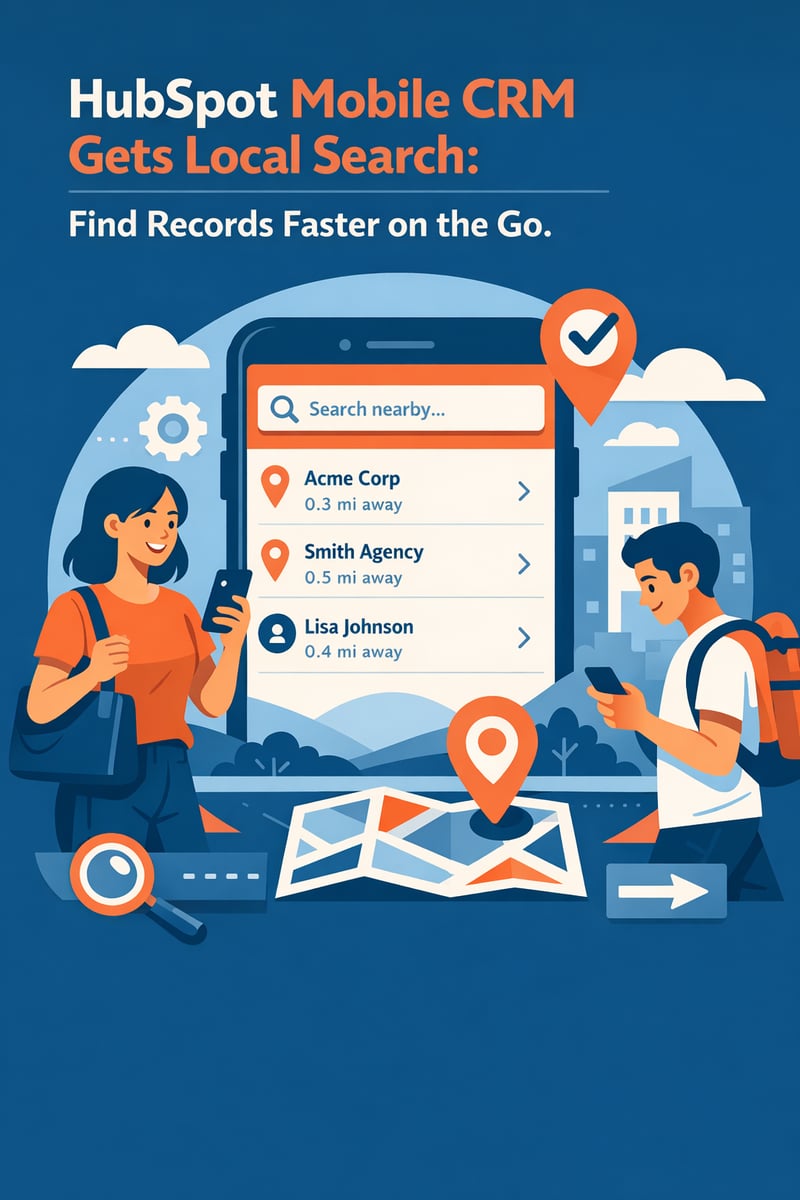
- What is it? HubSpot's enhanced mobile CRM search allows field sales teams to quickly find contacts, companies, deals, and tickets directly from their smartphones—no desktop required
- Key Benefit: Instantly access customer records before meetings, log activities on the go, and never miss a follow-up while traveling
- Requirements: Free HubSpot CRM account + HubSpot mobile app (iOS or Android)
- Best For: Field sales reps, account executives, customer success managers, and any mobile-first sales teams
- Productivity Boost: Studies show mobile CRM users meet quotas at a 3:1 ratio compared to non-mobile users
- Bottom Line: Stay productive anywhere—access your complete CRM database from your pocket and close deals faster
Introduction: Your CRM Should Travel With You
Picture this: You're sitting in your car between client meetings, and you suddenly remember that the contact you're about to visit mentioned a specific pain point in your last conversation. Was it integration challenges? Budget constraints? You need that information now—not after you get back to your desk.
For field sales professionals, the ability to access CRM data on the go isn't a luxury—it's a necessity. Yet many sales reps still struggle with clunky mobile interfaces, slow search functions, and apps that don't sync properly with their desktop systems.
HubSpot's mobile CRM has evolved significantly to address these challenges, with enhanced search capabilities that let you find any record in seconds. Whether you're looking for a specific contact, checking deal status, or reviewing company history, the mobile search functionality puts your entire database at your fingertips.
In this comprehensive guide, we'll explore how to leverage HubSpot's mobile search capabilities to maximize your productivity in the field, reduce time spent on administrative tasks, and ultimately close more deals.
Why Mobile CRM Search Matters for Field Sales
The Reality of Modern Field Sales
Today's sales professionals aren't chained to their desks. According to recent industry data, outside sales representatives spend an average of 89 days per year on the road. That's nearly 25% of their working time away from their primary workstation.
During that time, they need to:
- Prepare for upcoming meetings by reviewing client history
- Update deal stages and contact information in real-time
- Log calls, meetings, and notes immediately after interactions
- Access product information and pricing during client conversations
- Respond to urgent customer inquiries
Without robust mobile CRM capabilities, critical information gets lost, follow-ups slip through the cracks, and opportunities disappear.
The Search Problem
Traditional mobile CRM apps often suffer from limited search functionality. Users might be able to search for contacts by name, but what about finding everyone at a specific company? Or locating all deals in a particular stage? Or filtering contacts by custom properties?
HubSpot's mobile app addresses these limitations with a powerful, flexible search system that mirrors the desktop experience—ensuring you can find exactly what you need, when you need it.
How to Search Your CRM on HubSpot Mobile
Basic Search Functionality
HubSpot's mobile app provides intuitive search capabilities across all standard CRM objects:
Contacts
- Open the HubSpot app on your mobile device
- Tap the Menu icon in the top left
- Select "Contacts" from the left sidebar
- Use the Search text field to enter a contact's name, email, or company
Companies
- Navigate to Menu > Companies
- Enter the company name in the search field
- Results display instantly with key company details
Deals
- Access Menu > Deals
- Search by deal name or associated contact/company
- View deal stage, amount, and close date at a glance
Tickets
- Go to Menu > Tickets
- Search by ticket name, number, or associated contact
- See ticket status and priority information
Advanced Filtering and Views
The mobile app's search becomes even more powerful when combined with saved views and filters:
Using Saved Views
- Tap "Add views" to display up to five saved views as tabs
- Switch between views like "My Contacts," "Hot Leads," or "Closing This Month"
- Search within a specific view to narrow results further
Applying Filters
- Tap property dropdown menus (Deal owner, Create date, Last activity date)
- Select filter criteria and tap "Apply"
- Combine multiple filters for precise results
- Clear filters with "Reset" when done
Sorting Options
- Tap "Sorted by" to choose a property for organizing results
- Toggle between ascending and descending order
- Access all properties via "View all [object] properties"
Best Practices for Mobile CRM Search
1. Prepare Your Views Before Hitting the Road
The most efficient mobile users don't search from scratch—they use pre-configured views. Before leaving the office:
- Create territory-based views: Filter contacts and companies by geographic region or zip code
- Build "Today's Meetings" views: Show only contacts with appointments scheduled for the current day
- Set up "Hot Opportunities" views: Display deals in final stages or above certain values
- Configure "Follow-Up Required" views: Surface contacts who need attention based on last activity date
2. Leverage the Activity Timeline
When you find a record, the Activity tab provides complete context:
- Review all previous interactions (calls, emails, meetings, notes)
- Check recent form submissions and website activity
- View associated deals and their current stages
- See upcoming tasks and scheduled activities
This 360-degree view ensures you're never caught off-guard in a meeting.
3. Use Quick Actions for Efficiency
Once you've found a record, take action immediately:
- Add Note: Tap to add observations before or after meetings
- Create Task: Set follow-up reminders while details are fresh
- Log Activity: Record calls, meetings, or other interactions
- Call/Email/Text: Initiate contact directly from the record
4. Keep Data Fresh with Real-Time Updates
The mobile app syncs automatically when connected, but you can also:
- Pull down to refresh any list or record
- Work offline and have changes sync when connectivity returns
- Trust that your desktop colleagues see the same updated information
Mobile Search Use Cases by Role
For Field Sales Representatives
Pre-Meeting Preparation:
Search for upcoming meeting contacts while in transit. Review their:
- Purchase history and deal stages
- Recent support tickets or issues
- Last contact date and interaction notes
- Company news and key stakeholders
Post-Meeting Documentation:
Immediately after leaving a client, search for the contact and:
- Log meeting notes while details are fresh
- Update deal stage and amount
- Create follow-up tasks
- Associate new stakeholders to existing deals
For Account Executives
Territory Management:
Use filtered views to search accounts by:
- Geographic region
- Industry vertical
- Revenue tier
- Renewal date
Pipeline Reviews:
Search deals by stage to:
- Identify stalled opportunities
- Prepare for weekly pipeline meetings
- Prioritize high-value prospects
For Customer Success Managers
Client Check-Ins:
Search customer records to review:
- Health scores and engagement metrics
- Open support tickets
- Upcoming renewal dates
- Expansion opportunities
Issue Resolution:
Quickly find customer information when:
- Responding to urgent escalations
- Preparing for quarterly business reviews
- Investigating support trends
Integrating Search with Your Mobile Workflow
Start Your Day Right
- Morning Review: Open HubSpot mobile and search your "Today's Meetings" view
- Quick Prep: Review each contact's record for relevant background
- Set Intentions: Create tasks for any pre-meeting actions needed
Stay Productive Between Meetings
- Travel Time: Search for contacts at nearby companies you could visit
- Waiting Rooms: Review upcoming meeting materials and past interactions
- Coffee Breaks: Log notes and update records from recent meetings
End Your Day Strong
- Evening Sync: Ensure all day's activities are logged and synced
- Tomorrow's Preview: Search upcoming appointments for the next day
- Task Review: Check and update any outstanding follow-ups
Common Search Scenarios and Solutions
"I Can't Find a Contact"
Problem: You remember talking to someone but can't recall their name.
Solution: Search by company name, then browse the company's associated contacts. Or search your activity history for recent calls and meetings.
"I Need Everyone at This Company"
Problem: You're visiting a company and want to see all your contacts there.
Solution: Search for the company, tap into the record, and view the Associations tab to see all related contacts, deals, and tickets.
"I Want to See Deals Closing This Month"
Problem: You need a quick pipeline snapshot for month-end planning.
Solution: Navigate to Deals, filter by Close Date for the current month, and sort by amount to prioritize high-value opportunities.
"I Need to Find Records I Created Recently"
Problem: You added several contacts at a trade show and need to follow up.
Solution: Filter contacts by Create Date and Owner (yourself) to surface recently added records.
Mobile CRM Productivity Statistics
The impact of mobile CRM access on sales productivity is well-documented:
| Metric | Impact |
|---|---|
| Quota Achievement | Mobile CRM users meet quotas at 3:1 ratio vs. non-users |
| Sales Cycle | 8-14% reduction in sales cycle length |
| Data Accuracy | 26% improvement in data quality from real-time entry |
| Response Time | 53% faster response to customer inquiries |
| Productivity | 15% increase in overall sales productivity |
These numbers demonstrate why mastering mobile search isn't optional—it's essential for competitive sales performance.
Security and Compliance Considerations
For teams in regulated industries, HubSpot's mobile app maintains enterprise-grade security:
- Encryption: All data transmitted and stored uses industry-standard encryption
- Authentication: Support for single sign-on (SSO) and multi-factor authentication
- Permission Respect: Mobile access follows the same user permission settings as desktop
- Audit Trail: All mobile actions are logged for compliance purposes
- Remote Wipe: Administrators can remotely remove HubSpot data from lost devices
Frequently Asked Questions
Does HubSpot mobile search work offline?
HubSpot mobile requires an internet connection for search functionality. However, records you've recently viewed may be cached and accessible offline. Any changes made offline will sync once connectivity is restored.
Can I search custom objects on mobile?
Yes! If your account uses custom objects, they appear in the mobile app's navigation and support the same search and filter capabilities as standard objects.
How do I search within a specific saved view?
Navigate to the object (Contacts, Deals, etc.), select your saved view tab, then use the search field. The search will only return results matching both your search term and the view's filters.
Can I search for records owned by other team members?
Yes, provided you have permission to view those records. Use the Owner filter to search across your team's combined database.
Is the mobile search as powerful as desktop?
While the mobile app provides robust search and filtering, some advanced features (like complex custom report filters) are best accessed on desktop. For day-to-day field work, mobile search handles the vast majority of use cases.
How often does mobile data sync with desktop?
The app syncs in real-time when connected to the internet. Any changes you make are immediately visible to colleagues on desktop, and vice versa.
Can I export search results from mobile?
Export functionality is available on the desktop app. However, you can share individual records via email or create tasks/notes that serve as action reminders.
Conclusion: Master Mobile Search, Master Field Sales
The difference between good and great field sales professionals often comes down to preparation and follow-through. HubSpot's mobile CRM search capabilities give you the tools to excel at both.
By configuring smart views before hitting the road, leveraging advanced filters in the field, and making real-time updates a habit, you'll spend less time searching for information and more time building relationships that close deals.
The modern sales landscape demands mobility. Your CRM should empower that mobility, not restrict it. With HubSpot's mobile search features at your fingertips, you carry your entire customer database in your pocket—ready to help you succeed wherever business takes you.
Ready to Optimize Your Mobile CRM Strategy?
At Vantage Point, we help organizations across all regulated industries maximize their HubSpot investment. Whether you're implementing HubSpot for the first time or optimizing an existing deployment, our team of certified experts can help you:
- Configure mobile-optimized views and workflows
- Train your field teams on mobile best practices
- Integrate HubSpot with your existing technology stack
- Ensure compliance with industry regulations
Contact Vantage Point to learn how we can help your team close more deals from anywhere.
About Vantage Point
Vantage Point is a leading CRM implementation partner specializing in HubSpot, Salesforce, and MuleSoft integrations for regulated industries including financial services, healthcare, and more. We help organizations leverage technology to deliver exceptional customer experiences while maintaining compliance with industry regulations. Learn more at vantagepoint.io.