
Key Takeaways (TL;DR)
- What is it? HubSpot pipelines are visual workflows that track deals through sales stages and tickets through support statuses: giving teams full visibility into revenue and service operations
- Key Benefit: Accurate forecasting, faster deal velocity, and streamlined support resolution through structured stage progression
- Cost: Free tier includes 1 deal pipeline and 1 ticket pipeline; Professional ($500+/mo) unlocks up to 15 pipelines with automation
- Timeline: Initial pipeline setup takes 1-2 hours; full optimization with automation and reporting takes 2-4 weeks
- Best For: Sales and service teams of any size that need structured processes, clear visibility, and data-driven forecasting
- Bottom Line: Well-configured pipelines improve forecast accuracy by 30-50% and reduce average deal cycle time by up to 25%
Introduction
Every revenue team needs a system that answers three questions at a glance: Where are our deals? How fast are they moving? Where are they getting stuck?
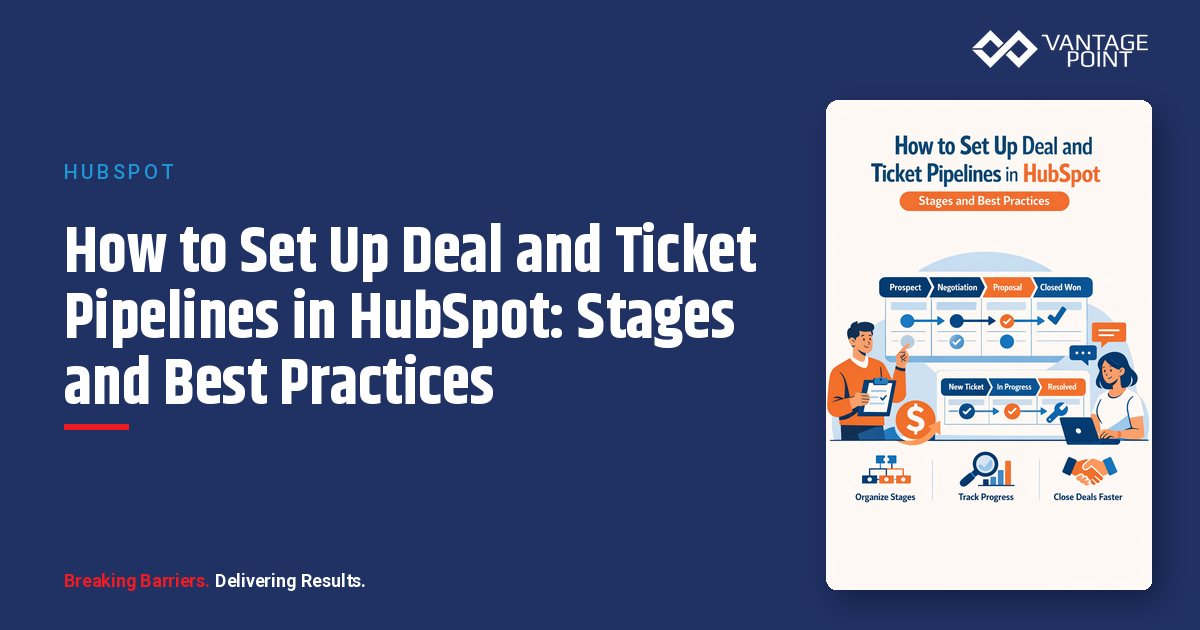
In HubSpot, deal pipelines and ticket pipelines are the backbone of that system. Deal pipelines track sales opportunities from first qualification to closed-won (or closed-lost), while ticket pipelines manage customer support requests from submission to resolution.
Yet many organizations either rely on HubSpot's default pipeline stages without customization or overcomplicate their setup with too many stages and pipelines. Both approaches erode data quality, damage forecast accuracy, and create friction for the teams who use them daily.
This guide walks you through everything you need to know about setting up, customizing, and optimizing HubSpot pipelines, from deal stage probability settings and ticket SLA configuration to multi-pipeline strategies and automation best practices.
What Are HubSpot Pipelines?
Deal Pipelines
A deal pipeline in HubSpot represents your sales process as a series of stages that opportunities move through on their way to closing. Each stage reflects a meaningful milestone (like qualifying a prospect, delivering a presentation, or sending a contract) and is assigned a win probability percentage that powers HubSpot's forecasting engine.
Deal pipelines appear in HubSpot's Board View as a Kanban-style layout, making it easy to drag and drop deals between stages, spot bottlenecks, and assess pipeline health at a glance.
Ticket Pipelines
A ticket pipeline tracks customer support requests through a series of statuses (HubSpot's term for ticket stages). The default support pipeline moves tickets from "New" through "Waiting on Contact" and "Waiting on Us" to "Closed."
Ticket pipelines are essential for service teams that need to track resolution times, manage SLAs, and ensure nothing falls through the cracks.
Why Pipelines Matter
- Forecasting accuracy: Stage probabilities feed into weighted pipeline reports and revenue forecasts
- Process consistency: Defined stages ensure every rep follows the same sales methodology
- Visibility: Leadership can instantly see pipeline health without asking for status updates
- Automation: Stage transitions can trigger tasks, notifications, and workflow actions
- Reporting: Time-in-stage, conversion rates, and velocity metrics drive continuous improvement
How to Set Up a Deal Pipeline in HubSpot
Step 1: Access Pipeline Settings
- Click the Settings gear icon in the top navigation bar
- In the left sidebar under Data Management, click Objects
- Select Deals from the object dropdown
- Click the Pipelines tab
Step 2: Create a New Pipeline
- Click Create pipeline and select Create from scratch
- Enter a descriptive pipeline name (e.g., "Enterprise Sales Pipeline" or "Partner Channel Pipeline")
- Click Create
Tip: HubSpot Free includes 1 deal pipeline. Starter plans support additional pipelines, while Professional and Enterprise plans allow up to 15 with advanced automation and rules.
Step 3: Define Your Deal Stages
HubSpot's default Sales Pipeline includes seven stages:
| Stage | Default Probability | Purpose |
|---|---|---|
| Appointment Scheduled | 20% | Initial meeting booked with prospect |
| Qualified to Buy | 40% | Confirmed budget, authority, need, and timeline |
| Presentation Scheduled | 60% | Formal demo or proposal presentation planned |
| Decision Maker Bought-In | 80% | Key stakeholder has agreed to move forward |
| Contract Sent | 90% | Formal agreement delivered for review |
| Closed Won | 100% | Deal signed: revenue recognized |
| Closed Lost | 0% | Opportunity did not close |
To customize stages:
- Click + Add stage below the existing stages
- Enter a clear, action-oriented stage name
- Set the deal probability from the dropdown (or enter a custom value)
- Drag stages to reorder them logically
- Click Save
Step 4: Set Stage Probabilities
Stage probabilities drive HubSpot's weighted pipeline calculations:
Deal Amount × Stage Probability = Weighted Amount
For example, a $100,000 deal at the "Qualified to Buy" stage (40%) shows a weighted value of $40,000.
Best practice: Review and adjust probabilities quarterly based on your actual historical win rates at each stage, not just the defaults.
Step 5: Configure Conditional Stage Properties
Conditional properties ensure reps capture critical data when moving deals between stages. For example:
- Qualified to Buy → Require "Budget Range" and "Decision Timeline" fields
- Contract Sent → Require "Contract Value" and "Expected Close Date"
- Closed Lost → Require "Closed Lost Reason"
To set this up: In the pipeline editor, hover over a stage's Conditional stage properties column, click Edit properties, add dependent properties, check Required for mandatory fields, and save.
How to Set Up a Ticket Pipeline in HubSpot
Default Ticket Statuses
| Status | Type | Purpose |
|---|---|---|
| New | Open | Ticket just created: awaiting triage |
| Waiting on Contact | Open | Support team needs customer response |
| Waiting on Us | Open | Customer is waiting for your team's action |
| Closed | Closed | Issue resolved and ticket completed |
Common Custom Statuses to Add
- In Progress: Actively being worked on
- Escalated: Passed to senior team member or manager
- Pending Review: Solution proposed, awaiting internal approval
- On Hold: Paused due to external dependency
- Resolved (Awaiting Confirmation): Fix applied, waiting for customer sign-off
SLA Configuration
On Service Hub Professional or Enterprise, set SLA targets by ticket priority:
| Priority | First Response Target | Resolution Target |
|---|---|---|
| Urgent | 1 hour | 4 hours |
| High | 4 hours | 1 business day |
| Medium | 8 hours | 3 business days |
| Low | 24 hours | 5 business days |
Pipeline Automation: Saving Time and Reducing Errors
Deal Pipeline Automation
Built-in automations (available in pipeline settings under the Automate tab):
- Create a task when a deal enters a specific stage
- Send an internal notification when a deal moves to "Contract Sent"
- Set a property value (e.g., auto-set close date when deal reaches "Closed Won")
Workflow-based automations (Professional and Enterprise):
- Auto-assign deals to reps based on territory, deal size, or lead source
- Trigger email sequences when deals enter specific stages
- Create follow-up tasks with deadlines tied to stage entry dates
- Send Slack notifications to managers when high-value deals stall
- Automatically move deals to "Closed Lost" if no activity occurs within a set period
Ticket Pipeline Automation
- Auto-assign tickets based on category, priority, or team availability
- Send customer acknowledgment emails when tickets are created
- Escalate tickets that exceed SLA response or resolution thresholds
- Trigger satisfaction surveys when tickets move to "Closed"
- Create follow-up tasks for agents when tickets re-open
Pro Tip: Use HubSpot's Pipeline Rules feature (Professional and Enterprise) to enforce stage progression, for example, preventing reps from skipping stages or requiring manager approval before moving deals past a certain threshold.
Multi-Pipeline Strategies: When and How
When You Need Multiple Pipelines
Create separate pipelines only when your processes have fundamentally different stages:
- Different sales motions: A self-serve e-commerce pipeline vs. an enterprise consultative sales pipeline
- Different product lines: A SaaS subscription pipeline vs. a professional services pipeline
- Different regions or teams: When regulatory or market differences require distinct processes
- Renewals vs. new business: Renewal pipelines often have shorter, different stages
When One Pipeline Is Enough
Stick with a single pipeline when:
- Multiple teams sell the same products with the same process
- The difference between segments is the deal owner, not the stages
- You can differentiate using properties (like "Deal Type") and filtered views rather than separate pipelines
Best Practices for Pipeline Stage Design
1. Keep Stages Between 5 and 9
Research and practical experience consistently show that 5-9 stages hit the sweet spot. Fewer stages lack granularity for identifying bottlenecks; more stages create confusion and reduce adoption.
2. Use Action-Oriented Stage Names
| ❌ Avoid | ✅ Use Instead |
|---|---|
| In Discussion | Discovery Call Completed |
| Interested | Needs Assessment Delivered |
| Negotiating | Proposal Under Review |
| Almost Done | Contract Sent for Signature |
3. Define Clear Entry and Exit Criteria
For each stage, document what must be true for entry, what action moves it to the next stage, and what disqualifies the deal.
4. Gate Pipeline Entry
Not every lead should become a deal. Require leads to meet qualification criteria before creating a deal record. This keeps your pipeline clean and prevents inflated forecasts.
5. Audit and Refine Quarterly
Schedule quarterly pipeline reviews to compare probabilities against actual win rates, identify stages where deals stall, and consolidate underused stages.
Common Pipeline Mistakes to Avoid
- Using default stages without customization: HubSpot's defaults are generic starting points, not a finished process
- Creating too many pipelines: Each additional pipeline fragments reporting
- Ignoring stage probability settings: Renders your weighted forecast meaningless
- Skipping conditional properties: Deals advance without critical data
- No Closed Lost Reason: The single most valuable data point for pipeline optimization
- Letting stale deals linger: Deals with 30-60+ days of inactivity distort pipeline metrics
- Not training your team: Even the best pipeline fails if reps don't understand it
Advanced Pipeline Optimization Tips
Leverage HubSpot AI Features
- AI Deal Score: Uses machine learning to predict win likelihood based on deal activity and engagement
- AI Deal Summary: Generates quick overviews of deal history and suggested next steps
- Priority Feed: AI-powered prioritization that surfaces high-value deals needing attention
- Breeze Assistant: Can help create and configure pipelines through conversational prompts
Pipeline Reporting Essentials
Build dashboards that track:
- Pipeline velocity: Average time deals spend in each stage
- Stage conversion rates: Percentage of deals that advance from one stage to the next
- Win rate by pipeline: Overall close rate for each pipeline
- Average deal size by stage: Identifies if large deals stall at specific points
- Stale deal count: Number of deals with no activity in 30+ days
- Forecast vs. actual: Compare weighted predictions against actual closed revenue
FAQ: HubSpot Deal and Ticket Pipelines
How many pipelines can I create in HubSpot?
HubSpot Free allows 1 deal pipeline and 1 ticket pipeline. Starter plans support additional pipelines, while Professional and Enterprise plans allow up to 15 deal pipelines and 15 ticket pipelines.
What's the difference between deal stages and lifecycle stages?
Lifecycle stages (Subscriber, Lead, MQL, SQL, Opportunity, Customer) track a contact's overall relationship with your business. Deal stages track a specific sales opportunity's progress through your pipeline. A contact may have multiple associated deals at different stages.
Can I move deals between different pipelines?
Yes. You can move a deal from one pipeline to another by editing the deal's pipeline property. When you move a deal, you'll need to select a stage in the new pipeline. Stage history from the original pipeline is preserved.
How do I set up automation for pipeline stages?
Navigate to Settings → Objects → Deals (or Tickets) → Pipelines, select your pipeline, then click the Automate tab. For advanced automation, use Workflows (requires Professional or Enterprise).
What's the best way to handle renewals: same pipeline or separate?
For most organizations, a separate renewal pipeline is recommended. Renewal processes have different stages and timelines than new business, and separation makes it easier to track new vs. recurring revenue.
How often should I update my pipeline stages and probabilities?
Review pipeline structure quarterly and update stage probabilities at least twice per year. Compare default probabilities against actual win rates and adjust accordingly.
Can I restrict who sees or edits certain pipelines?
Yes. On Professional and Enterprise plans, set pipeline access permissions to control which users or teams can view, create, or edit records in specific pipelines.
Conclusion
HubSpot deal and ticket pipelines are far more than visual organizers. They're the operational foundation for forecasting, process management, and team accountability. A well-configured pipeline with clear stage definitions, accurate probabilities, conditional properties, and thoughtful automation transforms how your sales and service teams operate.
The key is to start with your actual process (not HubSpot's defaults), keep it simple enough for consistent adoption, and refine it continuously based on real data.
Ready to optimize your HubSpot pipelines? Vantage Point helps businesses design, implement, and optimize HubSpot CRM configurations: from pipeline architecture to advanced automation. Our team builds pipeline structures that drive accurate forecasting and sustainable growth. Contact us today to discuss your pipeline strategy.
About Vantage Point
Vantage Point is a CRM implementation and optimization partner specializing in Salesforce, HubSpot, MuleSoft, and AI-powered automation solutions. We help businesses of all sizes streamline operations, unify customer data, and accelerate growth through technology.